


Meta Business Partner: Types, Tiers & How to Become One
Updated at Oct 21, 2026
11 min to read
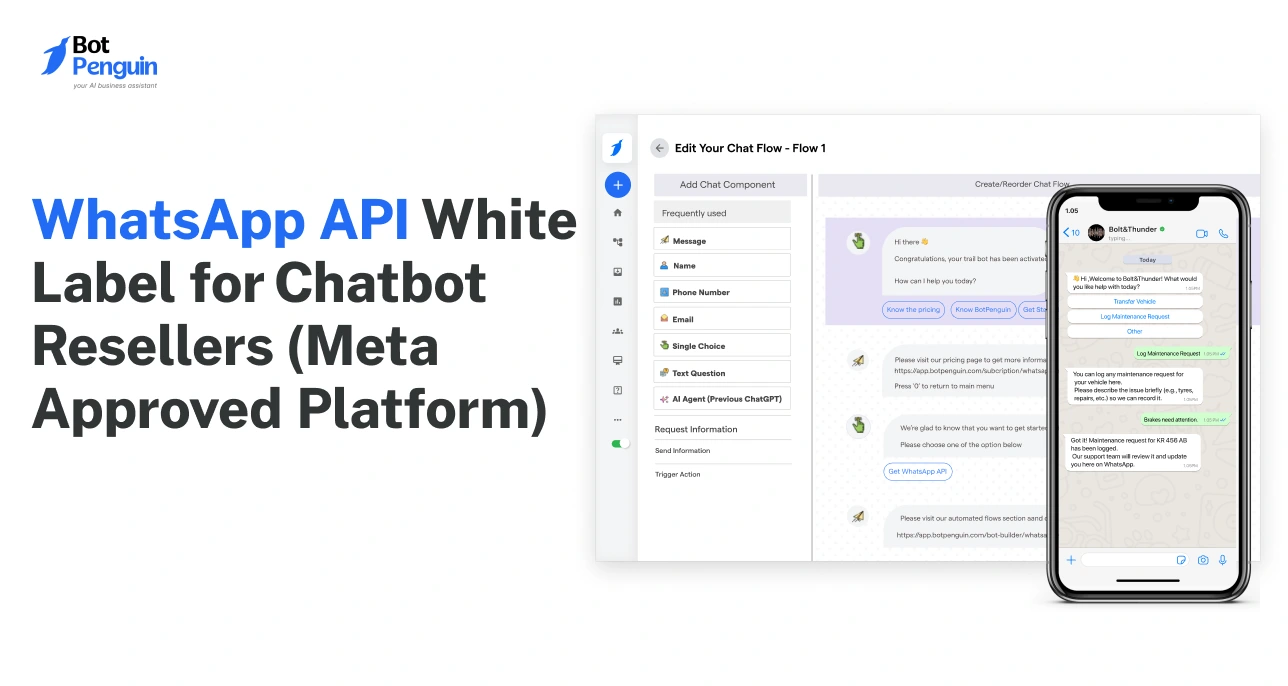
Businesses increasingly rely on WhatsApp automation to handle customer communication, marketing campaigns, and support conversations. However, building directly on the WhatsApp Business requires approvals, compliance management, infrastructure setup, and ongoing maintenance.
For agencies, SaaS companies, and chatbot resellers, this process can quickly become complex and difficult to scale.
A WhatsApp white-label solution solves this challenge. It allows businesses to offer WhatsApp chatbots, messaging automation, and customer communication tools under their own brand while the underlying WhatsApp Business infrastructure is managed by a verified provider. This approach makes it easier to launch, manage multiple clients, and scale messaging services without technical overhead.
Businesses increasingly rely on WhatsApp messaging and the WhatsApp Business to manage customer communication, marketing campaigns, and automated notifications. Compared to traditional channels like email or SMS, WhatsApp offers significantly higher engagement and faster response times, making it a powerful channel for business messaging.
| Metric | Data |
|---|---|
| Global WhatsApp Users | 2+ billion users worldwide |
| Average Message Open Rate | Up to 90 percent |
| Engagement vs Email | 3 to 5 times higher engagement |
| Messages Sent Daily | 100+ billion messages |
These statistics show why companies are adopting WhatsApp automation, chatbots, and WhatsApp Business solutions to manage marketing campaigns, customer support, and real time notifications at scale.
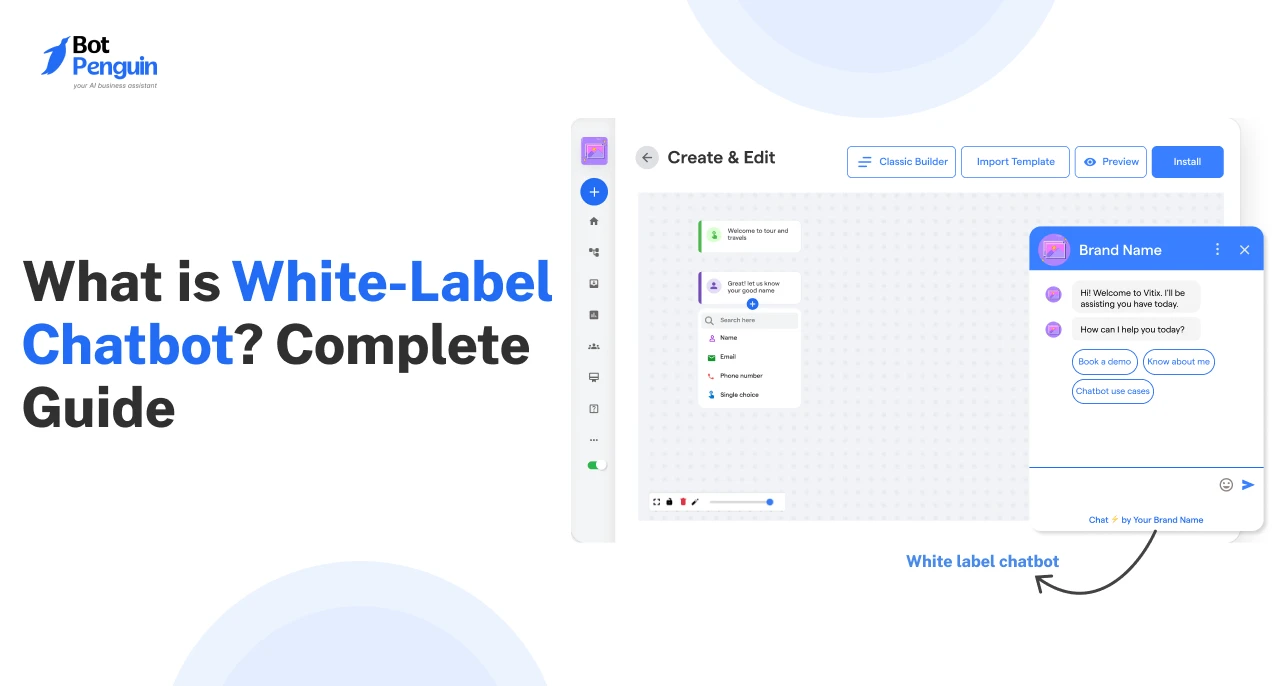
A White-label WhatsApp solution allows agencies, SaaS companies, and chatbot resellers to offer WhatsApp automation under their own brand, while the underlying WhatsApp Business infrastructure is handled by a verified provider.
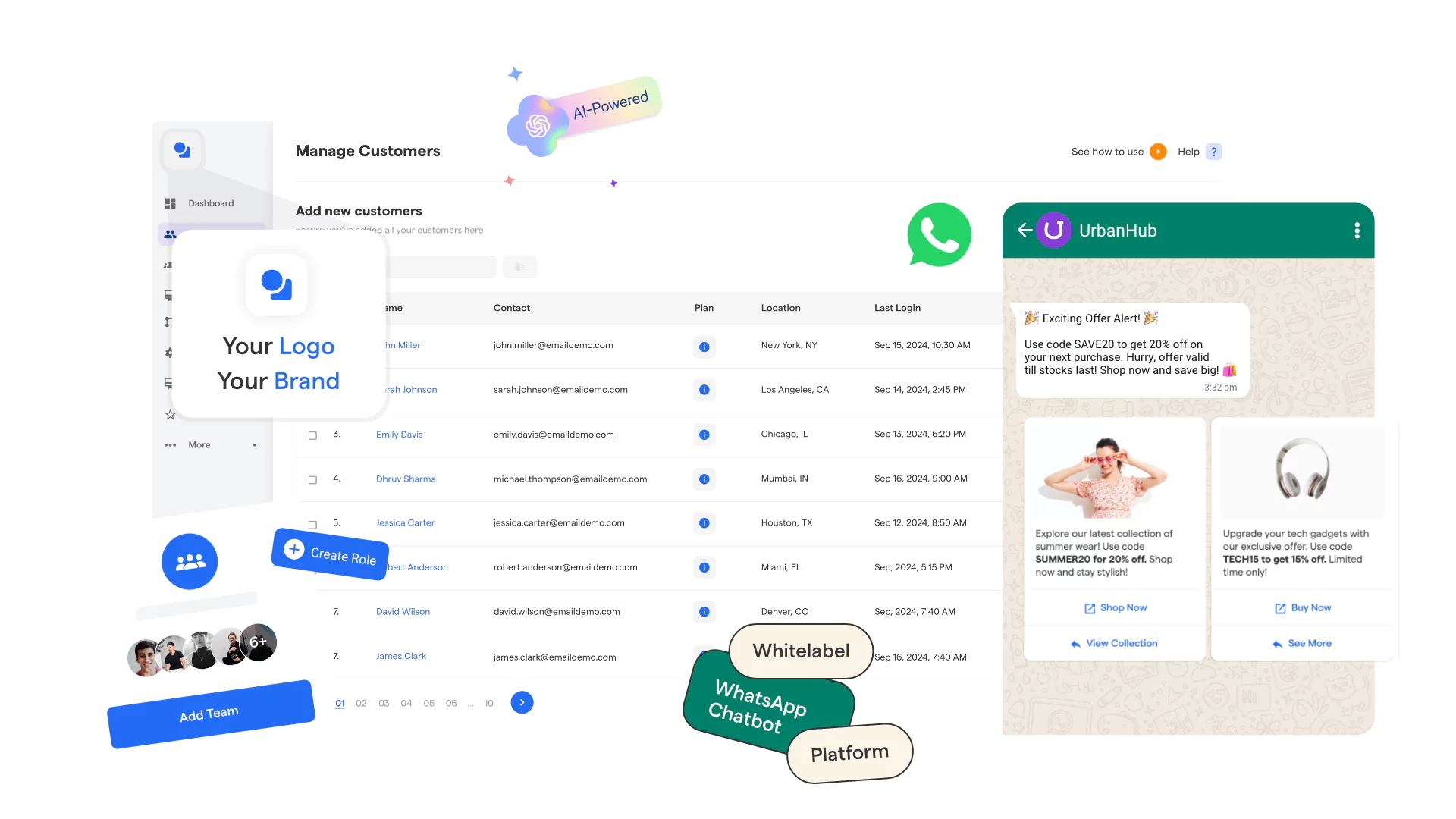
Instead of managing Meta approvals, hosting, and compliance yourself, you resell a Meta-approved WhatsApp platform that supports custom branding, automation, and multi-client management. Your end customers see only your brand, not the technology provider behind it.
This approach is ideal for businesses that want to sell white-label WhatsApp chatbot, CRM integrations, and messaging automation—without the complexity of building or maintaining the stack.
After understanding what a WhatsApp white label platform is, it becomes easier to see how these platforms help agencies, SaaS companies, and resellers deliver WhatsApp messaging services under their own brand.
The table below provides a quick overview of the core components that make up a typical white-label WhatsApp platform.
These capabilities help agencies, SaaS platforms, and technology partners launch and scale WhatsApp messaging services without building their own messaging infrastructure.
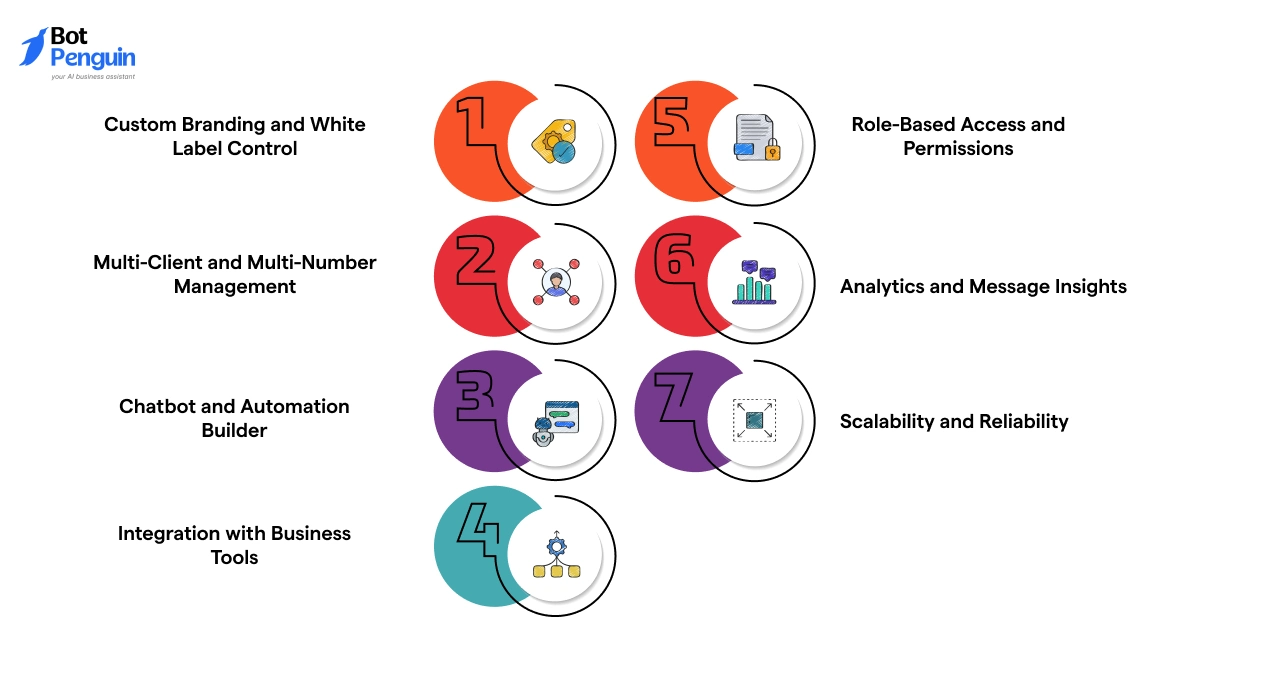
A whitelabel WhatsApp solution is designed to help agencies and resellers deliver WhatsApp automation reliably at scale.
The features below focus on operational control, flexibility, and long-term usability rather than surface-level functionality.
The platform supports full brand customization, including dashboards, login screens, domains, and client-facing interfaces.
This allows resellers to present the solution as their own product and maintain a consistent brand identity across all customer touchpoints.
A whitelabel setup is built to manage multiple businesses from a single environment.
Agencies can onboard new clients, assign WhatsApp numbers, and manage chatbot deployments without switching tools or accounts, reducing operational friction.
The solution includes tools to design WhatsApp chatbots and automation workflows for common use cases such as lead capture, support, order updates, and notifications.
These builders allow resellers to configure logic and responses without writing code.
Whitelabel WhatsApp platforms typically support integrations with CRMs, helpdesk software, payment systems, and scheduling tools.
This enables WhatsApp to function as part of a broader business workflow rather than a standalone messaging channel.
Access control features allow teams to define roles for admins, agents, and clients.
This helps maintain security while ensuring each user only sees and manages what is relevant to their responsibilities.
Built-in reporting provides visibility into message delivery, response rates, chatbot performance, and user engagement.
These insights help resellers optimize workflows and demonstrate value to clients through measurable results.
The infrastructure is designed to handle increasing message volumes and additional clients without performance degradation.
This ensures consistent delivery and system stability as reseller operations grow.
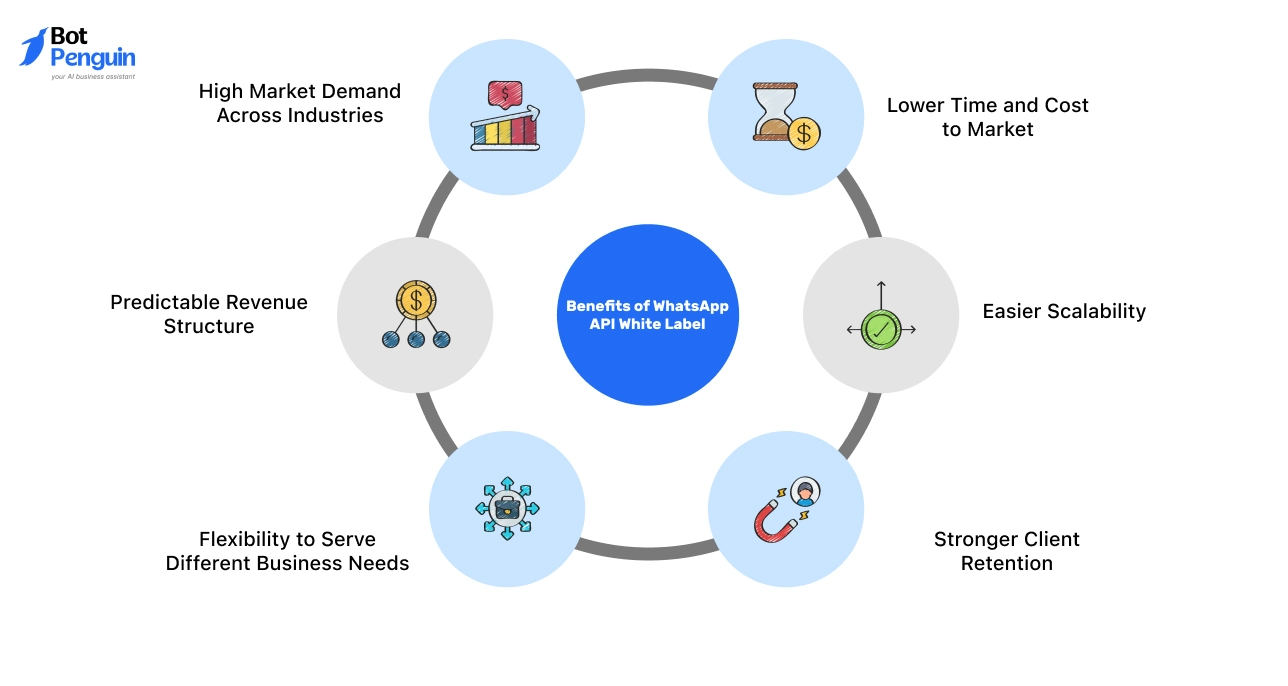
The real value of a WhatsApp white-label solution is not in what the platform can do, but in what it enables your business to achieve.
These benefits focus on growth, positioning, and long-term scalability for agencies and chatbot resellers.
WhatsApp is being adopted across industries such as e-commerce, healthcare, finance, education, and real estate.
Many businesses want to use WhatsApp professionally but prefer a ready solution rather than handling approvals or technical setup. Understanding the difference between API and white label makes it easier for these businesses to pick the right path to get there.
Developing a WhatsApp messaging platform internally involves hiring developers, managing hosting, and ensuring system stability.
With a white-label solution, these complexities are already handled, allowing providers to launch offerings faster and start onboarding clients without long development cycles.
White-label WhatsApp solutions are commonly offered on subscription-based plans. This creates recurring revenue rather than one-time implementation income.
As more clients are added, revenue grows steadily without equivalent increases in operational cost.
Since the technical backend is managed by the platform provider, scaling does not require additional infrastructure planning.
Agencies can support more businesses, higher message volumes, and new use cases without expanding their internal technical teams.
Different industries use WhatsApp for different purposes, from customer support to transactional updates.
A white-label model allows providers to package WhatsApp automation according to industry-specific requirements, making the offering more relevant and adaptable.
When WhatsApp automation is delivered as part of a branded solution, it becomes integrated into daily business workflows.
This makes the service harder to replace and supports longer-term client relationships.
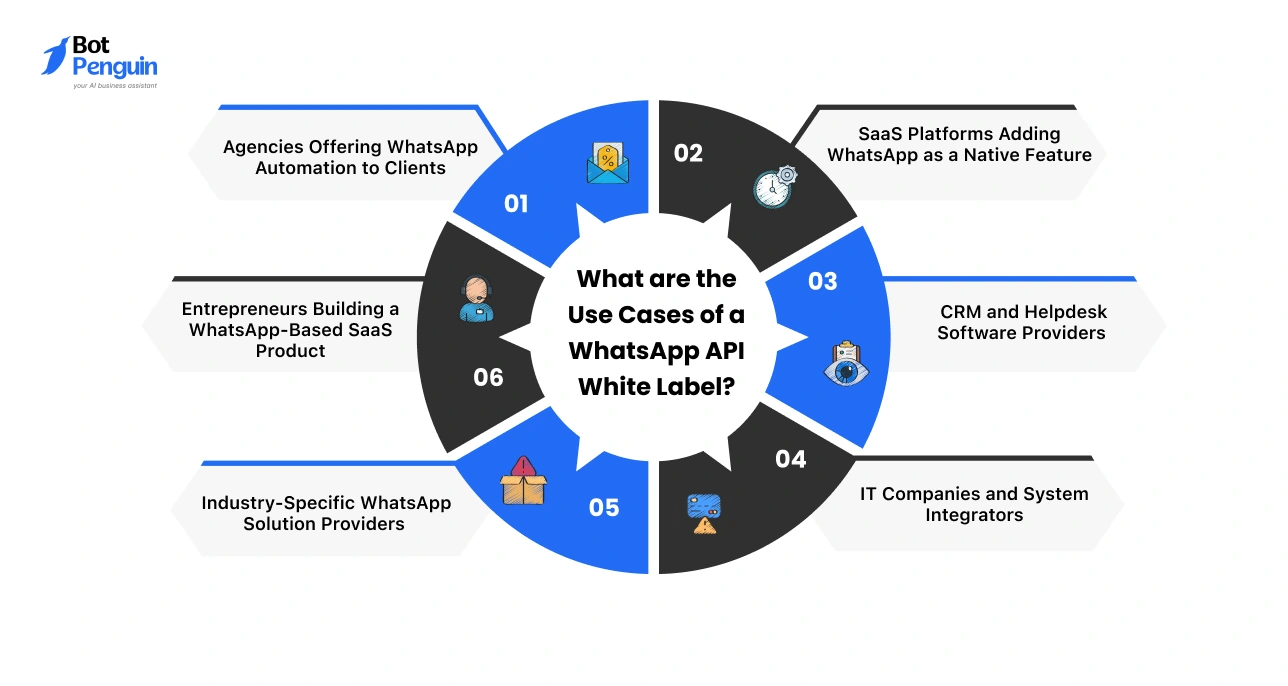
A WhatsApp white-label solution is used when agencies, SaaS companies, or service providers want to offer WhatsApp-based communication tools under their own brand without building or maintaining the infrastructure themselves.
With a white-label platform, businesses can manage broadcast campaigns, customer notifications, support conversations, and automated messaging workflows at scale while the underlying WhatsApp Business infrastructure is handled by the provider.
Marketing and automation agencies use a White Label WhatsApp to deliver messaging services such as automated replies, campaign messaging, and lead follow-ups under their own brand.
This allows agencies to manage multiple client accounts, charge recurring fees, and scale services without technical overhead.
SaaS companies use white-labeled WhatsApp APIs to add WhatsApp notifications, alerts, and customer communication directly inside their products.
This helps SaaS businesses expand functionality while keeping branding, pricing, and customer ownership intact.
CRM and support platforms use a White Label WhatsApp to enable two-way messaging, ticket updates, and automated responses linked to customer records.
This keeps all WhatsApp conversations centralized and improves response efficiency for support teams.
IT service providers resell WhatsApp white-label solutions as part of larger digital transformation or automation projects.
They bundle WhatsApp messaging with CRM setups, ERP systems, and internal workflows to deliver complete communication solutions.
Some resellers focus on a single industry such as education, healthcare, real estate, or e-commerce.
Using a White Label WhatsApp, they customize automation, templates, and integrations to match industry workflows and position themselves as specialists.
Founders use white-labeled WhatsApp to launch messaging-first SaaS products quickly.
This reduces time to market, avoids compliance complexity, and allows entrepreneurs to validate business ideas on a scalable infrastructure.
You could build your own WhatsApp marketing platform using the WhatsApp Cloud. But in reality, this approach is time-consuming, costly, and operationally complex. You’d have to handle API approvals, compliance, hosting, and ongoing maintenance.
Even if you get access, not every API provider offers whitelabeling. Some restrict branding, others lack essential features. And with Meta’s latest updates rolling out by 2025, BSPs (Business Solution Providers) no longer host the API—it all comes under one official Meta API.
So, how do you start a white-label WhatsApp business and choose a solution that lets you sell under your brand without the technical burden?
Businesses looking to launch a white label WhatsApp platform typically partner with a verified provider that manages infrastructure, compliance, and WhatsApp Business access.
BotPenguin is a no-code AI chatbot builder and an official Meta Business Partner that lets you whitelabel its WhatsApp marketing solutions. Instead of starting from scratch, you can rebrand a fully developed WhatsApp platform as your own.
Under this model, the WhatsApp Business Account (WABA) sits directly under the end client's name in Meta's system — not under the reseller's. Meta bills the client directly for conversations at its published rates, and the Tech Provider charges separately for the software platform. No party in the chain marks up messaging costs.
And it’s not just theory—250+ partners are already profiting from BotPenguin’s White Label WhatsApp Partner Program. You can do the same.
Here’s how BotPenguin helps you sell WhatsApp marketing solutions with zero development hassle:
Launch your agency with a white label WhatsApp chatbot platform that includes branded dashboards, multi-client management, and official Meta infrastructure.
Not every business wants to launch a separate WhatsApp automation platform.
Many already have an existing SaaS product, CRM, or internal system and simply want to add WhatsApp automation as a capability, not as a standalone tool.
BotPenguin’s White Label WhatsApp supports multiple integration models, allowing you to choose how deeply WhatsApp is embedded into your existing platform.
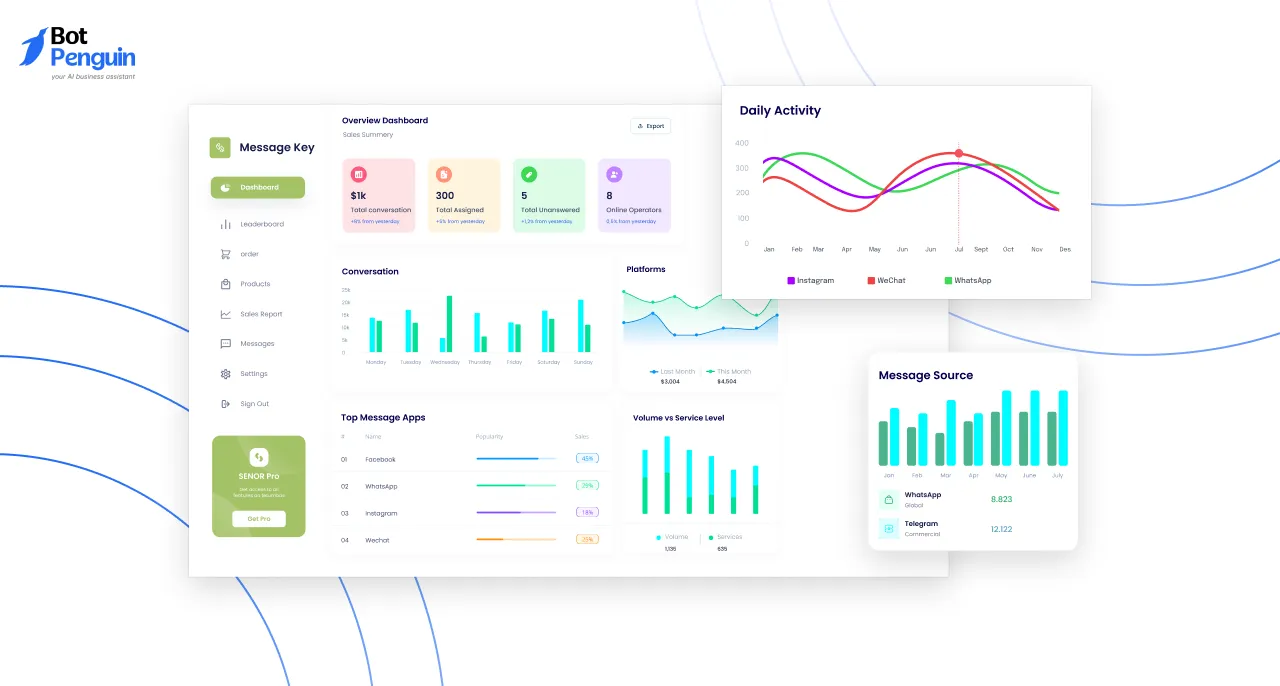
This model is ideal if you already run a SaaS product, CRM, or customer engagement platform.
Instead of redirecting users to an external WhatsApp tool, you embed the entire WhatsApp chatbot and automation dashboard directly inside your own application.
Your users log in to your platform, access WhatsApp automation from your interface, and manage conversations without ever leaving your ecosystem.
This approach works well for:
You retain branding control, increase platform stickiness, and unlock new recurring revenue without building WhatsApp infrastructure yourself.
Some platforms don’t need a full WhatsApp dashboard. They only need specific WhatsApp capabilities embedded into existing workflows.
With BotPenguin’s White Label WhatsApp , you can integrate individual features such as:
For example, an email marketing SaaS can add WhatsApp broadcasts alongside email campaigns. Users manage email and WhatsApp outreach from one place, without switching tools.
This model is best when WhatsApp is a supporting channel, not the core product.
.webp)
Some businesses need WhatsApp automation that fits very specific workflows.
BotPenguin allows fully custom WhatsApp white-label implementations, tailored to how your platform operates.
Examples include:
In these cases, WhatsApp is tightly integrated into the business logic rather than exposed as a generic tool.
You define:
All under your own brand, domain, and commercial model.
This flexibility is what makes BotPenguin’s White Label WhatsApp suitable for SaaS companies, agencies, CRM providers, and solution builders alike.
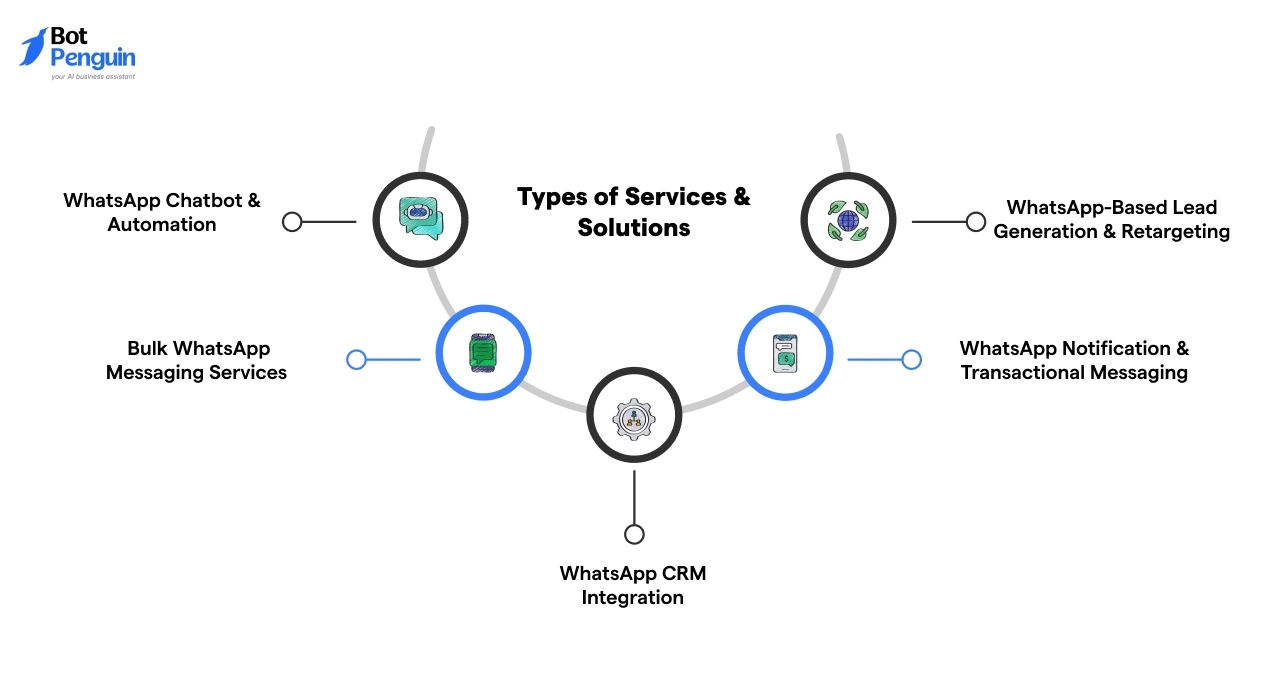
Once you are ready to partner with a WhatsApp white-label provider, the use cases and services you can offer are endless.
Businesses across industries are actively looking for WhatsApp-based solutions, whether it’s automated customer support, bulk messaging, or CRM integrations.
Your white-label WhatsApp platform allows you to sell multiple services under your brand. Instead of just offering a chatbot, you can bundle different solutions and create high-value packages for clients.
Here are the key services you can start selling right away.
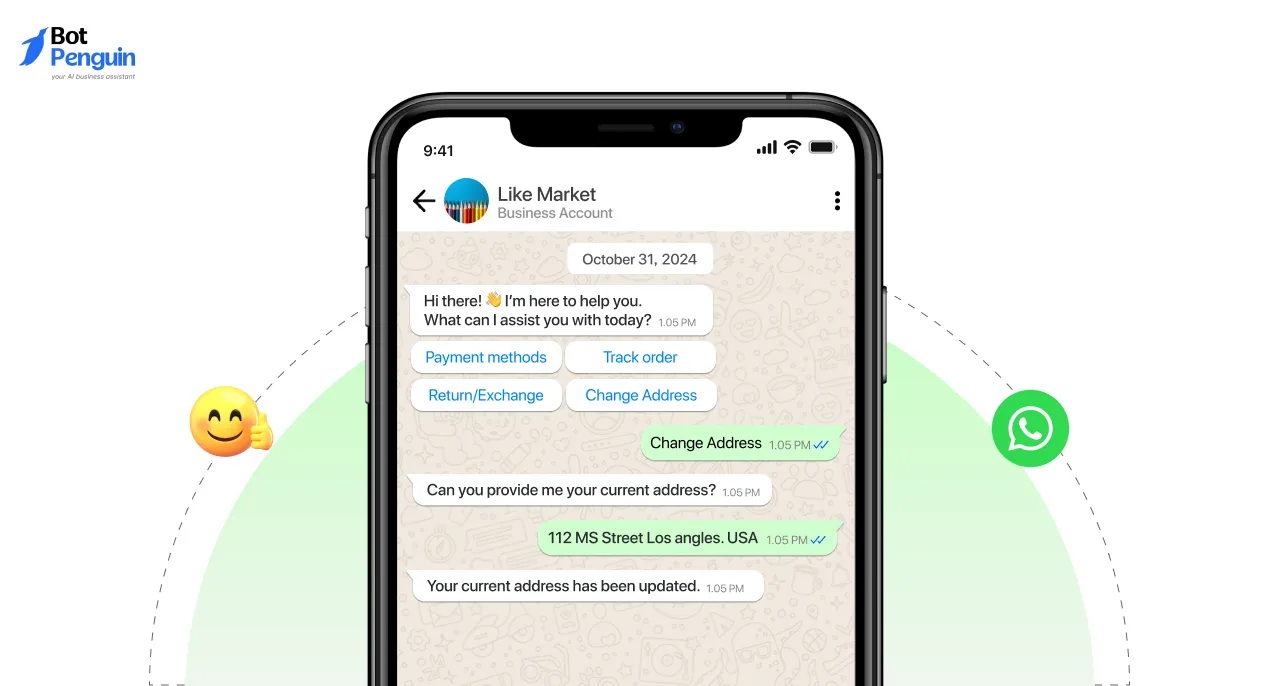
A WhatsApp chatbot can answer FAQs, collect leads, book appointments, and resolve queries automatically—saving businesses time and effort.
A hotel gets hundreds of WhatsApp inquiries daily. Instead of hiring more staff, they use your WhatsApp chatbot to:
✅ Show room availability & pricing
✅ Process reservations & send confirmations
✅ Handle cancellations & refund requests
You can sell WhatsApp chatbots to restaurants, e-commerce stores, hospitals, and service-based businesses.
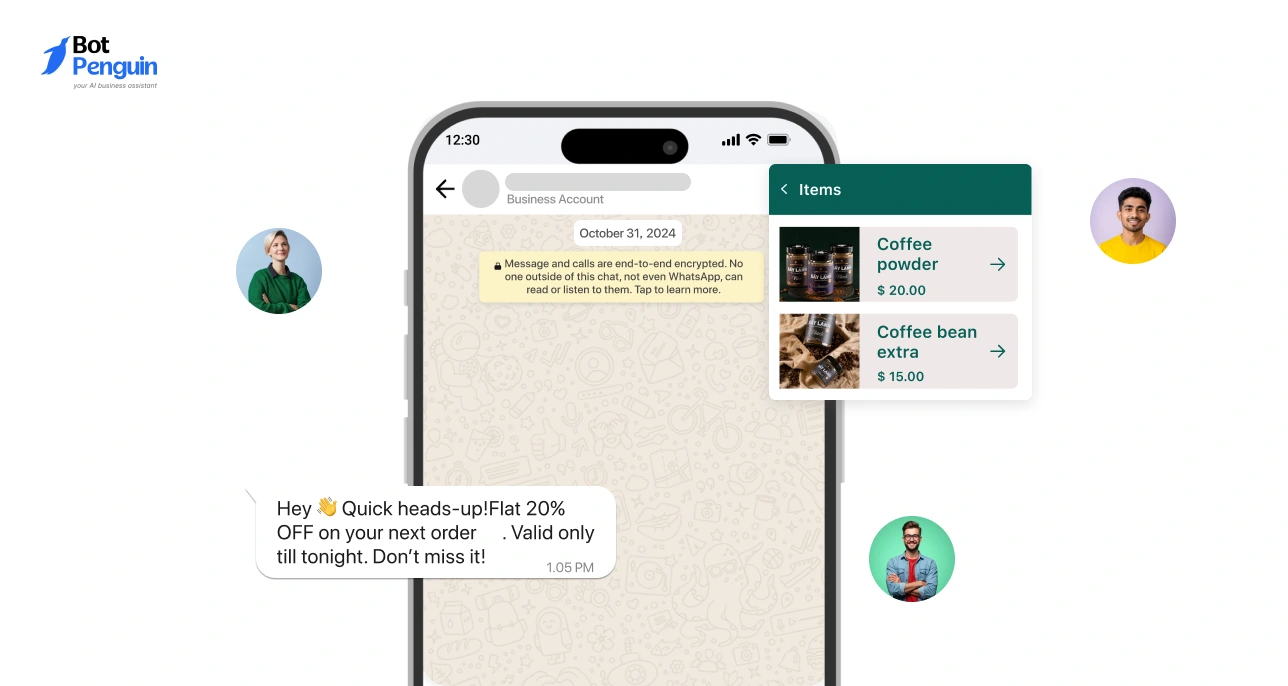
Businesses need bulk messaging to reach customers with promotions, reminders, and updates.
With a White Label WhatsApp, you can offer pre-approved, legal bulk messaging that ensures high deliverability and engagement.
A clothing store is launching a seasonal sale. Instead of relying on email marketing, they use your bulk WhatsApp messaging service to:
📢 Announce discounts to all past customers
📊 Track open rates & responses
🛍️ Send catalog links for instant purchases
This service is perfect for e-commerce brands, event organizers, and local businesses.
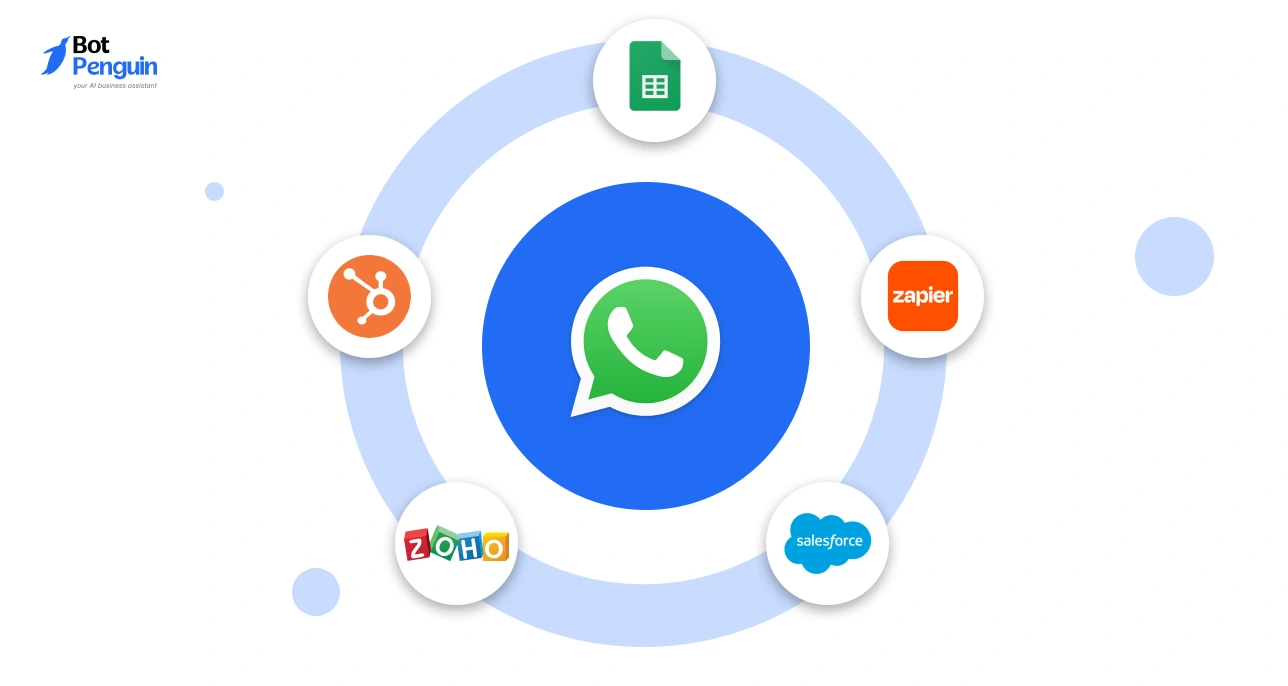
Most businesses don’t just want to chat—they need a way to track leads, assign conversations, and sync customer data.
With BotPenguin’s WhatsApp White Label, you can provide CRM integrations with:
📌 HubSpot, Salesforce, and Zoho for lead tracking
📌 Google Sheets for real-time updates
📌 Zapier & API integrations for workflow automation
A real estate agency generates hundreds of WhatsApp inquiries. With your WhatsApp CRM integration, they can:
🏠 Automatically assign leads to agents
📅 Schedule property visits based on chat history
📊 Analyze response rates & conversion trends
This service is essential for sales teams, real estate firms, and agencies.
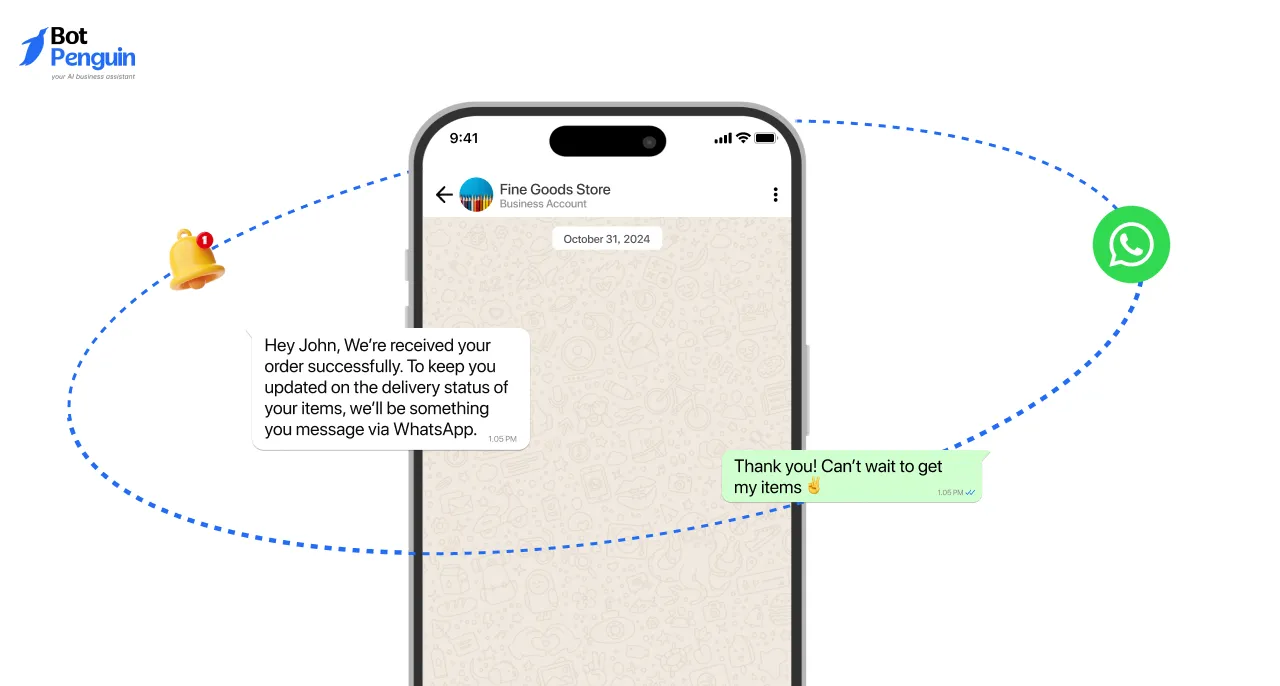
Businesses use WhatsApp for automated order confirmations, shipping updates, and payment reminders.
A food delivery service uses your WhatsApp notification system to:
🛒 Send instant order confirmations
📦 Update customers on delivery status
💳 Remind users of pending payments
Perfect for e-commerce, logistics, and finance companies.
Your clients need repeat sales. You can sell WhatsApp remarketing campaigns to bring back lost customers.
A fitness center wants to increase memberships. With your WhatsApp retargeting solution, they can:
💬 Send special renewal offers to inactive members
📢 Promote seasonal discounts via WhatsApp
📊 Track engagement & conversion rates
This is highly profitable for gyms, subscription services, and coaching businesses.

A white-label WhatsApp model gives agencies, SaaS companies, and resellers a way to offer branded WhatsApp automation without building or maintaining API infrastructure themselves. For a closer look at how billing and platform access work when you partner with a Tech Provider, see How Direct-to-Meta Billing Works.
Ready to see what a branded WhatsApp platform looks like in practice? Explore the white-label WhatsApp partner program →
Yes. WhatsApp white-label solutions allow SaaS and CRM platforms to embed WhatsApp messaging, automation, and notifications directly into their products under their own branding.
Pricing is split into two separate charges. The end client pays Meta directly for conversations at Meta's published rates. Separately, the client pays the white-label provider a platform fee for the software. Resellers set their own platform pricing, but do not mark up Meta's messaging costs.
Yes. Agencies use white-label WhatsApp platforms to resell chatbots, bulk messaging, CRM integrations, and automation services under their own brand without managing API infrastructure.
Yes. Each WhatsApp number connected through a white label WhatsApp must be approved by Meta, but the white label platform manages the approval and compliance workflow centrally.
Sell Your Branded WhatsApp API
See transparent partner pricing to launch your branded WhatsApp API. Compare costs, set margins confidently, and scale reselling profits with zero infrastructure headaches.
Launch White Label WhatsappCheckout our related blogs you will love.
Updated at Oct 21, 2026
11 min to read
Updated at Oct 19, 2026
10 min to read
Updated at Oct 14, 2026
6 min to read
Updated at Oct 12, 2026
13 min to read
Updated at Oct 12, 2026
15 min to read
Updated at Oct 10, 2026
9 min to read
Table of Contents

