


Best WooCommerce Chatbot Plugins to Enhance Your Store
Updated at Oct 29, 2026
12 min to read

WooCommerce chatbot implementation starts by connecting your store and confirming access. Choose one initial flow rather than launching several simultaneously. Cart recovery is usually the strongest starting point because it targets abandoned purchases. Test the complete flow with a real cart before enabling it for every shopper.
Implementing a chatbot in WooCommerce requires more than connecting a plugin.
Poor setup can create broken triggers, weak replies, and missed sales. A controlled rollout keeps each flow easier to test and improve.
This guide explains WooCommerce chatbot implementation from store connection through launch. You will configure cart recovery, automate FAQ responses, provide order updates, and test each flow before a wider rollout.
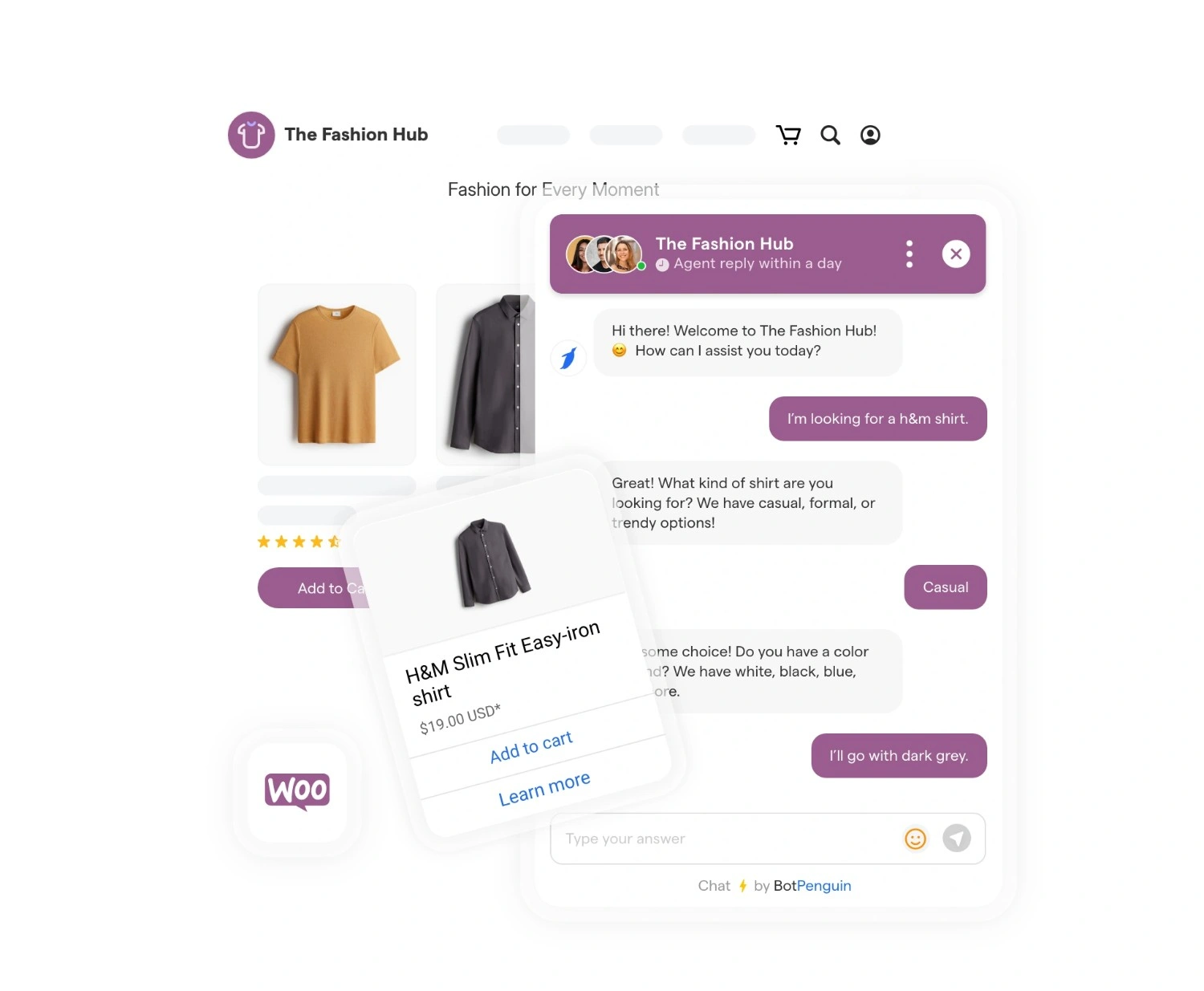
Readers needing basic context can review what a WooCommerce chatbot is before continuing.
Here, the focus stays practical. Start with one flow, confirm it works, then expand carefully. This approach prevents several untested automations from failing together.
Prepare the required access before building any automation. This avoids connection problems and delays during configuration.
Keep these essentials ready:
A BotPenguin paid plan or trial: The WooCommerce integration is included in the Little, King, WhatsApp-only Little, and WhatsApp-only King plans, not the free plan. You can start with the 7-day free trial.
A WhatsApp chatbot in BotPenguin: The WooCommerce integration runs on BotPenguin's WhatsApp chatbot, connected to your WhatsApp Business number.
WordPress administrator access: You need it to upload and activate the BotPenguin WooCommerce plugin.
One starting use case: Choose cart recovery, FAQ automation, or order updates. Select the flow that addresses your most frequent or costly customer problem.
A simple test plan: Decide what scenario you will test after configuration. Assign someone to review the result before launch.
Do not launch several flows together. Multiple untested automations can create overlapping triggers, inconsistent messages, and harder troubleshooting.
Keep the initial woocommerce chatbot setup focused on one flow. Document who owns the setup and how the BotPenguin API key is securely managed. Set a planned launch date only after configuration is complete.
Expand only after the first automation works consistently. This phased approach keeps changes measurable and makes future troubleshooting easier. It also protects customers from unfinished or conflicting conversations.
With access confirmed and one use case selected, you can begin configuring the first chatbot flow.
A reliable WooCommerce chatbot implementation follows a controlled order. Connect the store, build a single flow, and test it before a wider rollout.
Each step covers one required stage, from store connection through launch testing.
Connect your store through the BotPenguin WooCommerce plugin. You need WordPress administrator access.
1. In BotPenguin, open your WhatsApp chatbot, go to Integrations, select WooCommerce, and download the BotPenguin WooCommerce plugin.
2. In your WordPress dashboard, upload the plugin and activate it.
3. Connect the plugin to BotPenguin using your BotPenguin API key.
4. Return to BotPenguin to choose your message templates and set up your chatbot flows.
5. Place a test order and confirm the WhatsApp message arrives.
One WooCommerce store can be connected per BotPenguin account.
With BotPenguin, cart-recovery reminders are sent on WhatsApp.
Choose the event that starts the recovery flow. A common trigger is leaving checkout with items still in the cart.
Configure the flow around these details:
Test whether the link restores the correct cart. The message should focus only on completing the unfinished purchase.
Start with the questions customers repeat most often. Delivery and return queries are practical places to begin.
Build each FAQ path carefully:
Review answers after policy or product changes. This keeps the woocommerce chatbot setup accurate without blocking complex requests.
Configure the chatbot to recognize common order-status questions. Collect only the information needed to locate the order.
The flow should:
Do not create delivery estimates without confirmed store data. Customers should receive verified information or a clear support route.
Use an actual abandoned cart or test order. Follow the same path a customer would take.
Check every important element:
Test both successful and failed paths. Missing data should produce a useful fallback.
Correct every issue and repeat the test. Enable the flow broadly only after it works end-to-end.
A stable first flow creates a stronger base for lead capture, loyalty messaging, and customer feedback.
Once the first flow works reliably, use the chatbot for controlled growth. Each new workflow should support one clear business goal.
Ask only for details your team can use. Start with a name and preferred contact method. Add purchase-related questions only when they help qualification.
Avoid turning the chatbot into a long form. Extra questions can reduce completion and weaken lead quality. Record consent before sending promotional follow-ups.
Repeat customers need useful communication, not constant promotions. Base each message on a recent purchase, saved product, or account action.
Suitable messages include:
Set frequency limits for every message type. Separate service updates from promotional messages. Provide a clear opt-out route where required.
Review customer responses regularly. Pause sequences that create complaints, confusion, or repeated opt-outs.
Request feedback after a completed purchase, delivered order, or resolved support conversation. The timing should follow a meaningful interaction.
Start with one short question. Add a rating scale and an optional comment field only when needed.
Send negative ratings or complaints to human review. Include the related order, issue, and conversation history. This gives your team enough context to respond properly.
These workflows turn a stable chatbot into a measured growth tool. Practical rollout questions should be resolved before adding further automation.
You need a BotPenguin paid plan or the 7-day free trial, a BotPenguin WhatsApp chatbot, and WordPress administrator access to install the BotPenguin WooCommerce plugin. Choose one initial use case, such as cart recovery or FAQ automation. Starting with one goal keeps the WooCommerce chatbot setup focused, easier to test, and simpler to correct before broader rollout.
Cart recovery is usually the most practical first flow because it addresses unfinished purchases. It can remind shoppers about saved items and provide a direct checkout link. The flow also produces a clear result to review before adding support, order status, or recommendation automations.
Implementation time depends on plugin installation, flow complexity, and testing. A basic store connection may be quick, but building and validating the first customer flow usually takes longer. Plan enough time to check triggers, data sync, links, fallback replies, and human handoff before launch.
Yes. Test one real scenario before enabling the chatbot for every shopper. Use an abandoned cart or test order. Check trigger timing, replies, links, data accuracy, mobile display, and human handoff. Testing exposes errors while the audience remains limited and corrections stay manageable.
Yes. Add more flows after the first automation works consistently. Order status updates and FAQ automation are practical next steps. On the King plan, you can also add AI trained on your product list to answer product questions. Introduce them individually, test each path, and review customer conversations before expanding further. This gradual rollout reinforces the value of starting small.
Successful WooCommerce chatbot implementation begins with one focused flow, not several unfinished automations.
Start with cart recovery because it addresses abandoned purchases and provides a clear result to measure. Test the complete flow before wider rollout. Confirm the trigger fires correctly, and the checkout link works. Check fallback replies and human handoff separately.
Once the flow works consistently, add FAQ automation for recurring questions. Introduce order-status updates gradually and verify connected store data each time.
BotPenguin connects WooCommerce to your WhatsApp chatbot through a plugin, with no code. Building and testing a complete flow still takes some work.
When ready, get started with BotPenguin and expand only after each automation performs reliably across real customer scenarios.
Launch Your WooCommerce Chatbot
Connect your store, launch cart recovery, test each flow, and expand WooCommerce automation gradually with BotPenguin.
Get Started NowCheckout our related blogs you will love.
Updated at Oct 29, 2026
12 min to read
Updated at Oct 28, 2026
11 min to read
Updated at Oct 24, 2026
12 min to read
Updated at Oct 21, 2026
12 min to read
Updated at Oct 21, 2026
8 min to read
Updated at Oct 12, 2026
12 min to read
Table of Contents