.webp)


Your iPhone cannot auto-reply to texts the way you think it can.
Most people assume there’s a simple out-of-office switch for SMS. There isn’t. Apple allows auto replies only in very specific situations, and that’s where the confusion starts.
If you have ever tried setting this up and thought it was broken, you are not alone. The feature exists, but it behaves very differently from email auto replies or messaging apps.
This guide explains how auto-reply for text messages actually works on an iPhone. You’ll see the one native method that works, how to set it up step by step, and why it often fails for common use cases.
What is Auto Reply Text on iPhone?
An auto reply text is an automatic message sent to someone when you receive a text but cannot respond right away. It lets the sender know their message was received and that you will reply later.
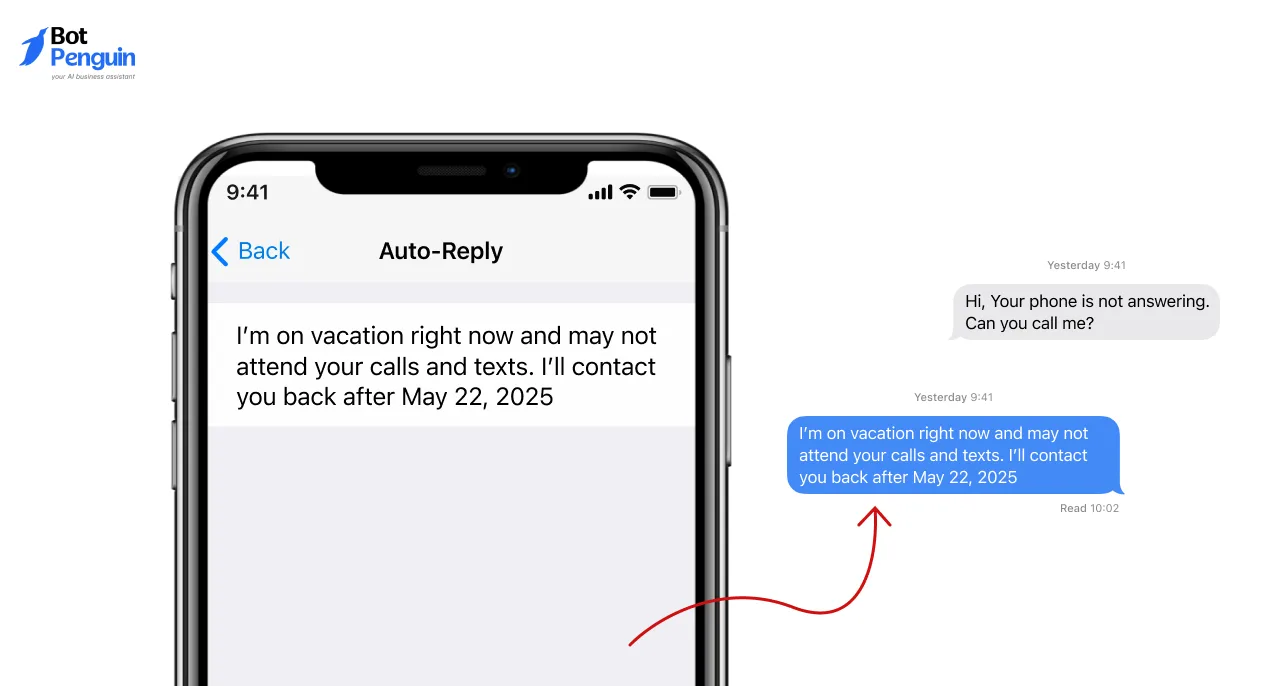
On iPhone, there is no dedicated auto-reply feature for text messages. Apple does not provide a built-in option to automatically respond to all incoming texts based on time, availability, or business hours.
Instead, iPhone supports limited workarounds. These include Driving Focus, which sends a single preset reply while enabled, and the Shortcuts app, which allows basic message automations. Both methods work for simple situations but are not designed for ongoing or business use.
This is why many users rely on third-party tools when they need consistent or scalable text automation.
Can You Auto-Reply to Text Messages on iPhone
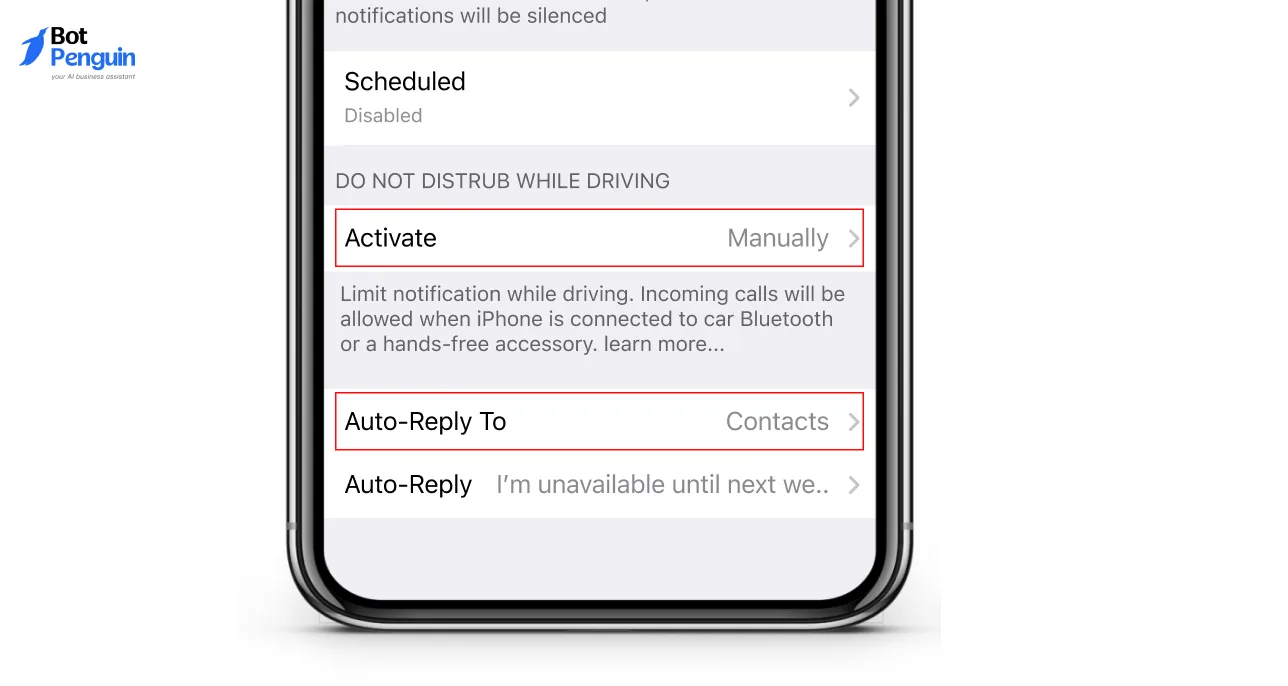
Yes, iPhone users can send auto replies to text messages, but the experience is not the same as email auto responders.
Apple does not provide a fully automated SMS reply feature that works by default for availability, business hours, or out-of-office messages. This is a deliberate design choice to limit background automation and reduce misuse.
Instead, iPhone supports auto replies only through controlled features.
What Does the iPhone Allow?
- Auto replies can be sent in limited scenarios
- Messages use a single predefined response
- Automation works only when a specific mode or rule is active
Supported Ways to Auto-Reply on iPhone
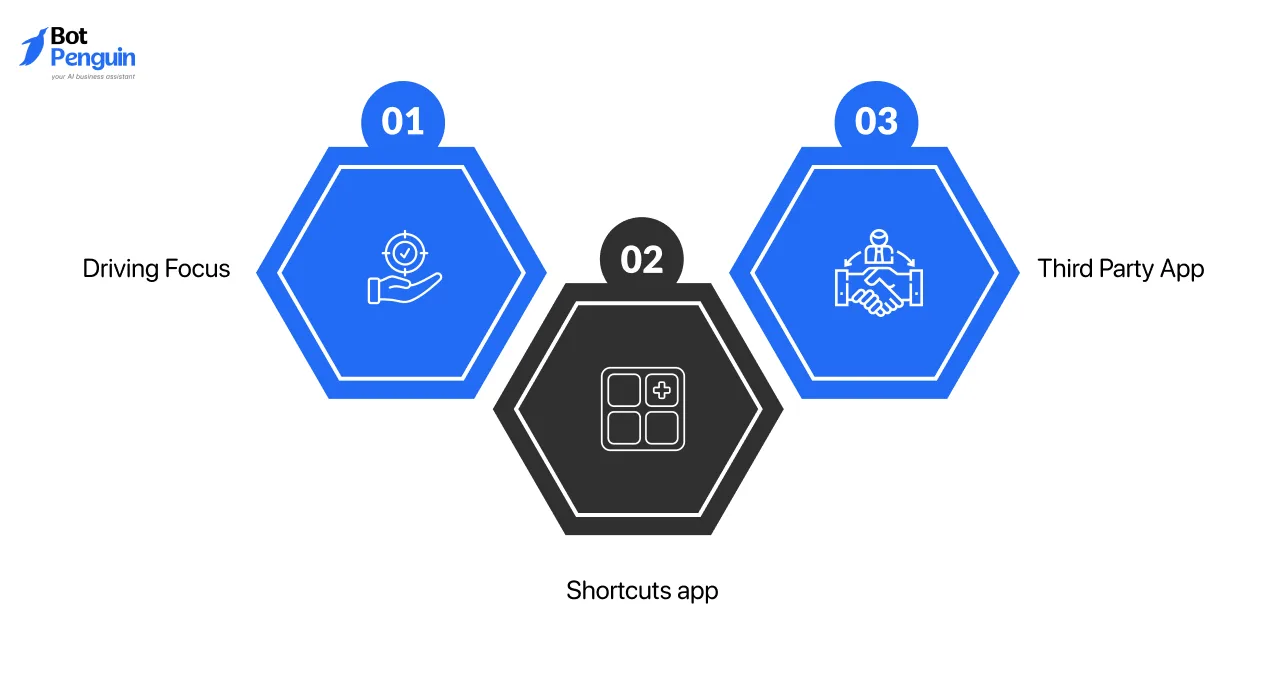
There are only two native options available.
- Driving Focus: Sends an automatic reply when the mode is enabled
- Shortcuts app: Allows basic message automation with manual setup
- Third Party App: A third-party text automation or business messaging app
These methods work for personal use or short periods of unavailability. However, they are not designed for ongoing business communication, scheduling, or team-based messaging.
How to Set Up Auto Reply Texts on iPhone
Let's look at the Practical methods iPhone users can use to send automatic text responses in different situations.
Method 1: Use Driving Focus for Auto Reply Text on iPhone
Driving Focus is the simplest built-in way to send an auto reply text on iPhone. It was designed for safety while driving, but many people also use it during meetings or when they need short periods of no interruptions.
Steps
- Open Settings
- Tap Focus
- Tap Driving: If you do not see it, tap the plus icon and add Driving
- Inside Driving, tap Auto Reply
- Tap Auto Reply To and choose who gets the reply: Options usually include No One, Recents, Favorites, or All Contacts.
- Tap Auto Reply Message and write your message. Example: Thanks for your message. I am unavailable right now and will reply soon.
- Turn Driving Focus on when needed: Swipe down to open Control Center. Tap Focus. Select Driving
Your iPhone will now send the same auto reply to the selected contacts while Driving Focus is active.
Pros
- Simple to enable with built-in iOS settings
- No app installation or extra permissions needed
- Works quickly for short unavailability, such as driving or meetings
Cons
- You must turn it on and off yourself in most cases
- Only one message can be used at a time
- Not suitable for business use, like business hours, lead handling, or team texting
Method 2: Use Shortcuts App for Auto Reply Texts
The Shortcuts app allows iPhone users to create simple message automations.
Unlike Driving Focus, this method gives limited control over when replies are sent, but it is still not designed for consistent or large-scale use.
Steps
- Open the Shortcuts app on your iPhone
- Tap Automation and select Create Personal Automation
- Choose Message as the trigger
- Select Any Message or filter by sender or keyword
- Tap Next and add the Send Message action
- Write your auto-reply text message
- Set the recipient as Shortcut Input
- Choose Run Immediately and save the automation
Once enabled, your iPhone will send the same reply whenever the trigger condition is met.
Pros
- More control than Driving Focus
- Allows basic triggers like keywords or specific senders
- Does not require third-party apps
Cons
- The setup process is complex for non-technical users
- Automations can break after iOS updates
- Not reliable for frequent or high-volume messages
- Requires manual edits for every change
- Not suitable for business or team usage
The Shortcuts method works for occasional personal use, but it quickly becomes difficult to manage when message volume or reliability matters.
Method 3: Use Third-Party Apps for Auto-Reply Texts
Third-party apps are built specifically to handle automated messaging beyond what iOS allows.
Instead of relying on system workarounds, these tools manage replies through dedicated messaging platforms or virtual numbers designed for automation.
Steps
- Choose a third-party text automation or business messaging app
- Connect your phone number or use a provided virtual number
- Define auto reply rules, such as business hours or missed messages
- Write different reply messages for each scenario
- Activate automation from the app dashboard
Once set, replies are sent automatically without manual intervention.
Pros
- Supports scheduling and business hours
- Allows different messages for different situations
- More reliable than iOS-based methods
- Designed for ongoing and repeated usage
Cons
- Requires installing and managing an external app
- May involve subscription or usage costs
- Initial setup is required
Third-party tools are the only practical option when auto reply texts need to work consistently, scale over time, and support real business communication.
Common Problems With Auto Reply Texts on iPhone
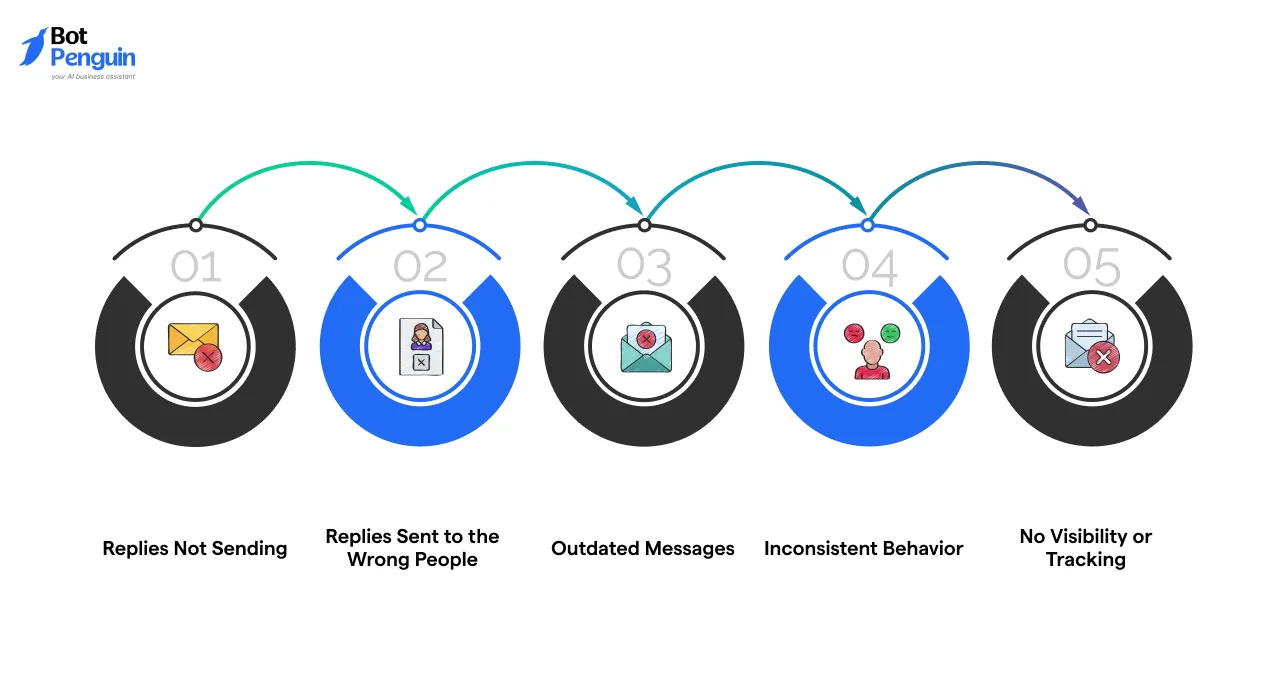
Auto reply texts on iPhone work, but they often break in real usage. Most issues come from system limitations rather than user error.
- Replies Not Sending: Auto replies only trigger when Driving Focus or a Shortcut is active. If Focus mode is off or automation is paused, messages will not send.
- Replies Sent to the Wrong People: Driving Focus uses contact groups like Favorites or Recents. If these are not updated, auto replies may reach unintended recipients.
- Outdated Messages: iPhone auto replies stay active until manually changed or disabled. This often leads to old messages being sent after work hours or travel ends.
- Inconsistent Behavior: Shortcuts may fail due to permission changes, iOS updates, or battery restrictions, making replies unreliable.
- No Visibility or Tracking: iOS does not show logs, delivery status, or performance data for auto replies.
These issues explain why iPhone auto replies work best for short-term use, not continuous or business-critical communication.
BotPenguin Text Automation for Businesses
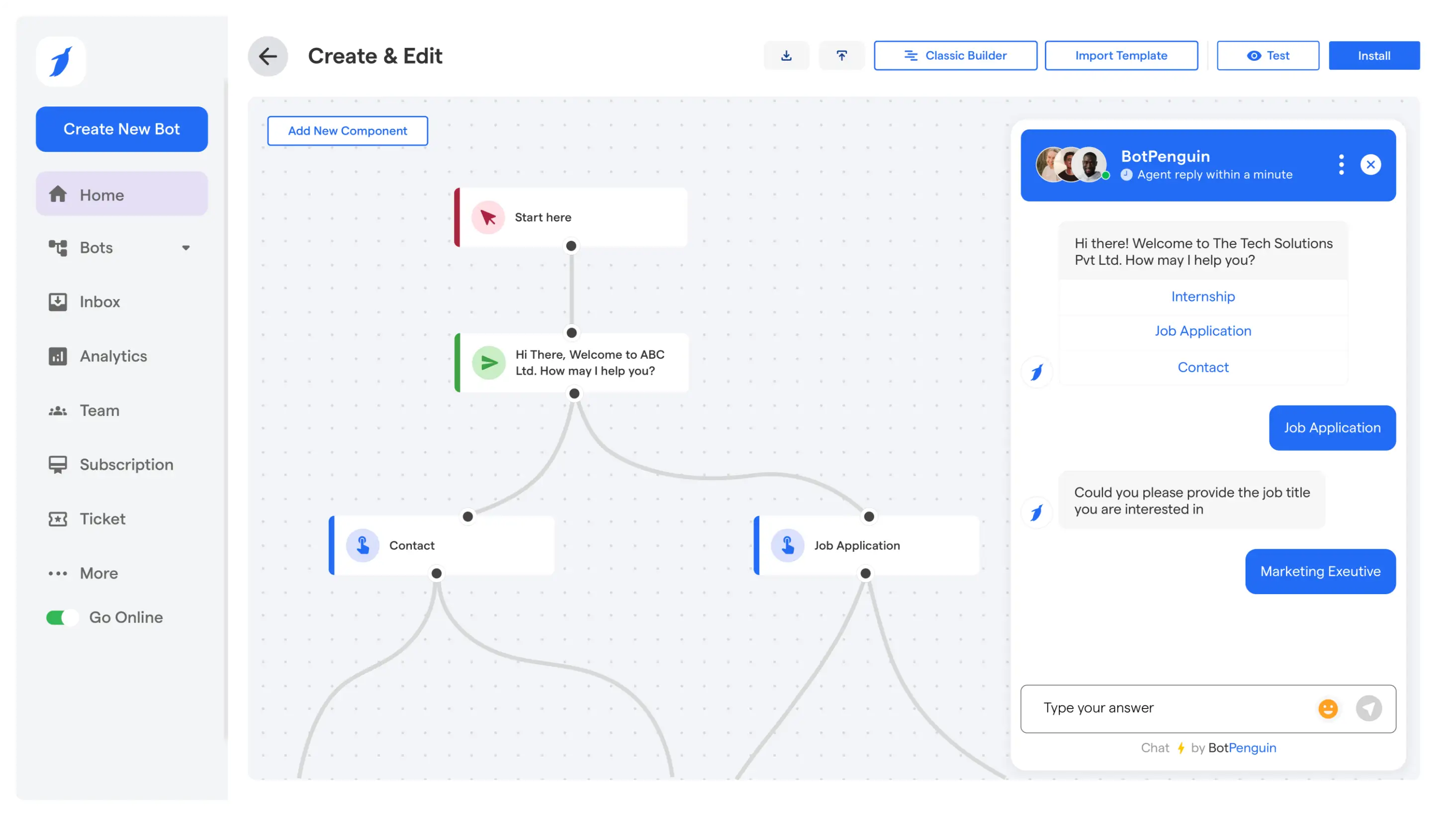
Basic auto replies acknowledge messages. Business automation completes actions.
BotPenguin AI Agent extends beyond simple text responses by managing full conversations, workflows, and system-level actions across channels.
With BotPenguin, businesses can:
- Send instant responses based on intent, not just availability
- Handle inbound messages across WhatsApp, web, Instagram, Facebook, and SMS
- Route conversations to the right team automatically
- Escalate to human agents with full context when needed
- Log conversations inside CRM and helpdesk systems
- Trigger actions like ticket creation, follow-ups, or appointment booking
- Apply business hour logic without manual switching
- Monitor conversations with analytics and performance reports
Unlike iPhone-based auto replies, BotPenguin operates continuously, adapts to conversation flow, and stays aligned with business rules. Auto replies acknowledge messages. BotPenguin AI Agents resolve them.
Conclusion
Auto reply features on iPhone are useful for simple, short-term situations like driving or temporary unavailability.
They help acknowledge messages but remain limited in control, consistency, and scale.
For businesses handling customer conversations, scheduling, and follow-ups, these native options fall short.
That is where dedicated text automation platforms become necessary to ensure reliable responses, structured workflows, and professional communication at every stage.
Frequently Asked Questions (FAQs)
How to Set Up Auto Text Reply on iPhone for Unknown Numbers?
iPhone does not support auto replies for unknown numbers by default. This requires third-party automation tools that handle SMS routing beyond native contact filters.
How to Auto-Reply to Text Messages iPhone Users Receive During Non-Driving Hours?
Native iOS features cannot trigger auto replies based on time alone. Time-based automation requires Shortcuts logic or external messaging platforms.
Does the Auto Reply for Texts on iPhone Work for Group Messages?
Auto replies on iPhone generally do not trigger for group SMS or iMessage threads, as Apple restricts automated responses in multi-sender conversations.
Is Auto Reply for Text on iPhone Available for Business Phone Numbers?
Personal iPhone auto replies do not support shared or business numbers. Business use cases require messaging systems designed for team access and compliance.
Can Auto Reply for iPhone Text Messages Be Customized per Sender?
iOS does not allow sender-level customization for auto replies. Granular control needs automation platforms that support conditional message logic.