How to Add a WhatsApp Link to Your Instagram Profile
Updated at Oct 8, 2026
14 min to read

Losing WhatsApp Business chats can disrupt customer communication, delay orders, and erase important transaction details.
A lost phone, accidental deletion, or app crash can wipe out months of conversations in an instant.
Since WhatsApp does not store messages on its servers, there is no way to recover lost chats without a backup. Setting up regular backups ensures that every conversation, media file, and customer detail is safe.
This guide explains how to back up and restore WhatsApp Business data on iOS and Android so you can keep your business running without interruptions.
Your WhatsApp Business account holds critical customer conversations, transaction details, and shared media.
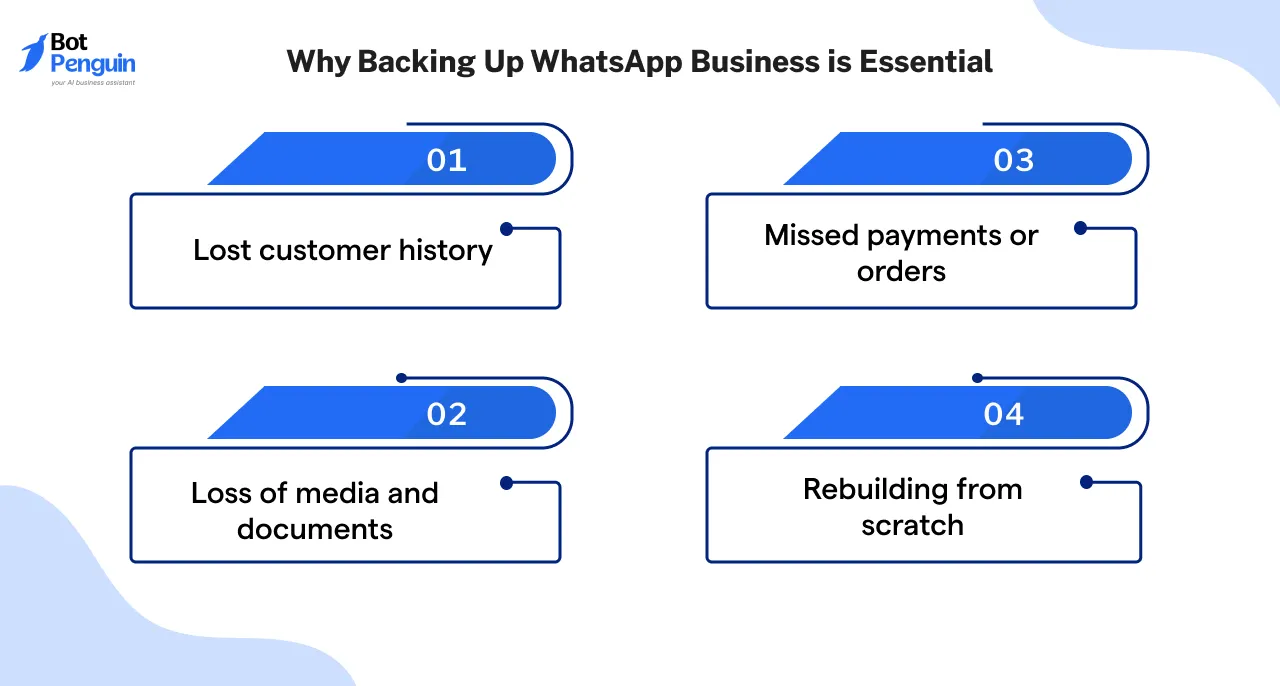
If your phone gets lost, stolen, or damaged, losing this data can disrupt your business. A proper backup ensures you can restore everything in minutes without losing valuable information.
WhatsApp Business is a tool for customer support, order management, and business transactions. Losing chats can have serious consequences
Even if your phone is functioning fine, reinstalling WhatsApp without a backup means all data is wiped. WhatsApp does not store messages on its servers, making backups the only way to recover lost chats.
Backing up your WhatsApp Business chats ensures you never lose customer conversations, transaction details, or shared media. Whether you're switching phones or reinstalling the app, a backup helps you restore everything seamlessly.
WhatsApp Business offers two official backup options, depending on whether you use an iPhone or Android device.
Android users can back up their WhatsApp Business chats to Google Drive, ensuring data remains accessible even if the app is deleted.
iPhone users can back up WhatsApp Business to iCloud, allowing them to restore chats if they switch devices or reinstall the app.
Both Android and iOS users can choose between manual and automatic backups.
Keeping backups updated ensures you don’t lose important messages in case of unexpected issues.
Here’s a step-by-step guide on how to back up WhatsApp Business on both Android and iPhone.
Google Drive backup allows Android users to store their WhatsApp Business data securely. It ensures that chats, images, videos, and settings can be restored if the app is deleted or the phone is changed.
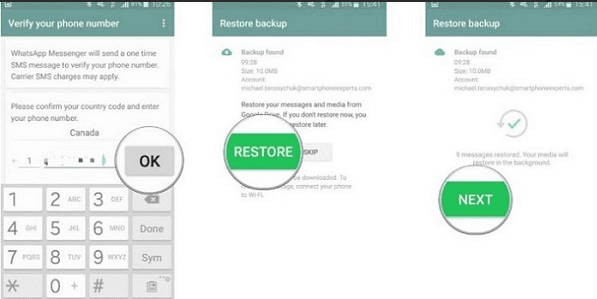
If you’re switching phones or reinstalling the app
Your chats and settings will be restored, but media files may take longer to appear.
iPhone users can back up their WhatsApp Business data to iCloud, making it easy to restore messages and media when switching devices or reinstalling the app.
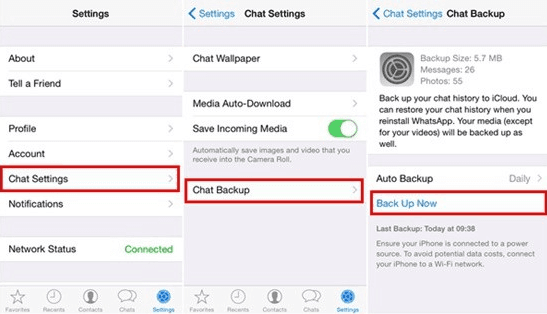
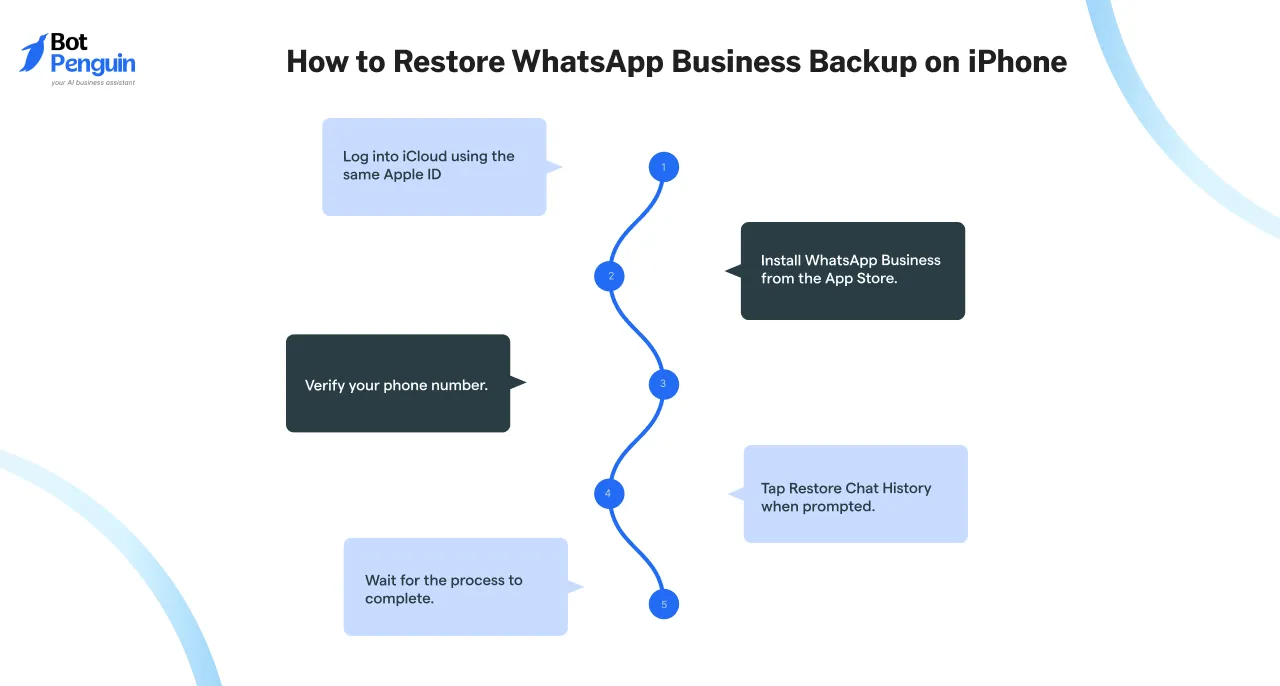
If you’re setting up WhatsApp Business on a new iPhone:
Your chats and settings will be restored, but media may take longer to load.
Backing up WhatsApp Business ensures your data is safe from unexpected loss. Whether using Google Drive for Android or iCloud for iPhone, enabling automatic backups guarantees that your business chats, media, and settings remain protected.
Make sure you have enough storage and always back up before switching devices or reinstalling the app.
Backing up WhatsApp Business to a computer gives you more control over your data than cloud storage. It allows you to store, organize, and retrieve customer conversations, media, and transaction records anytime.
Whether you’re switching devices or need long-term storage, here’s how to back up WhatsApp Business to a PC or Mac using different methods.
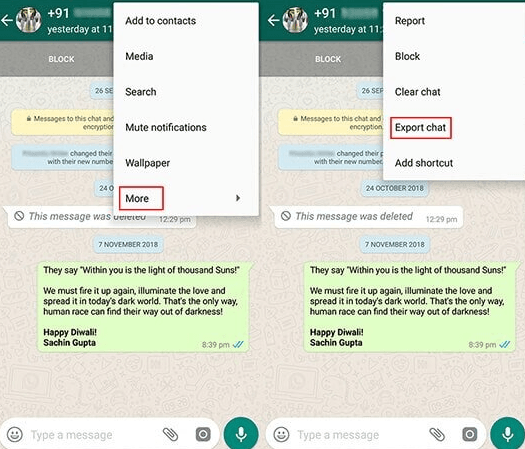
WhatsApp Web allows you to access WhatsApp Business on a computer but does not provide a built-in backup option. However, you can manually export and save chats for record-keeping.
This method is ideal for small businesses that need to archive important conversations without requiring full backups.
Several third-party tools allow you to create a complete backup of WhatsApp Business, including messages, media, and attachments.
These tools are useful if you want a full backup that can be restored later.
This method is perfect for businesses that need comprehensive data backup with easy restoration options.
Android users can manually transfer WhatsApp Business data from their phone to a computer without using any third-party apps. This method allows access to chat backups and media files.
This approach is useful for businesses that only need a media backup but still rely on cloud backups for chat history.
Backing up WhatsApp Business to a computer ensures you never lose important customer conversations or business transactions.
Whether you choose manual exports, third-party backup tools, or direct file transfers, each method has its own advantages. Choose the one that best fits your business needs and backup frequency.
Switching to a new device doesn’t have to mean losing your customer conversations, media, or business data.
If you’ve backed up your WhatsApp Business data, you can restore everything seamlessly. Here’s a complete guide to restoring WhatsApp Business backup on both Android and iPhone.
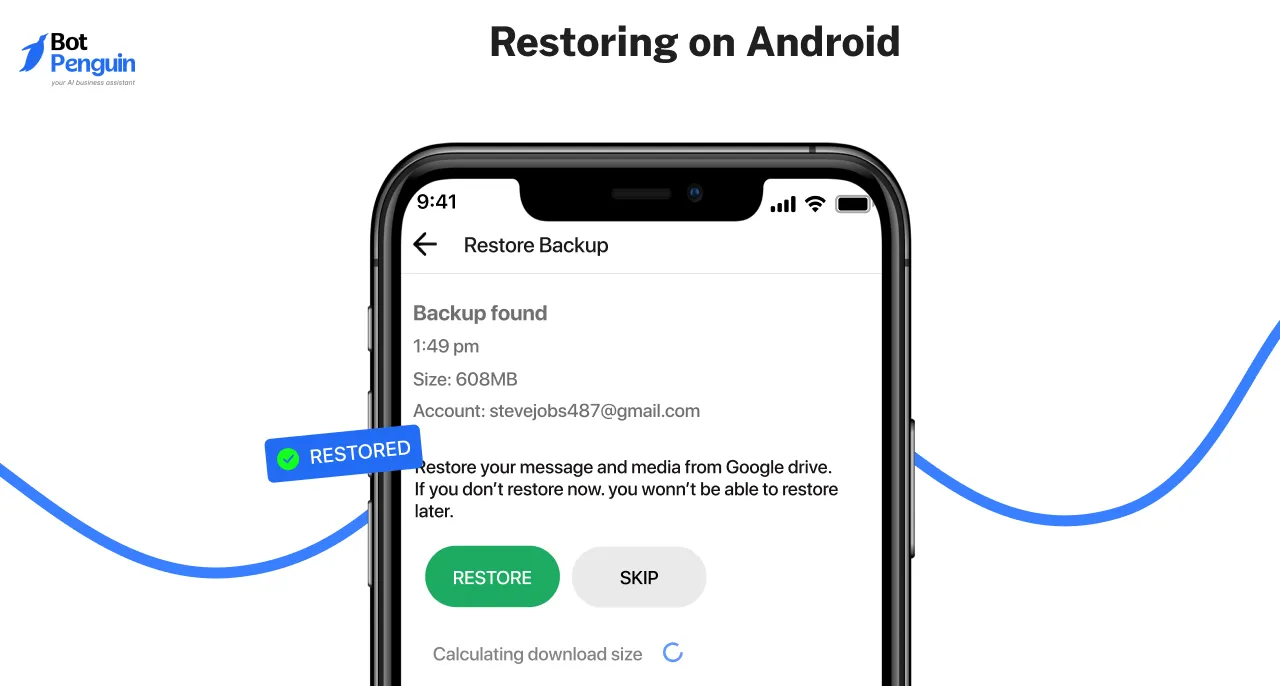
If you're moving to a new Android device, you can restore WhatsApp Business data using Google Drive or a local backup stored on your phone.
Google Drive is the easiest way to restore your WhatsApp Business chats and media on a new Android device. However, you must use the same Google account and phone number linked to the backup.
Prerequisites:
Steps to Restore WhatsApp Business Backup from Google Drive:
What If WhatsApp Business Doesn’t Detect a Backup?⚠️
If you don’t have a Google Drive backup, WhatsApp Business automatically stores a local backup on your device's internal storage. You can manually transfer this backup to a new phone.
Steps to Restore WhatsApp Business from Local Backup:
Suggested Reading:
35 WhatsApp Business Description Examples with Templates
If you backed up WhatsApp Business to iCloud, you can restore it easily on a new iPhone. However, the process requires using the same Apple ID, iCloud account, and phone number.
Restoring WhatsApp Business backups on a new device is simple if you follow the correct steps. Whether you’re using Google Drive (Android), local storage (Android), or iCloud (iPhone), ensure you use the same phone number and account credentials.
By keeping regular backups and following the troubleshooting steps, you can avoid losing important business conversations and media.
Not every WhatsApp Business chat needs to be backed up. Some conversations are essential, while others just take up space.
If you want to save only important business discussions or limit backup size, WhatsApp Business lets you export specific chats instead of storing everything. Here’s how.
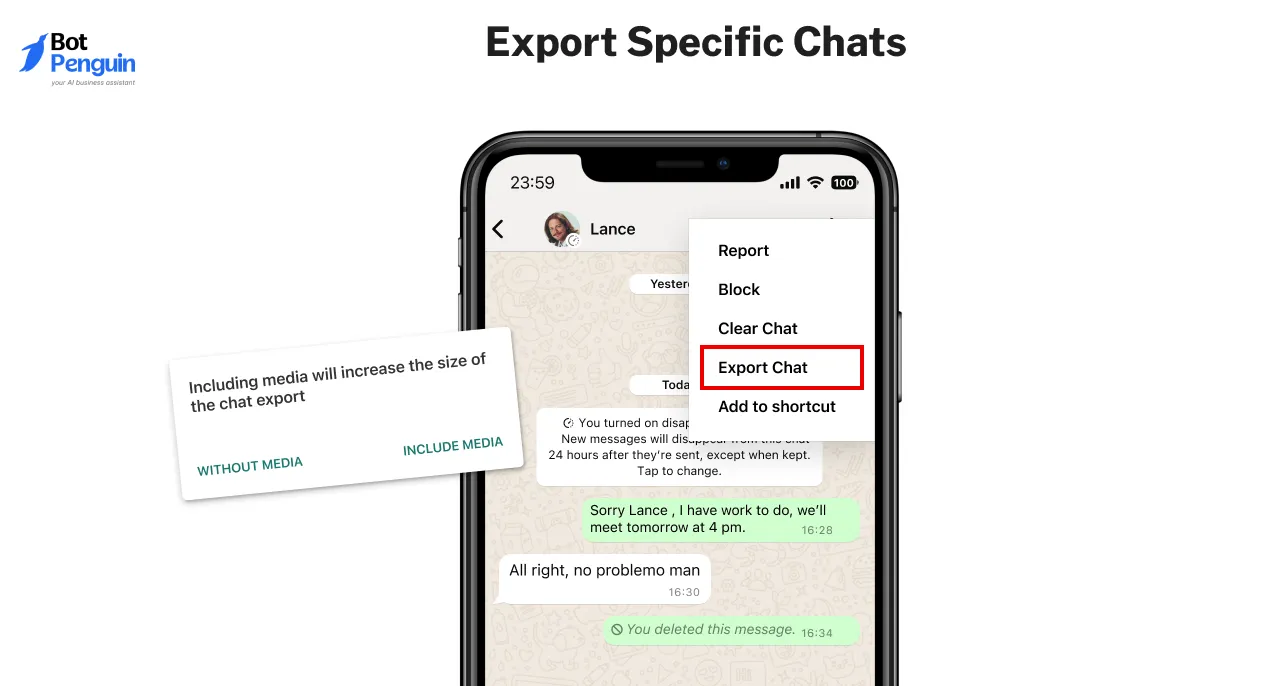
Need to keep a record of certain conversations? Exporting selected chats is a quick way to save crucial messages without taking up unnecessary storage.
This method is useful for archiving client discussions, preserving transaction details, or keeping sensitive data offline.
Example: A freelancer handling multiple clients can export only client-specific chats, ensuring quick access while keeping the app storage optimized.
Example: A small business owner managing orders can export only order-related chats, preventing backups of unnecessary messages.
By selecting only the necessary chats, you keep your WhatsApp Business backup lean, secure, and efficient.
Suggested Reading:
50 Ready to Use Greeting Message for WhatsApp Business
Backing up your WhatsApp Business chats should be simple, but sometimes things don’t go as planned. Backup failures, slow uploads, or missing backups can be frustrating.
If you're facing issues with WhatsApp Business backup, here’s how to fix them.
A backup that keeps failing or getting stuck is usually caused by slow internet, insufficient storage, or app glitches. Here’s what to do:
Example: If your backup keeps stopping at 90%, check if your iCloud storage is full. Deleting old backups or upgrading storage might solve the issue.
Example: If your backup is stuck at 50%, try switching to a stronger Wi-Fi connection or clearing cached data in Settings > Apps > WhatsApp > Storage.
Slow backups can be caused by large files, weak internet, or app settings.
Example: If your backup takes hours, check if large videos are included. Disabling "Include Videos" in the backup settings can make it faster.
If WhatsApp Business doesn’t detect your previous backup after reinstalling, it’s usually due to account mismatches or missing backup files.
Example: If your backup isn’t found, double-check that you're using the same phone number and cloud account linked to your backup.
If your WhatsApp Business backup isn’t updating as scheduled, automatic backup settings might be off.
Example: If your chats aren’t backing up daily, check if the auto-backup frequency is set to "Never" instead of "Daily" or “Weekly.”
Fixing WhatsApp Business backup issues is easy with the right steps. Whether it’s storage limits, network issues, or incorrect settings, these solutions help ensure your chats stay backed up without trouble.
There’s a lot of misinformation about WhatsApp Business backup. Many users assume their chats are always safe, fully encrypted, or recoverable forever.
Let’s clear up the most common myths and set the record straight.
Many believe that WhatsApp Business backups are just as secure as messages sent within the app. That’s not entirely true.
While WhatsApp chats are end-to-end encrypted, backups stored on Google Drive or iCloud are not encrypted by default. This means that if someone gains access to your cloud storage, they could access your backup.
🔹 Example: If your business stores sensitive client data, enabling WhatsApp's end-to-end encrypted backup in Settings > Chats > Chat Backup adds extra protection.
Some assume their WhatsApp Business backup will always be available. That’s not the case.
Google Drive deletes WhatsApp backups that haven’t been updated in over 5 months. If you don’t back up regularly, you risk losing all your data.
🔹 Example: If a business owner switches phones after six months without a new backup, they may find their old backup missing. Setting automatic backups to daily or weekly prevents this.
People often think WhatsApp Business saves everything by default, but backups must be manually enabled.
By default, WhatsApp Business does not back up your chats unless you set it up in Settings > Chats > Chat Backup. You can choose Google Drive (Android) or iCloud (iOS) and select a backup frequency.
Example: If an entrepreneur accidentally deletes an important order confirmation without a backup, they cannot recover it unless they had set up automatic backups.
Many think that deleting a chat from their phone erases it from the backup. That’s incorrect.
WhatsApp Business backups store past chats separately. If you delete a conversation after a backup, it remains in the backup until a new backup overwrites it.
🔹 Example: If a business deletes customer messages for privacy, they should manually create a new backup to prevent old data from being restored.
Switching phones? Many assume they can move their WhatsApp Business backup between iOS and Android. Unfortunately, that’s not straightforward.
WhatsApp Business backups are not cross-compatible between iCloud and Google Drive. To transfer data, use Move to iOS (Android to iPhone) or WhatsApp’s chat migration tool (iPhone to Android) instead of relying on cloud backups.
🔹 Example: A store owner moving from Android to iPhone will lose their backup unless they migrate chats before setting up WhatsApp on the new device.
Some users think that a large backup file means all their messages and media are included. That’s misleading.
WhatsApp Business backups grow in size mainly due to media files like videos and images. If you back up without media, the backup size shrinks significantly while keeping your chat history intact.
Example: A bakery owner may want to exclude large promotional videos from the backup to save space while keeping customer messages intact.
Many believe restoring a WhatsApp Business backup brings back everything, including custom settings and preferences.
A backup only restores chats and media—not app settings, linked devices, or account preferences. Users need to set these up manually after reinstalling WhatsApp Business.
🔹 Example: If a small business owner restores their WhatsApp Business backup, they must reconfigure automated replies, catalog listings, and notifications separately.
Understanding WhatsApp Business backup myths helps prevent data loss, security risks, and unnecessary frustration. Regular backups, encryption settings, and platform limitations all play a role in keeping your chats secure.
Now that you understand the risks of losing WhatsApp Business data and the available backup methods, it’s clear that taking proactive steps is non-negotiable. Whether you rely on Google Drive, iCloud, or computer backups, each method offers a safety net tailored to your needs.
From preserving chats to securing transaction records, consistent backups keep your business communication intact—even during unexpected events. By setting up automatic backups and choosing the right strategy, you minimize downtime and protect customer trust.
So before you switch phones or reinstall the app, make sure your backup is ready—because prevention is always better than recovery.
WhatsApp Business backups on Google Drive don’t transfer to iPhone. Use the Move to iOS feature or third-party tools to migrate chats between Android and iPhone.
WhatsApp Business does not support direct iCloud-to-Google Drive transfers. Use WhatsApp’s chat migration tool or third-party software to move chats from iPhone to Android.
No, WhatsApp Business backups on Google Drive aren’t compatible with iPhones. To transfer chats, use the Move to iOS option or export important conversations manually.
Yes, BotPenguin automates WhatsApp responses, handles customer inquiries, manages leads, and sends bulk messages, ensuring smooth, 24/7 communication without manual effort.
Enable automatic backups on Google Drive (Android) or iCloud (iPhone) and always use the same account for restoration. Regularly check storage availability to avoid failed backups.
3X Your Business
Growth on WhatsApp
See how our chatbot automates replies, qualifies leads & books appointments on autopilot.
Watch Demo NowCheckout our related blogs you will love.
Updated at Oct 8, 2026
14 min to read
Updated at Oct 6, 2026
13 min to read
Updated at Sep 26, 2026
10 min to read
Updated at Sep 25, 2026
16 min to read

Updated at Sep 25, 2026
15 min to read

Updated at Sep 25, 2026
6 min to read
Table of Contents