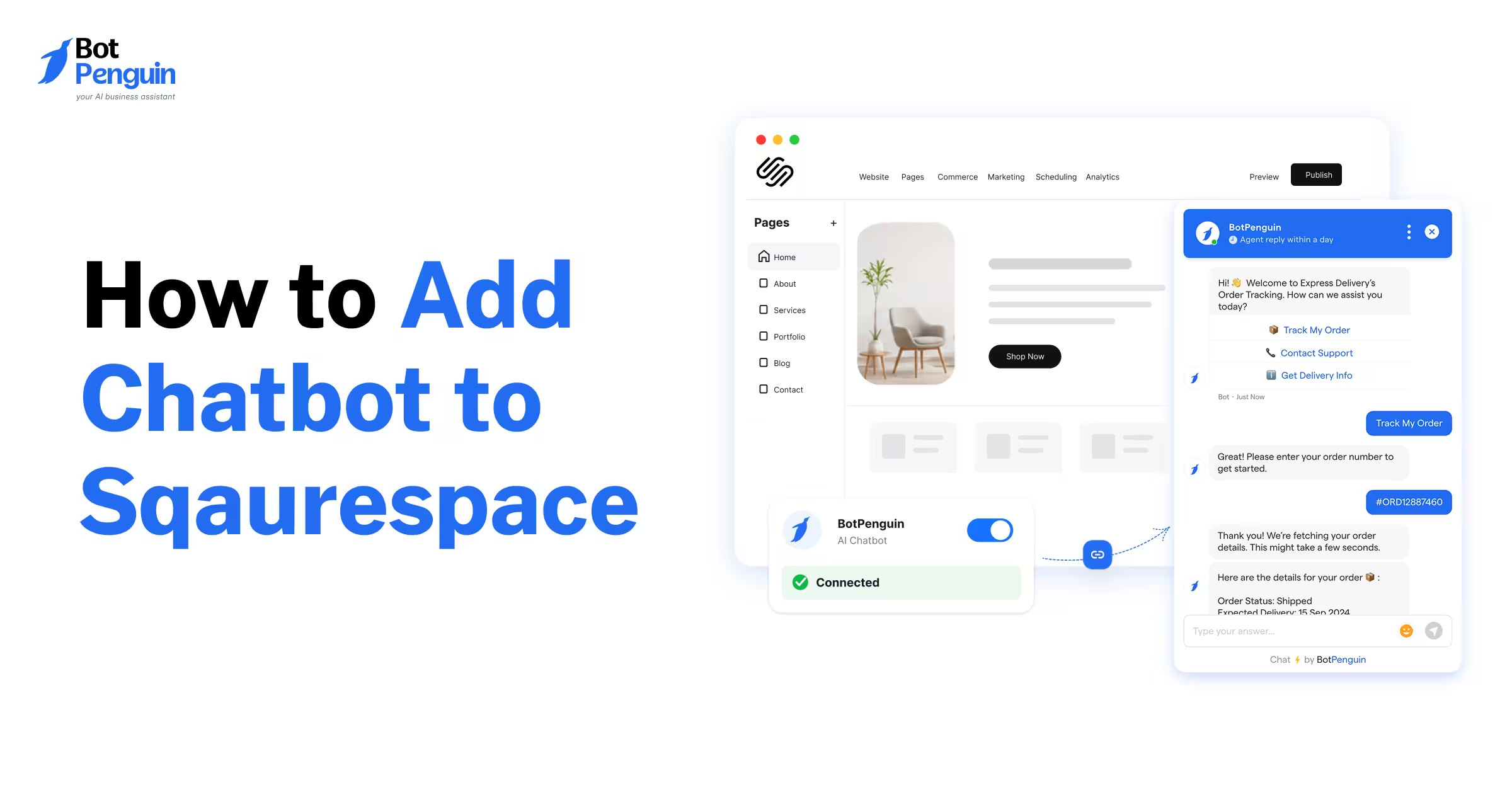



Squarespace live chat requires a third-party tool because Squarespace lacks built-in visitor chat. Add it using a Code Block or Code Injection → Footer on eligible plans. Visitors can chat with your team in real time, while a chatbot answers common questions 24/7 and transfers complex conversations to human agents.
Want to connect with website visitors instantly? Squarespace live chat helps businesses answer questions, capture leads, and provide real-time support.
However, Squarespace doesn't include built-in live chat for website visitors. Looking for Squarespace's customer support instead? Visit the Squarespace Help Center.
To add live chat to Squarespace, you need a third-party chat tool. You can install it using a Code Block or Code Injection on eligible plans.
This guide covers installation methods, essential features, pricing, and Squarespace chatbot vs live chat differences. You'll also learn how BotPenguin combines human support with automated responses for better visitor engagement.
Does Squarespace Have Built-In Live Chat?
No, Squarespace does not offer built-in live chat for website visitors. To enable Squarespace live chat, businesses need a third-party chat tool.
These tools add a chat widget to your website. Visitors can ask questions, request assistance, or connect with your support team.
Depending on the tool, you can offer:
Human live chat: Connect visitors with support agents in real time.
AI chatbot: Answer common questions automatically, even outside business hours.
Hybrid support: Let chatbots handle routine questions and transfer complex issues to humans.
Squarespace Customer Support vs Website Live Chat
Squarespace customer support and website live chat serve different purposes.
Businesses can add visitor-facing chat using a compatible tool. The next step is understanding why live chat matters for customer engagement.
Why Add Live Chat to Your Squarespace Website?
Adding Squarespace live chat helps businesses assist visitors without interrupting their browsing experience. It creates a direct communication channel for answering questions and capturing potential customers.
Here are four key benefits:
Real-Time Assistance: Answer product, service, and pricing questions while visitors explore your website. Resolve concerns before they leave.
Better Lead Capture: Collect contact details from interested visitors during conversations. Help your sales team follow up with qualified leads.
Improved Customer Experience: Give visitors personalized answers without navigating multiple pages. Make it easier to find information and make decisions.
Extended Support Availability: Combine human agents with chatbots to handle questions outside business hours. Keep routine support accessible even when your team is offline.
These benefits depend on choosing the right chat tool. Next, let's explore how to install one on Squarespace.
How to Add Live Chat to Squarespace: Step-by-Step
You can add live chat to Squarespace using a third-party chat tool. Choose between Code Blocks, Code Injection, or a compatible extension.
For JavaScript chat widgets, Squarespace requires Core, Plus, Advanced, or eligible legacy plans.
Method 1: Add Live Chat Using a Code Block
A Code Block lets you install a chat widget without writing code. Place it in your website footer to display chat across pages.
Follow these steps:
1. Log in to Squarespace and open your website editor.
2. Open any page and click Edit.
3. Navigate to the footer and select Edit Footer.
4. Click Add Block and choose Code.
5. Paste the installation script provided by your chat tool.
6. Save your changes and publish the website.
7. Open your live website and check whether the widget appears.
Note: You can also add a Code Block to individual pages. JavaScript widgets require Core, Plus, Advanced, or eligible legacy plans.
Method 2: Add Live Chat Using Code Injection
Code Injection places the chat script across your entire website. It eliminates the need to edit individual pages.
Follow these steps:
1. Open your Squarespace dashboard.
2. Navigate to Website → Pages → Custom Code → Code Injection.
3. Find the Footer field.
4. Paste your chat provider's installation script.
5. Click Save.
6. Visit your published website and test the chat widget.
Note: Code Injection requires Core, Plus, Advanced, or eligible legacy plans. See the official Squarespace documentation for additional guidance.
Method 3: Use a Compatible Squarespace Extension
Squarespace also offers compatible third-party extensions, including LiveChat. This option avoids manually adding installation scripts.
To connect LiveChat:
1. Open Extensions from your Squarespace dashboard.
2. Search for LiveChat.
3. Select the extension and click Connect.
4. Choose your website and authorize the connection.
5. Complete the provider's account setup.
6. Enable the widget and verify it appears.
Note: Extension availability and subscription charges depend on the provider.
If you prefer automated conversations, explore how to add a chatbot to Squarespace.
How to Add BotPenguin Live Chat to Squarespace
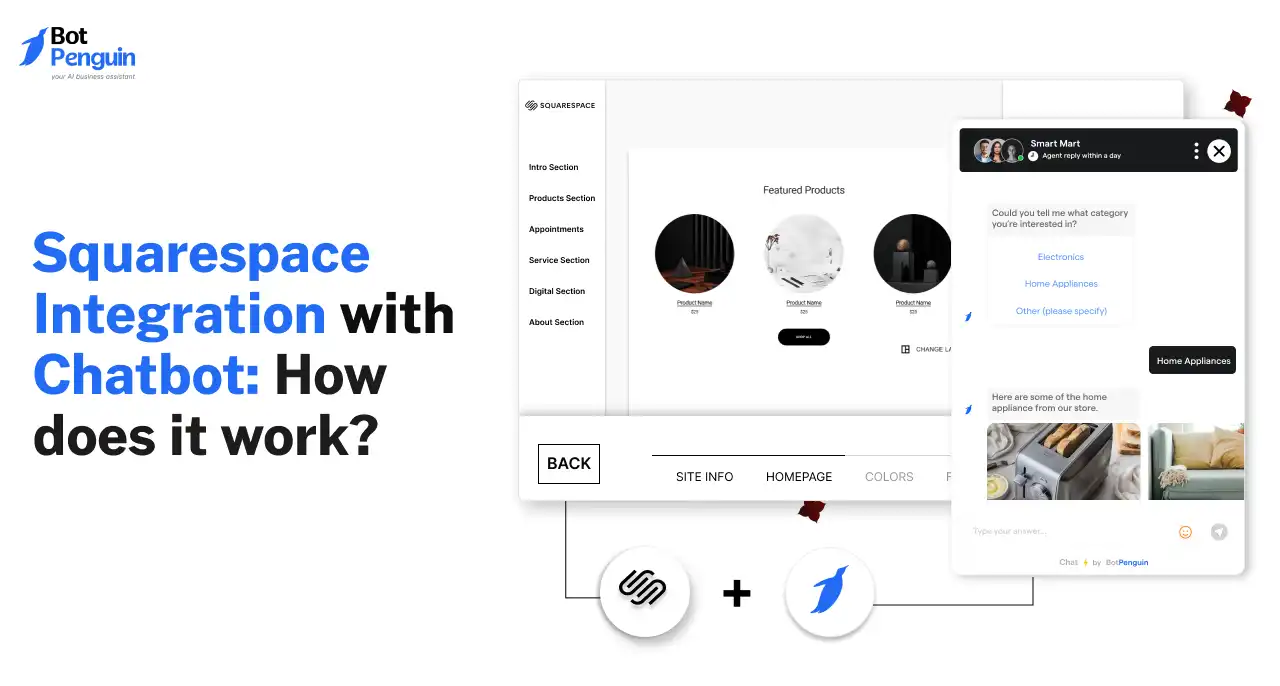
BotPenguin lets you connect a chat widget to your Squarespace website. You can manage visitor conversations and enable automated replies from one platform.
Follow these steps to install Squarespace live chat using BotPenguin:
1. Create Your Chatbot: Log in to BotPenguin and create a website chatbot. Customize its appearance and configure responses.
2. Get the Installation Script: Open your chatbot's Install section. Select Website, choose Squarespace, and copy the generated script.
3. Open Squarespace: Log in to Squarespace and open your website editor.
4. Add the Script: Paste it into a footer Code Block (recommended). Alternatively, use Code Injection → Footer on an eligible plan.
5. Save and Verify: Publish your changes and open your live website. Enter your website URL in BotPenguin and click Verify.
6. Test the Widget: Send a test message and check the response. Test human handover if your plan supports it.
Explore BotPenguin's live chat plugin for Squarespace to understand its available capabilities.
Once installed, you can combine automated responses with human assistance for visitor support.
Squarespace Live Chat vs Chatbot: Which Do You Need?
Live chat connects visitors with human agents, while chatbots automate responses. The right choice depends on your support volume, availability, and conversation complexity.
Research supports combining automation with human assistance.
According to Salesforce, 80% of customers value experience as much as products and services. An IBM Institute for Business Value report found that 71% of executives aim for touchless customer support inquiries by 2027.
For a broader comparison, explore chatbot vs live chat.
Most sites use both: the chatbot answers common questions 24/7 and hands harder chats to a person.
What Features Should You Look for in Squarespace Live Chat?
Choosing the right live chat software requires evaluating more than basic messaging. Focus on features that improve response quality, accessibility, and support efficiency.
Response Speed
Look for tools that deliver messages instantly and minimize response delays. Automated greetings and chatbot replies can help visitors get answers faster.
Mobile Experience
Your chat widget should work smoothly across smartphones, tablets, and desktops. Check whether visitors can open, minimize, and continue conversations without navigation issues.
Human Handover and Availability
Choose a tool that transfers complex questions to human agents. Look for business-hour settings and automated responses when agents are unavailable.
Multilingual Support
Consider tools that support visitors in different languages. Check whether chatbots detect visitor languages and agents can translate conversations when needed.
Notifications and Team Access
Look for real-time notifications to prevent missed messages. Team access should allow multiple agents to manage conversations without losing context.
Beyond these features, understanding live chat pricing helps you choose a solution that fits your budget.
How Much Does Squarespace Live Chat Cost?
The cost depends on your Squarespace subscription and third-party chat provider. You'll need an eligible plan to install JavaScript-based chat widgets.
Squarespace plan requirements:
Basic: Does not support JavaScript chat widgets through Code Blocks or Code Injection.
Core, Plus, and Advanced: Support both installation methods.
Legacy plans: Some older plans also support custom JavaScript.
BotPenguin offers free and paid options for different support needs.
The free plan suits basic automated responses. Paid plans support businesses needing human agents and greater conversation management.
For current features and subscription details, check BotPenguin pricing.
Before choosing a plan, consider your expected chat volume and staffing needs.
Common Squarespace Live Chat Problems and Fixes
Your live chat widget may not appear or function after installation. Most issues involve script placement, publishing, or Squarespace plan restrictions.
Here are four common problems and their solutions:
Chat Widget Not Appearing
Problem: The widget is missing from your website.
Fix: Check whether the installation script is complete. Disable conflicting browser extensions and refresh your website.
Incorrect Script Placement
Problem: The chat widget fails to load.
Fix: Paste the script into a footer Code Block or Code Injection → Footer. Avoid placing it inside unsupported elements.
Changes Not Showing
Problem: The widget appears in the editor but not publicly.
Fix: Save your changes and check the published website. Clear your browser cache if necessary.
Squarespace Plan Restrictions
Problem: JavaScript installation is unavailable.
Fix: Confirm your plan supports custom JavaScript. Core, Plus, Advanced, and eligible legacy plans support these methods.
After resolving these issues, follow a few best practices to improve visitor conversations.
Best Practices for Using Live Chat on Squarespace
Adding Squarespace live chat is only the first step. Follow these practices to provide consistent support and improve visitor engagement.
Set Clear Availability Hours: Display your team's working hours. Use automated replies when human agents are unavailable.
Respond Promptly: Monitor incoming messages and prioritize urgent questions. Use predefined responses for frequently asked questions.
Enable Human Handover: Transfer complex conversations from chatbots to human agents. Preserve conversation context to avoid repeated questions.
Optimize for Mobile: Test the widget across different screen sizes. Ensure it doesn't block navigation or important buttons.
Review Chat Performance: Monitor response times, missed conversations, and recurring questions. Use these insights to improve support workflows.
Regular testing helps maintain a reliable chat experience as your website evolves.
Frequently Asked Questions About Squarespace Live Chat
Does Squarespace have live chat built in?
No, Squarespace does not provide built-in live chat for website visitors. You need a third-party chat tool installed through a Code Block, Code Injection, or a compatible Squarespace Extension to communicate with visitors directly.
How do I add live chat to Squarespace?
Copy your chat provider's installation script and paste it into a footer Code Block. Alternatively, use Code Injection → Footer on eligible plans. You can also connect a supported tool through the Squarespace Extensions marketplace.
Can I add live chat to Squarespace without coding?
Yes. Most chat providers generate a ready-to-use installation script. Simply copy and paste it into a Code Block or Code Injection. You don't need to write code, although JavaScript installation requires an eligible Squarespace plan.
Is live chat available on every Squarespace plan?
Not every Squarespace plan supports JavaScript chat widgets. Core, Plus, and Advanced plans allow installation through Code Blocks or Code Injection. Some legacy plans also support these methods. Check your subscription before installing a widget.
Can I use a chatbot and live chat together on Squarespace?
Yes. Compatible third-party tools can combine automated chatbot responses with human live chat. Chatbots handle common questions around the clock, while human agents manage complex conversations through supported handover features.
How much does Squarespace live chat cost?
Costs depend on your Squarespace subscription and chat provider. BotPenguin offers a free-forever plan with 1,000 monthly messages. Paid plans start at $29/month, with additional human support capabilities available on eligible plans.
Why is my Squarespace live chat widget not showing?
Your widget may be missing because of incorrect script placement, unsaved changes, or plan restrictions. Check the installation code, confirm JavaScript support, and refresh your published website. Also test the widget in another browser.
Conclusion: Add Live Chat to Your Squarespace Website
Adding Squarespace live chat helps visitors connect with your business instantly. Install a third-party widget using a footer Code Block or Code Injection on eligible plans.
Human live chat handles complex questions and personalized assistance. Chatbots answer common questions outside business hours. Combining both provides consistent support without overwhelming your team.
Before launching, test the widget on desktop and mobile devices. Check message delivery, automated responses, and human handover.
Ready to improve visitor engagement? Get started with BotPenguin and create a chat experience that supports your customers whenever they need assistance.