AI Chatbot → Google Sheets
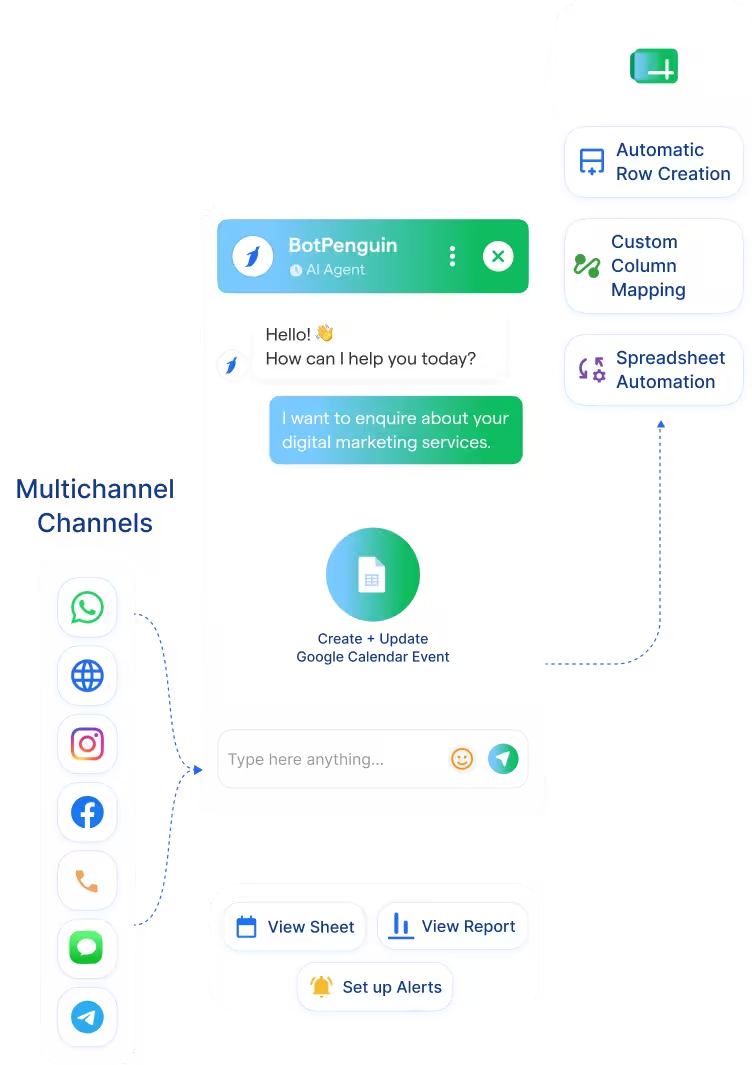
Capture leads, enquiries, and form-style answers from WhatsApp, website chat, Instagram, and more. BotPenguin adds each submission as a new Google Sheets row with mapped columns.
See AI ChatbotsEvery lead your BotPenguin chatbot captures on WhatsApp, your website, or Instagram gets logged in Google Sheets automatically with contact details, conversation summary, and qualifying answers filled in. No copy-paste, no manual entry.
Google Sheets is widely used for data management, lead tracking, reporting, and shared spreadsheets. Teams use it to log leads, track pipeline, analyze campaign results, and share data across functions. It works well as a central data store once structured data reaches it.
The BotPenguin Google Sheets chatbot integration makes data entry automatic. Every lead your chatbot qualifies on WhatsApp, your website, or Instagram gets logged in your Google Sheet with contact details, chatbot answers, channel source, and timestamp. With the Google Sheets WhatsApp integration, your spreadsheet stays current without manual entry. Available on all paid plans; test it free during your trial.
Capture leads, enquiries, and form-style answers from WhatsApp, website chat, Instagram, and more. BotPenguin adds each submission as a new Google Sheets row with mapped columns.
See AI ChatbotsYour AI agent qualifies users in natural conversation, collects required details, and sends structured data to Google Sheets before the chat ends.
See AI AgentsTrigger Google Sheets automation from chatbot events. Add new rows, update sheet entries, pass data through webhooks, and let existing Google Sheets formulas calculate scores, totals, follow-up dates, or campaign performance.
See AutomationsUnderstand what Google Sheets is designed to do, where gaps can exist, and how BotPenguin helps create a more connected, automated customer journey.
Google Sheets is built to organize, calculate, and share business data. It handles rows, columns, formulas, filters, dashboards, reports, and team collaboration across spreadsheets.
Google Sheets works well once data is entered correctly. But leads often arrive through WhatsApp, website chat, Instagram, or other channels. Someone still has to copy details, clean responses, add rows, and update columns manually.
BotPenguin adds the conversational data capture layer. Your AI chatbot or agent collects lead details, qualifying answers, source channel, and timestamps, then sends them into Google Sheets as structured rows.

No developer needed. Three simple steps to automatically log chatbot leads in Google Sheets.
Log in to BotPenguin, open your bot settings, and connect your Google Sheets account. Authentication handles the connection. No API keys, no developer involvement.
Step 1Choose which chatbot or AI agent responses map to which Google Sheets columns. Name, email, phone, and every qualifying answer can be logged instantly.
Step 2Send a test lead through your chatbot and confirm it appears in Google Sheets correctly. Once confirmed, switch on for all live traffic.
Step 3Up to 30%
faster lead response times by automatically logging WhatsApp and website enquiries in Google Sheets, eliminating manual data entry and follow-up delays.
Up to 40%
less administrative work by automatically recording patient enquiries, appointment requests, and chatbot responses in Google Sheets for faster coordination.
2x
more qualified leads tracked by automatically capturing buyer enquiries from WhatsApp and logging them in Google Sheets with complete qualification details.
Log WhatsApp chatbot leads, product enquiries, and cart recovery details in Google Sheets for reporting and follow-up tracking.
Track trial enquiries, lead source, company details, and chatbot qualification answers in Google Sheets.
Log buyer enquiries with property interest, budget, location, and buying timeline already mapped to spreadsheet columns.
Log patient enquiries with appointment type, contact details, preferred time, and channel source.
Track admissions enquiries with course interest, intake year, contact details, and chatbot qualification data.
Track consultation enquiries with service interest, budget, and project requirements in Google Sheets.
Log policy enquiries with coverage type, contact details, and enquiry status in Google Sheets.
Record travel enquiries with destination, travel dates, group size, and trip preferences in Google Sheets.
Connect BotPenguin's conversational AI to your CRM, payment gateway, calendar and eCommerce platform in minutes. No-code, no disruption. Your existing tech stack stays exactly as it is.
Free to start. No credit card required.
Is the Google Sheets chatbot integration free?
The Google Sheets chatbot integration is available on paid BotPenguin plans. You can test it during your free trial without a credit card. View BotPenguin pricing to compare plans.
Do I need coding skills to connect Google Sheets to BotPenguin?
No. The Google Sheets chatbot integration is completely no-code. Simply connect your Google Sheets account, map chatbot responses to spreadsheet columns, send a test lead, and start automatically logging conversations in just a few minutes.
Does the Google Sheets integration work with WhatsApp?
Yes. BotPenguin’s Google Sheets WhatsApp integration can log WhatsApp chatbot leads in Google Sheets with mapped customer details, responses, timestamps, and channel source.
Can I save chatbot leads to a specific Google Sheet or worksheet?
Yes. You can configure BotPenguin to send chatbot data to a selected Google Sheet. Worksheet or tab-level mapping can be set based on your workflow, where configured.
Can BotPenguin update existing rows in Google Sheets?
BotPenguin can add new rows for chatbot conversations. Existing row updates may be supported where configured, usually by matching identifiers like email or phone number.
What data does BotPenguin send to Google Sheets?
You choose which chatbot responses get logged in Google Sheets. Common fields include name, email, phone number, enquiry details, timestamp, channel source, and qualification answers.