

What is SMS Marketing?
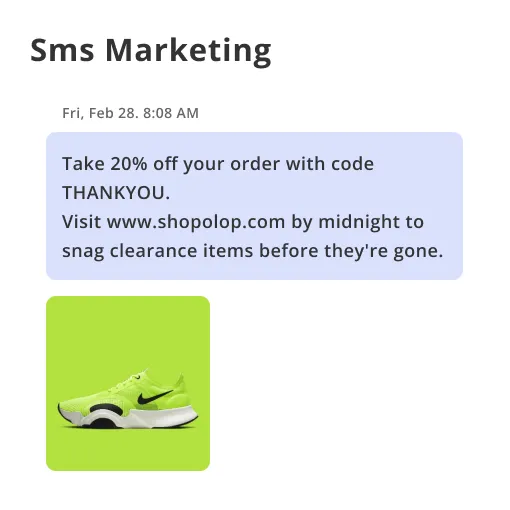
SMS Marketing stands for Short Message Service Marketing. It's a strategy that uses permission-based text messaging to send promotional content.
Definition
Often featuring coupons, promotional messages, and opt-in codes, SMS marketing employs a hotline of communication with customers on a platform that is readily available and heavily used by them – their mobile phones.
Components
Fundamental components of SMS marketing include the short code, keywords, message, and call-to-action. The short code is the number the message gets sent to, the keyword a code customers text to the short code to adhere to a campaign, the message contains the actual content, and the call-to-action invites the customer to perform a specific task.
Permission-based Method
Unlike some other marketing methods, SMS marketing is permission-based. This means that customers must give you explicit permission to communicate with them through SMS, maintaining ethical marketing standards.
Relevance in Today's World
In an increasingly mobile world, SMS marketing is extremely relevant. Rapid open rates and the direct interaction between the company and the consumer makes it a powerful tool in engaging with the audience.
Advantages
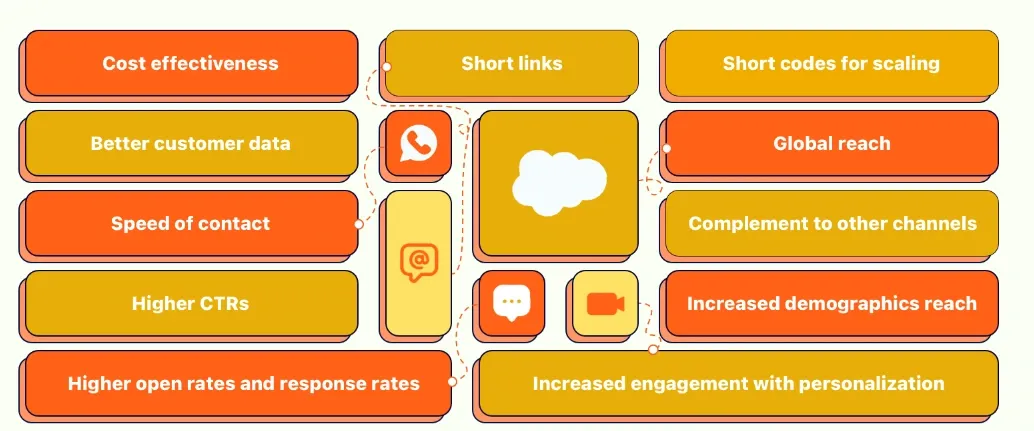
The advantages of SMS marketing include high open rates, cost-effective campaigns, immediate impact, and personalized communication.
Why use SMS Marketing?
Because of its unique benefits, SMS marketing can significantly boost your business's impact while enhancing customer engagement and satisfaction.
Increases Engagement
Due to the direct nature of SMS marketing, it increases customer engagement by encouraging immediate action.
Cost-effective
Text messages are relatively cheap to send, making SMS marketing cost-effective for businesses of all sizes.
Reach More Customers
With most adults owning a mobile phone, SMS marketing allows businesses to reach more people at the tip of their fingers than ever before.
Real-time Communication
Through SMS marketing, businesses can instantly send crucial information and promotions, thus establishing a real-time communication channel with the customers.
Enhances Other Marketing Channels
Bulk SMS can enhance other advertising channels like email and social media by promoting their content and directing customers towards them.
Who can benefit from SMS Marketing?
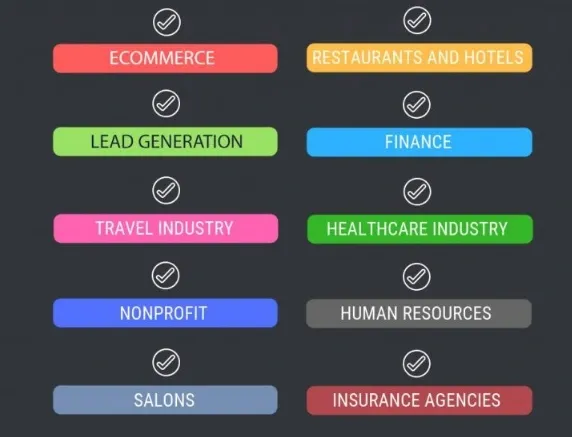
From small businesses to large corporations, many sectors can derive significant benefits from strategic use of SMS marketing.
Small and Medium-Sized Businesses
SMBs can use SMS marketing to build strong customer relationships, send timely reminders and offer exclusive promotions instantly without a lot of costs involved.
Large Corporations
Large organizations can benefit from the virtually limitless scalability of SMS marketing, using it to engage with thousands or even millions of customers promptly.
Retail Industries
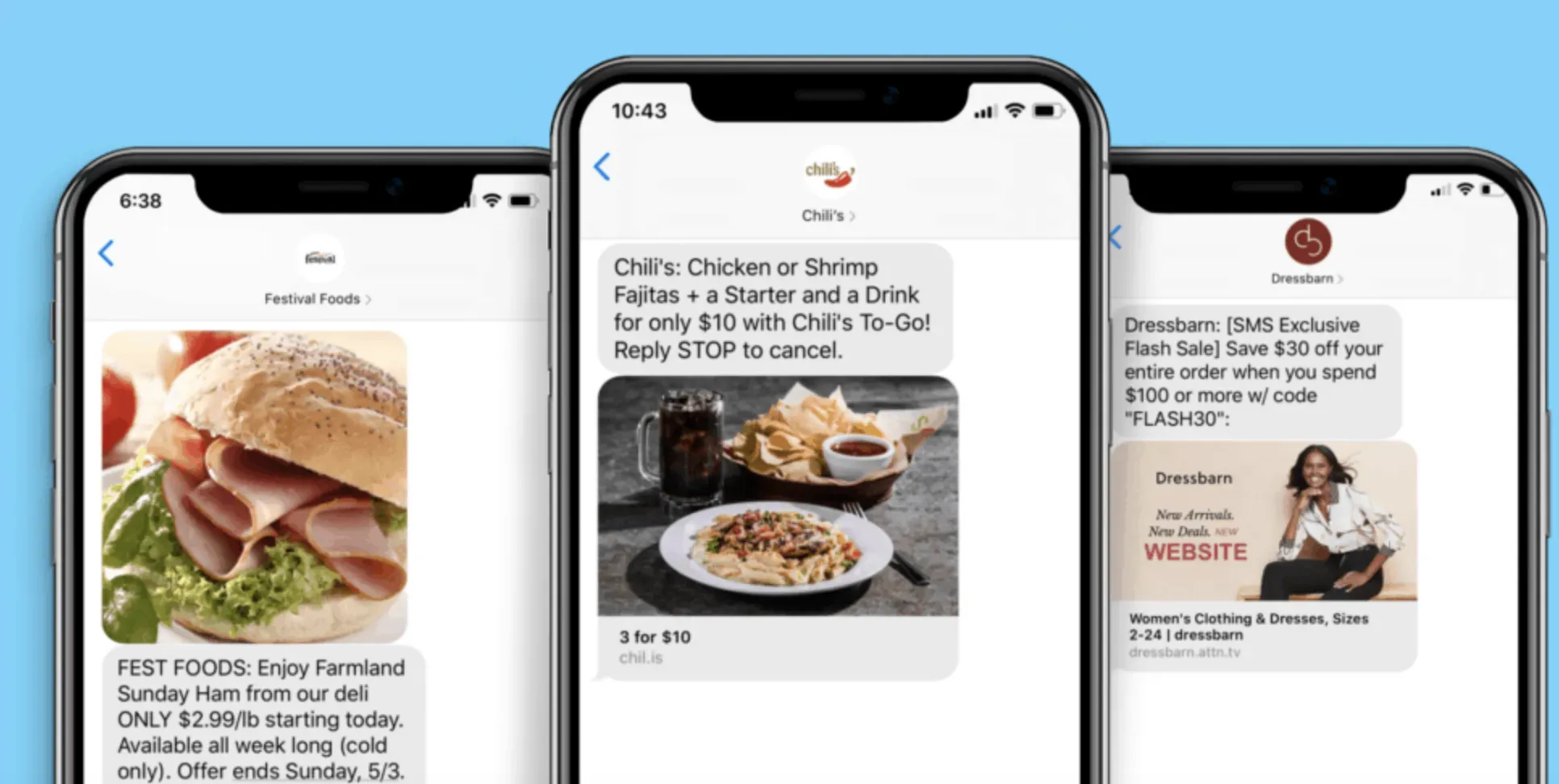
For retail businesses, promotional texts can drive customers towards sales, discounts, and in-store events, while transactional texts provide order updates or response to customer queries.
Healthcare Providers
Medical practitioners can use SMS marketing to communicate appointment reminders, health tips, medical alerts and more.
Non-Profit Organizations
For non-profit organizations, text messages can make for an effective fundraising tool—galvanizing people towards fundraising events, donation requests, and other relevant activities.
Where is SMS Marketing used?
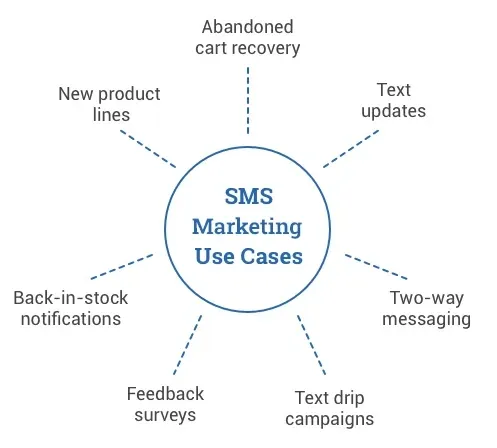
Given its flexibility and reach, SMS marketing is employed in a variety of challenging contexts and scenarios.
Promotional campaigns
Businesses often use SMS marketing to promote exclusive offers, discounts, product launches or sales events.
Alerts and Notifications
Industries such as banking, healthcare, travel, and hospitality often use SMS marketing to send automated alerts and notifications related to appointments, transactions, or changes in plans.
Surveys and Feedback Collection
Many businesses use SMS surveys as a quick and effective way of gathering customer feedback and conducting market research.
Customer Service
SMS can be used as a direct, informal way to provide customer support, answer queries, or follow-up after a customer's interaction with a product or service.
Event Engagement
Text messages can drive interest and action associated with an event, providing reminders beforehand, engaging attendees during the event, and sending follow-up messages afterwards.
When to use SMS Marketing?
Understanding when to use SMS marketing can help businesses effectively engage customers. Timing plays a critical role in SMS campaign success.
During Business Hours
SMS marketing is generally best received during usual business hours. Sending messages too early in the morning or too late in the evening can be intrusive.
During Sales or Special Events
Events such as sales, holidays, or special events can provide businesses an opportunity to significantly ramp up SMS marketing efforts to attract more customers and boost sales.
To Notify of Critical Information
If it is crucial for customers to receive certain information promptly, such as changes in their appointment or delivery, SMS marketing is the way to go.
After Customer Interaction
After a customer purchases a product or avails of a service, sending a follow-up message can heighten customer satisfaction and open the door to further engagement.
Recurring Intervals
Periodic reminders, be it daily, weekly, monthly or any other recurring interval, can work effectively with SMS marketing for tasks such as bill reminders or health tips.
How to Implement SMS Marketing?
Implementing SMS Marketing involves careful planning, following guidelines, crafting engaging content and deploying successful campaigns.
Obtain Explicit Consent
Before sending marketing messages, the first step is to obtain explicit consent from the customer. This can be achieved by including an opt-in in a form or asking them to send a keyword to a short code.
Choose an SMS Marketing Service
Select a reliable SMS marketing service that fits your business requirements. Consider factors like cost, scalability, interface, features, reliability, and customer support.
Craft Engaging Content
Create concise, relevant and engaging content for your text messages. Be clear about your offering and include a strong call-to-action.
Test Your Messages
Before launching the campaign, test your messages. Check for content errors, functioning links, and ensure that the message conveys what it’s meant to.
Evaluate and Tweak Your Strategy
Use data provided by your SMS marketing service to analyze campaign outcomes. Based on that, make necessary adjustments to improve future campaigns.
Best Practices for using SMS Marketing
To ensure that SMS marketing is a boon and not a bane for your business, these are some best practices you should consider:
Maintain Compliance with Laws and Regulations
Always rely on permission-based marketing to stay on the right side of ethics and the law. Get explicit consent to send SMS to customers by incorporating opt-in methods in your marketing strategy.
It’s also crucial to provide an easy opt-out mechanism to allow customers to stop receiving your text messages. Read up on rules and regulations like the Telephone Consumer Protection Act (TCPA) and adhere to these standards at all times.
Personalization
Personalizing SMS messages can make them more valuable and engaging for your audience. This could be as simple as addressing users by their first name or creating customized offers based on their behaviors or preferences.
The more targeted your message is, the better response rate you’re likely to have.
Conciseness is Key
SMS means Short Message Service for a reason – keep your messages short and sweet. With only 160 characters to work with, you need to make every character count.
Be clear, concise, and make sure your message is easy to comprehend.
Offer Valuable Content
It is imperative that your messages offer value – whether it's an exclusive discount, useful information, or a relevant notification.
This helps keep your customers engaged, and makes them look forward to your texts.
Timing Matters
Choose the right time to send your messages. Sending promotional messages at inopportune times can annoy your customers.
It's generally recommended to send SMS during regular business hours. However, pay close attention to your own customer behavior to find the most effective time for your audience.
Challenges with SMS Marketing
Despite its advantages, SMS marketing doesn’t come without its potential pitfalls and challenges:
Compliance Rules
Rules regarding SMS marketing can be stringent. Depending on the region, the rules may focus on how businesses gather opt-ins or what information must be included in the SMS message itself. Failing to follow these rules can lead to penalties, financial loss, and a reputation hit for the businesses.
Limited Reach
As SMS marketing depends on customer opt-ins, marketers may initially face challenges in extending their reach in their target market, particularly compared to traditional channels like radio or TV advertising.
Delivery Issues
An SMS message's successful delivery depends on various factors, including network availability, the recipient's mobile device's status (on/off), and the possibility of changed numbers. Undelivered messages may diminish the marketing campaign's effectiveness.
Message Relevance
The content in your SMS messages needs to be relevant to your audience. If you send generic or irrelevant messages, customers may ignore them, block them, or even opt out.
Frequency
Striking the right balance in the frequency of your SMS marketing messages is critical. Too many messages can cause irritation and opt-outs, while too few can result in lost engagement opportunities.
Examples of Successful SMS Marketing
Here are a few examples of powerful SMS marketing campaigns to inspire your strategy:
Domino's Pizza UK
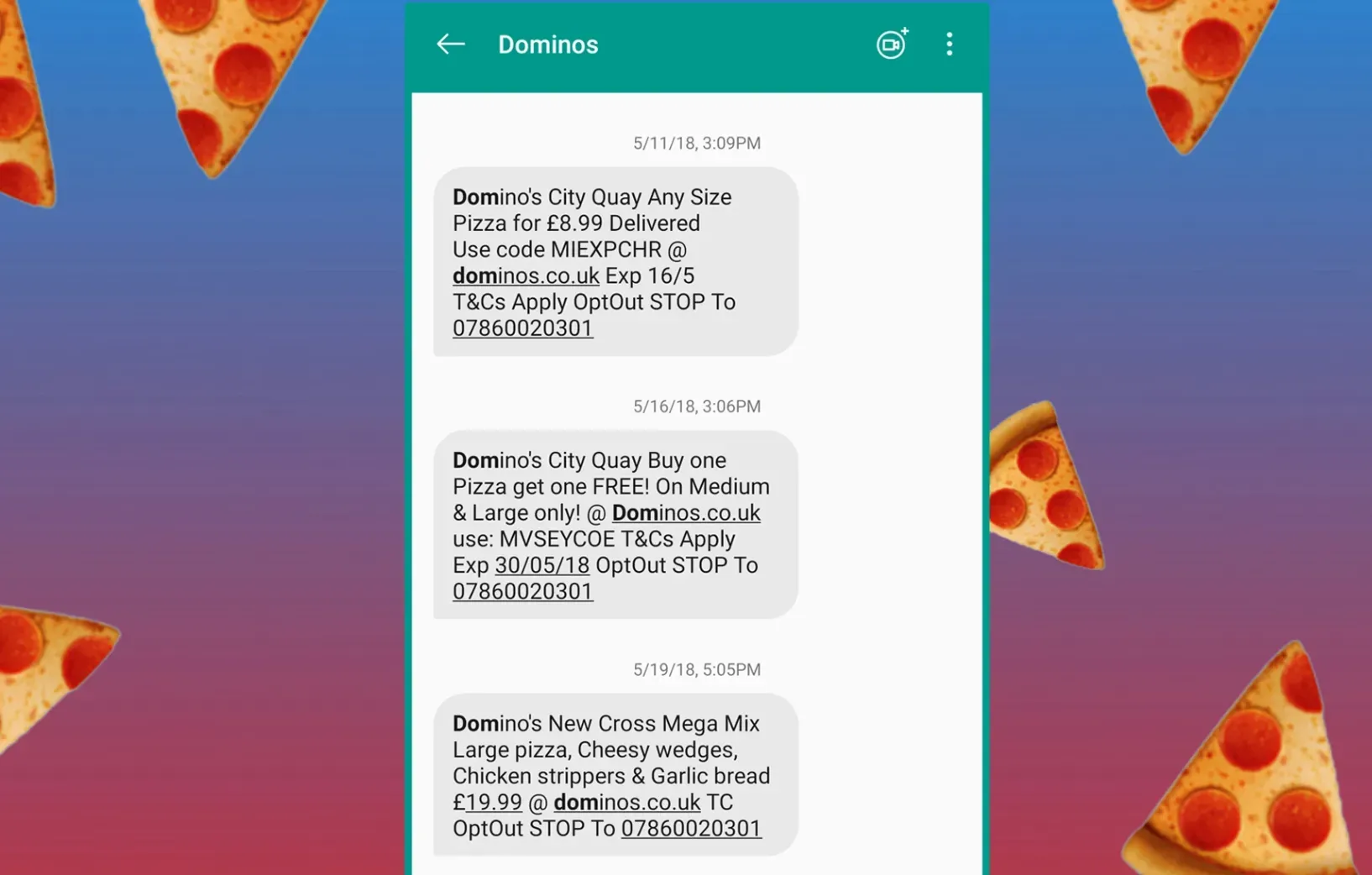
Domino's Pizza in the UK developed a simple, effective campaign that allowed customers to order a pizza by texting a single word – 'feed me' – to a dedicated number. This unique strategy played on customer convenience and resulted in a significant increase in sales.
Redbox
Redbox, the DVD and video game rental company, uses SMS marketing to send promotional codes to subscribers. These promotional codes offer discounts on their services, thus driving usage and customer engagement.
Silverstone
In order to drive attendance for their events, the race track Silverstone uses SMS marketing to notify customers of last-minute tickets. They use elements of scarcity and urgency to propel customers into buying tickets.
Dunkin Donuts
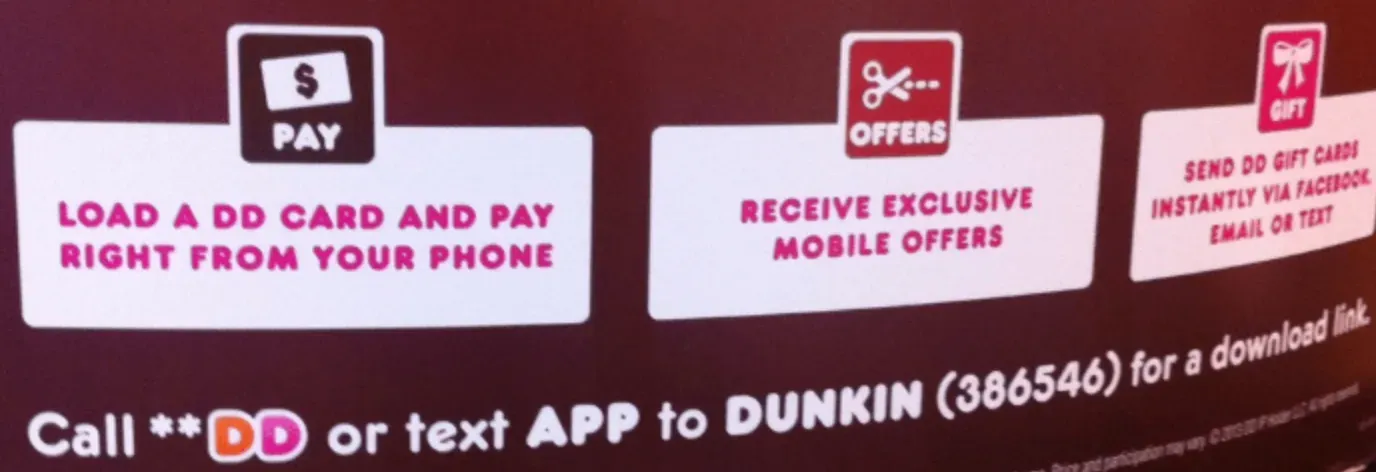
In one of their campaigns, Dunkin Donuts offered discount SMS coupons to Boston-area customers. They incorporated a sense of urgency by making these discounts applicable for a limited time. As a result, they reported a significant increase in store traffic and redemption of the offer.
IKEA
IKEA uses SMS mainly for customer service purposes. They send appointment reminders, delivery updates, and even assembly instructions via text. IKEA's SMS marketing strategy helps enhance customer experience and streamline operations.
Trends in SMS Marketing
The rapidly evolving digital space suggests several key trends as we look towards the future of SMS marketing.
Rise of RCS
Rich Communication Services (RCS) takes text messaging to the next level by adding a rich media component. This can lead to a more dynamic and interactive SMS marketing experience.
Integration with Other Marketing Channels
Companies are increasingly integrating SMS marketing with other channels, leveraging its strength to improve the performance of the overall marketing strategy.
Use of AI
With advances in AI and machine learning, more personalization and automation in SMS marketing can be expected.
5G and SMS Marketing
The advent of 5G will make SMS marketing faster and more reliable than ever before.
Enhanced Analytics
Increased focus on detailed metrics will help businesses get more insights into customer behavior for an effective SMS marketing strategy.
Frequently Asked Questions (FAQs)
What makes sms marketing effective?
SMS marketing boasts high open and engagement rates, reaching customers directly on their phones. This immediacy and intimacy make it an effective marketing channel.
Is there a best time to send marketing texts?
Yes, typically, well-timed SMS campaigns - such as mid-afternoon during weekdays - see higher engagements, but optimal times can vary based on your audience.
How can personalization be applied in sms marketing?
Personalization involves tailoring messages based on customer data. This could include using a customer's name, reference to past purchases, or personalized offers.
What is the role of opt-ins in sms marketing?
Opt-Ins are essential for compliance with marketing regulations. They give customers the choice to receive communications, helping build trust and loyalty.
Are there specific regulations for sms marketing?
Yes, regulations like TCPA (US), PECR (UK), and SPAM Act (AU) govern SMS marketing to prevent unsolicited messaging and ensure consumer privacy.