


Chatbot User Experience: How a Website Chatbot Improves UX
Updated at Oct 1, 2026
11 min to read
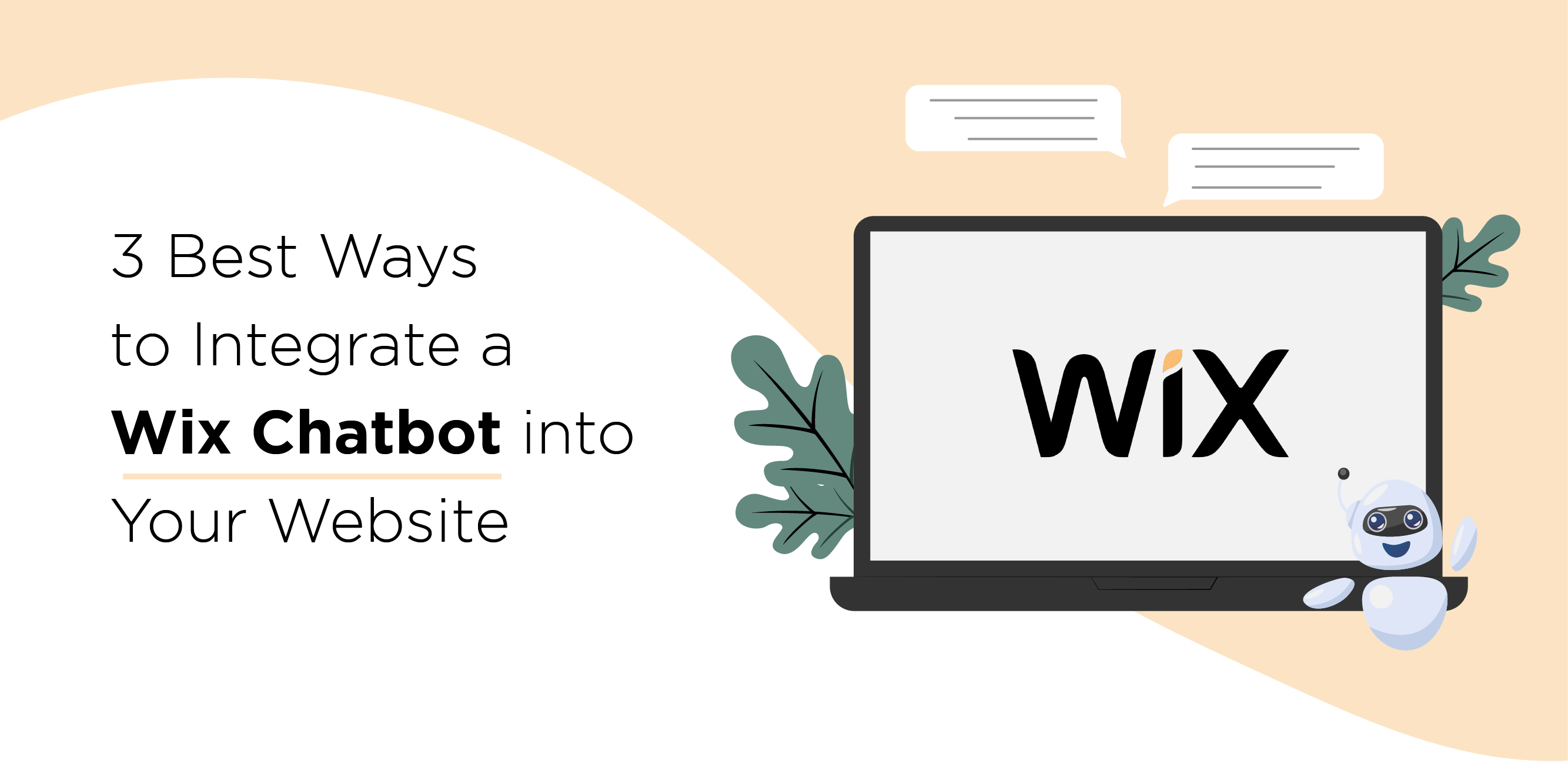
Wix chatbot is not a nice extra. It is the one part of your site that never sleeps.
You built a clean Wix site with zero code. Visitors show up at 11 PM with questions. You are asleep, at dinner, or just offline. Every one of those visitors can leave without an answer.
A chatbot for Wix website owners fixes exactly this gap. It answers instantly, day or night. No developer. No late nights.
Just a simple way to catch questions your Wix site would otherwise lose. Still not sure what a chatbot even does? Learn how website chatbots work.
Wix already gives you a chat tool. Most site owners never ask if it's enough.
Wix Chat connects visitors to a real person. That works great, until you close for the night, step away from your laptop, or get busy with a customer in front of you. BotPenguin picks up exactly where Wix Chat stops.
You don't have to pick one.
Most Wix users keep Wix Chat running during business hours and let BotPenguin cover everything else, nights, weekends, and the moments no one's free to reply.
Together, they mean no visitor question ever goes unanswered.
This is the fastest way to add a Wix chatbot app to your site. No code, no developer, no waiting. Prefer a broader walkthrough first? See our general chatbot installation guide.
Open your Wix dashboard. Click "Add Apps" or "App Market." Search for BotPenguin.
Click "Add to Site." Wix installs it instantly. No code required at any point.
A connection window opens. Log in if you already have a BotPenguin account. New here? Create a free one in seconds.
The chatbot builder opens inside BotPenguin's dashboard. Set your conversation flows, pick a widget style, and define when the bot should trigger.
Publish your Wix site if it isn't live yet. Open the live URL in an incognito window. Confirm your BotPenguin Wix chatbot appears and responds.
One thing that trips up almost everyone: the chatbot only loads on your published Wix URL. It won't show up in the Wix editor preview. If you don't see it, publish the site first, then check again in a private or incognito window.
That's it. Five steps, no code, live in minutes.
Want more control over where the script sits? This method works too, but it comes with one condition.
You need a Wix Business plan or above. On the Free or Core plan? Skip this and use the App Market method instead.
If you're set, here's how to embed the code manually.
Log in to your BotPenguin account. Go to Install > Website. Copy the JavaScript code shown there.
Go to your Wix dashboard, not the editor. Click Settings, then Custom Code.
Click "+ Add Code." Paste the BotPenguin script into the box. Set placement to "Head." Set it to load on "All Pages." Name it "BotPenguin Chatbot" so it's easy to find later.
Click Apply. Then publish your Wix site.
Open your live URL in a private or incognito window. If the chatbot doesn't appear, the most common cause is a saved but unpublished site. Publish it, then test again.
Your chatbot is live. That doesn't mean it's working right on every screen.
Wix behaves differently across devices and editors. A few quick checks now save you a confused visitor later.
Wix runs a separate mobile editor, apart from the desktop view you build in. A widget placed correctly on desktop can shift and cover something important on mobile.
This happens because Wix treats mobile layout as its own canvas. Elements you never touched on mobile can still move when you edit desktop.
Here's what to check:
Running Wix Chat alongside BotPenguin? Both tools default to the bottom-right corner. When that happens, visitors see two overlapping bubbles instead of one clear option.
You have two ways to fix this:
Most Wix users pick the second option, since it keeps both tools visible without one blocking the other. Still comparing tools? Check our guide on comparing chatbot tools for Wix.
Wix isn't one single editor anymore. It runs three: the classic editor, Editor X, and Wix Studio. Not every installation method works identically across all three.
Get these three details right, and your chatbot behaves the same way for every visitor, on every device, in every editor.
Your setup works. Now the real question is what your chatbot should actually say. That depends on what kind of Wix site you're running.
Here's a quick look at all four, then the details below.
Who it's for: Wix eCommerce stores, fashion, home goods, gifts, beauty.
The problem: Most lost sales don't happen at checkout. They happen earlier, when a visitor has one unanswered question and just leaves.
The fix: Trigger your chatbot after 30 seconds on a product page.
"Any questions about this item? I can help with sizing, materials, or delivery."
It answers on the spot and keeps the visitor exactly where you want them, on the page, close to buying.
Who it's for: Salons, gyms, trainers, therapists, tutors on Wix Bookings.
The problem: Booking through email takes three or four messages just to confirm a time.
The fix: Place your chatbot on the services page.
"Ready to book? I can check availability and reserve your slot right now."
Connect it to Google Calendar or Wix Bookings, and it handles slot selection without you touching a single email.
Who it's for: Designers, photographers, developers, copywriters with a Wix portfolio.
The problem: Half of new inquiries never turn into real work. Calls go nowhere.
The fix: Add your chatbot to the contact or hire-me page.
"Tell me about your project, what are you working on, and when do you need it?"
It collects the brief, budget range, and timeline first, so every call you take is already qualified.
Who it's for: Bloggers and niche content creators on Wix.
The problem: Readers show up, read one post, and disappear.
The fix: Trigger your chatbot at 75% scroll depth on a popular post.
"Want our weekly roundup? Subscribe here."
Use a single-field email capture with no popup or extra steps. Ask when readers are already engaged with the content.
Whichever type of Wix site you run, the chatbot's job stays the same: catch the moment before it's lost.
Nine times out of ten, a missing chatbot comes down to one of four things. Here's how to spot which one, and fix it fast.
This is the most common issue by far, and it catches almost every first-time user at least once.
Here's why it happens. Wix's editor shows you a preview of your site, not the live version visitors actually see. Custom code and App Market installs are both built to load only on the published URL. They stay dormant in editor preview, even if everything is configured correctly.
To fix it: click Publish in the top right of your Wix editor. Then open your live URL in a new tab, ideally in incognito mode, and check again. If you just made changes to the widget, give the page a hard refresh before testing.
Desktop looks fine; mobile shows nothing. This almost always means another element is sitting on top of your widget, hiding it from view.
Wix's mobile layout is a separate canvas from the desktop layout.
Mobile menus, sticky headers, and “back to top” buttons may be placed in the bottom-right corner. This can hide or overlap your chatbot.
To fix it: open Wix's mobile editor directly, not just the mobile preview inside desktop view. Check the bottom-right corner closely for overlapping elements. Adjust BotPenguin's widget position to bottom-left, or increase the bottom margin in widget settings to clear the space. Test on more than one screen size if you can.
Using the custom code method? This happens when the script's scope was set to specific pages instead of your entire site, often by accident during setup.
To fix it: go to Settings > Custom Code, find the BotPenguin entry in the list, and click edit. Change the scope from its current setting to "All Pages." Click Apply, then publish your site again for the change to take effect everywhere.
A slow-loading chatbot usually comes down to where the script sits in your page's code, not a problem with the chatbot itself.
Scripts placed in "Body - start" load later in the page's rendering process, which delays when your chatbot becomes visible and interactive.
To fix it: open your custom code settings and confirm the script's placement is set to "Head," not "Body - start." Moving it to Head means it loads earlier, so your chatbot is ready before most visitors even notice it wasn't there.
Most Wix chatbot issues trace back to publishing, positioning, scope, or placement, and each one takes under two minutes to fix once you know where to look.
Two methods. Install BotPenguin from the Wix App Market; no code needed, and it's the recommended option. Or embed a JavaScript script through Wix Settings > Custom Code, which requires a Business plan. The App Market method works on all paid Wix plans. Publish your site and test in incognito after either method.
Yes, it's called Wix Chat. It's a native live chat tool, but it needs a human agent online to respond. BotPenguin is an AI chatbot that runs 24/7 without anyone at the keyboard. Most Wix users run BotPenguin alongside Wix Chat, covering the hours when no agent is available.
The App Market method works on all paid Wix plans. The custom code embed needs a Business plan or above. Free Wix plans don't support either the App Market install or custom code additions.
The most common cause: the site was saved but not published. Publish it, then test in an incognito window, not the Wix editor preview. Still not showing? Check that the App Market app is active, or that your custom code is set to load on "All Pages" in the Head section.
Yes. A chatbot on a Wix eCommerce store can answer pre-purchase questions on product pages, help with checkout queries, and capture leads from visitors who leave without buying.
Wix makes this easier than any other platform. No developer, no code, no waiting around for a dev cycle.
The App Market method gets you there in five steps and works on every paid Wix plan. If you're on Business or above and want more control over placement, custom code works just as well.
Either way, your Wix site goes from silent after hours to answering visitors around the clock.
Add a chatbot to your Wix site today, free forever plan, no developer, live in under 15 minutes.
Subscribe to Our Newsletter
Get the latest business insights straight into your inbox.
Checkout our related blogs you will love.
Updated at Oct 1, 2026
11 min to read
Updated at Sep 28, 2026
10 min to read
Updated at Sep 28, 2026
15 min to read
Updated at Aug 31, 2026
10 min to read
Updated at Aug 7, 2026
10 min to read
Updated at Jul 14, 2026
9 min to read
Table of Contents