


Delivery Tracking AI Chatbot: How It Automates Delivery Updates and Support
Updated at Sep 28, 2026
15 min to read
Your website visitors leave without talking to you.
Learn how to create a chatbot for website that stops them cold.
They arrive with a question, scan for an answer, find nothing fast enough, and bounce. No email captured. No lead qualified. No sale. Just gone.
A chatbot changes this. It greets them instantly. Answer their questions. Captures their details. Book their meeting. All without you lifting a finger.
The best part? You don't need a developer or budget. You can add a working chatbot in minutes—no code required.
This guide shows you how. Step by step. Platform by platform. With the exact decisions and mistakes that separate chatbots that convert from chatbots that collect dust.
Now that you understand the problem, let's look at what actually happens when a visitor interacts with your chatbot. Every chatbot that works operates through five layers. Understanding this model helps you configure correctly and know why each setting matters.
The trigger decides when your chatbot appears on the page.
Your visitor lands on your website. The trigger determines the exact moment the bot shows up. It could appear immediately. It could wait five seconds. It could wait until scroll. It could appear on exit intent.
When to use each trigger:
The right trigger keeps your chatbot helpful without being annoying.
The understanding layer is where the bot processes what your visitor typed.
Rule-based chatbots match keywords. Visitor types "price" → bot serves pricing response. Predictable. Reliable. Works for simple questions.
AI chatbots use natural language understanding. They grasp intent, not just keywords.
When you create a chatbot for website that handles varied questions, AI understanding becomes critical. Your visitors won't follow a script.
The answer layer delivers the response to your visitor.
Rule-based chatbots: Answers come from scripts you wrote. You control everything. Nothing surprises you.
AI chatbots: Answers come from a knowledge base. You feed the AI:
The response feels natural. But it stays grounded in your actual content.
This is why training your AI chatbot correctly matters. Bad training data produces bad answers. Good training data produces helpful responses.
The action layer makes your chatbot actually do something useful.
After the chatbot answers, it can trigger an action. It converts conversation into business outcome.
Common actions:
Without actions, your chatbot answers questions but doesn't convert anything.
The handoff layer escalates conversations to a human agent.
Your chatbot has limits. Some questions are too complex. Some visitors demand a person. Some situations need human judgment.
When handoff triggers:
A good handoff doesn't frustrate visitors. It feels natural. The visitor doesn't feel trapped.
When you build a chatbot for website using a no-code platform, you're configuring these five components. That's why no-code builders move so fast. You're not writing code. You're configuring existing layers that already work.
Understanding these layers matters because placement and timing depend on them. Read our guide on the ideal position for a chatbot on your website to see how top performers configure each layer for maximum conversion.
Ready to see if a chatbot actually makes sense for your business? Next section reveals who benefits most and who shouldn't add one yet.
Build your free website chatbot with BotPenguin and start testing these five layers immediately.
Now you understand how chatbots work. The real question is whether one fits your business. Most companies benefit from adding a chatbot to their website, but only if you're clear on the specific job you want it to do. A chatbot without a primary goal becomes decoration, not a revenue driver.
If you decide to add one, knowing how to use a chatbot assistant effectively can help you get more value from it beyond simply answering basic questions.
A chatbot earns its place when it solves a specific business problem. These four jobs deliver the most measurable results.
1. Capturing and Qualifying Leads 24/7
Your sales team sleeps. Your chatbot doesn't. It greets every visitor, asks qualifying questions, and collects contact information around the clock.
Your team gets morning emails with pre-qualified leads. No more cold outreach. No more wasted conversations with unqualified prospects.
Impact: 35 to 40 percent of website visitors engage when a chatbot appears with a clear purpose.
2. Deflecting Repetitive Support Questions
Your support team answers the same questions every single day. "What are your hours?" "Do you offer refunds?" "How do I reset my password?"
A chatbot answers these instantly. Your team focuses on complex issues that actually need human attention.
Impact: Teams see 30 to 50 percent reduction in support email volume after adding a chatbot.
3. Booking Appointments or Demos
Visitors want to schedule a call. But they hate filling contact forms and waiting for callback emails. A chatbot connects directly to your calendar. Visitors book their own slots.
No back-and-forth emails. No scheduling conflicts. Direct calendar integration handles everything.
4. Assisting Purchases
A visitor on your product page has questions about features, pricing, or shipping. A chatbot answers instantly. It shows recommendations. It provides order status. It collects payment.
Purchase friction drops. Conversion rates increase. Customer satisfaction improves.
Not every business needs one yet. But most that do share these three characteristics.
You have steady traffic
A chatbot needs visitors to work. If your website gets fewer than 100 visitors per month, a chatbot won't move the needle yet. Build traffic first. Add the chatbot when you have volume to work with.
You have recurring questions
Your support inbox contains patterns. Visitors ask similar questions repeatedly. A chatbot can answer 80 percent of these without human help.
Review your last 30 days of emails. Count the questions by topic. If you see 5 to 10 questions appearing multiple times, a chatbot will pay for itself.
You have something to convert toward
A chatbot without a conversion goal is just a novelty. You need something for it to do. A lead capture form. A calendar booking link. A product recommendation. A support ticket system.
If visitors ask questions but you have nothing to offer them, skip the chatbot for now.
Your traffic is under 100 visitors per month
A chatbot needs volume. Build traffic through SEO, ads, or content marketing first. Add the chatbot when you have something for it to work with.
Your queries are highly bespoke
If every visitor has a unique, complex question that needs human judgment, a chatbot will frustrate them. You need standardized, repeatable questions. Otherwise, the bot escalates everything to humans anyway.
You can't commit to maintaining it
A chatbot needs weekly attention. You must review conversations. You must retrain it on new information. You must update it when your business changes.
If you can't dedicate 2 to 3 hours per week to this, wait until you can.
Add a chatbot to do a specific job. Not to look modern. Not because competitors have one. Not because "AI is hot right now."
Pick one primary goal first. Lead capture. Support deflection. Booking. Purchase assistance. Your build and your results will be far sharper.
A chatbot with one clear job outperforms a chatbot trying to do everything.
Build your free website chatbot with BotPenguin and test it against your specific goal. Start with a free plan. Prove the value before scaling.
You've decided a chatbot makes sense for your business. Now you need to choose the right type. Three main options exist, and each serves different purposes. The type you choose determines how your chatbot understands visitors, answers questions, and converts them. Understanding the differences helps you pick the right fit for your specific job.
Rule-based chatbots follow fixed menus and scripted paths. They match keywords and button clicks. When a visitor types "pricing," the bot recognizes that word and serves a pre-written response about pricing.
How it works:
Best for:
Booking appointments (structured flow)
Lead qualification (fixed questions)
FAQ deflection (repetitive questions)
Guided sales funnels (step-by-step paths)
Strengths:
Weaknesses:
AI chatbots understand free-form language. You don't need visitors to click buttons or use exact keywords. They ask questions naturally, and the AI grasps their intent.
How it works:
Best for:
Strengths:
Weaknesses:
Hybrid chatbots combine both approaches. They use AI for open-ended questions while using guided flows for conversions. This gives you flexibility plus control.
How it works:
Best for:
Strengths:
Weaknesses:
Choosing the right type depends on two factors: question variety and control needs.
High question variety + Low control needs = AI
Your visitors ask many different questions. You don't need a strict funnel. An AI chatbot learns from your content and answers naturally.
Low question variety + High control needs = Rule-Based
Your visitors ask similar questions. You need strict control (booking flow, qualification script). A rule-based bot handles this predictably.
Mixed variety + Conversion goals = Hybrid
Your visitors ask varied questions AND you need to convert them. Use AI for answering questions, guided flows for conversions.
Most real-world websites land in the middle. You have some repetitive questions but also varied ones. You need to capture leads but also answer questions. You want natural conversation plus predictable results.
A hybrid chatbot serves this perfectly. Modern no-code builders let you mix AI answers with structured flows on the same bot. You get the flexibility of AI and the control of rule-based in one system.
When you build a chatbot for website with BotPenguin, you can start with AI and add guided flows wherever you need them. No need to choose one type and commit to it forever.
Ready to see how to actually build and install your chatbot? The next section walks through four different methods, from fastest to most technical.
Build your free website chatbot with BotPenguin and test both rule-based and AI approaches with no commitment.
You've chosen your chatbot type and installation method. Now comes the actual build. This five-step process works for any website and any modern builder. Most people complete all steps in under an hour.
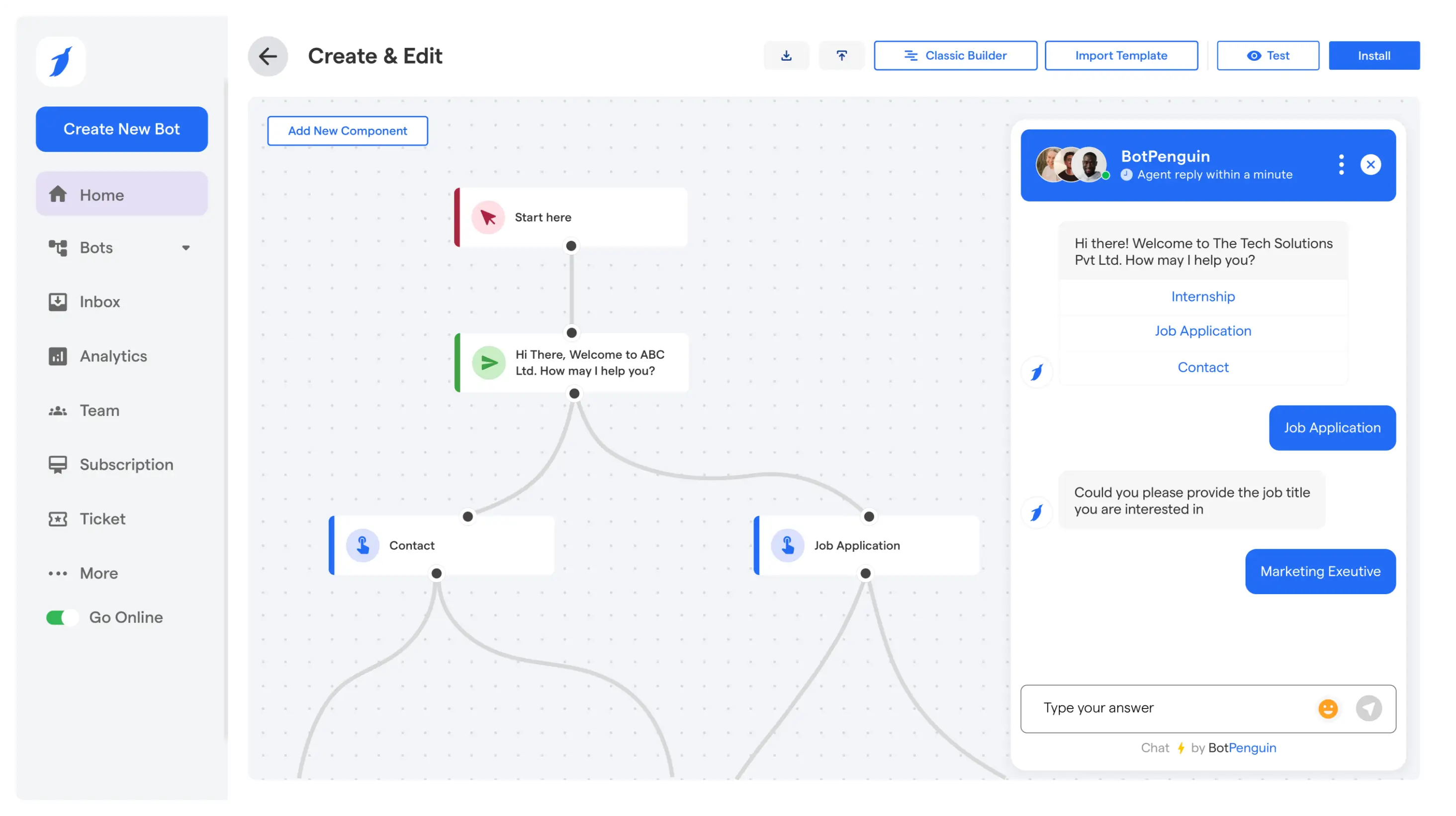
Go to BotPenguin. Click "Start Free." No credit card needed. You're in immediately.
Use drag-and-drop to create your bot's responses.
Add:
Start simple. Refine later based on real conversations.
Point the AI to your actual information.
Options:
The better your training data, the better your answers.
Match your brand. Choose when it appears.
Customize:
Set timing:
Copy the code. Paste it on your site. Test it.
Installation:
Visit your site. Test the chatbot. Confirm it works.
Done. Your chatbot is live. Review conversations weekly and retrain as your business changes.
Build your free website chatbot with BotPenguin and launch in minutes.
The five steps above work for any website. But each platform has a faster route. You don't need to copy-paste code if you're on WordPress or Shopify. Use the platform-specific method instead. It takes minutes and requires zero code knowledge.
Fastest method: Install the plugin
No theme edits. No code touching. The plugin handles everything.
Alternative: Paste code snippet
If you prefer manual control, go to Settings → Custom Code in BotPenguin and paste the snippet into a Code Snippets plugin.
When you add a chatbot to a WordPress website this way, the chatbot plugin for website works on every page automatically. Check out our WordPress chatbot setup for more details.
Method: Install the app
Your chatbot now greets customers on product pages, cart, and checkout. Perfect for handling product questions and abandoned cart recovery.
Method: Code injection
The chatbot appears across your entire Wix site. No plugin needed. No manual installation per page.
Method: Code injection in site settings
Squarespace loads the code on every page automatically. Your chatbot works across the entire site.
Method: Native embed or code injection
Alternatively, Webflow supports embed elements. You can paste the script directly into a custom embed block.
Method: Paste in shared template
For static HTML or custom-built sites, paste the snippet in your shared header or footer template so it loads on every page.
The script loads asynchronously, so it won't slow your site.
If your platform has a plugin or app, use it. It's the fastest and requires zero code knowledge.
If your platform doesn't have a native option, use code injection or paste the snippet. Both work equally well.
The snippet method works everywhere. Pick whichever feels easiest for your platform.
Your chatbot is now live on your specific platform. The next section covers best practices to actually make it convert and stop it from becoming invisible.
Your chatbot is live. Now comes the hard part: making it actually convert. Installation takes minutes. Conversion takes strategy. A well-placed, well-trained, and well-measured chatbot becomes a revenue driver. A neglected one becomes invisible decoration.
Bottom-right corner is standard. Visitors know to look there. Don't put it top-left or center of screen. Don't make it huge. Let it be helpful, not intrusive.
Different pages need different timing.
Match timing to visitor intent. A pricing page visitor wants answers now. A blog reader needs context first.
Your knowledge base makes or breaks conversion.
Good training data:
Bad training data:
When you create a chatbot for website with poor training, visitors get unhelpful answers. When you train it on real customer language, they get solutions.
Your chatbot learns from real conversations.
Every week:
This weekly review transforms your chatbot from static to smart. It gets better every week because you're feeding it real data.
Your chatbot should sound like your business, not like a generic bot.
Write a personality brief:
Use this brief when configuring your chatbot's instructions. It ensures every response feels like it comes from your brand.
A skateboard shop bot and a law firm bot shouldn't sound identical. They shouldn't both say "How can I assist you today?"
Your opening message determines engagement.
Bad: "Hi! How can I help?" Good: "I can help with pricing, shipping, returns, and product setup."
The second tells visitors exactly what you can do. More of them engage because they know you can solve their problem.
If lead capture is your goal, ask for contact info before giving too much away.
Effective flow:
You've turned a conversation into a contact.
Visitors don't hate AI. They hate feeling trapped by it.
Set up handoff when:
Offer multiple channels: email, phone, chat, WhatsApp. Make the handoff feel natural, not like a last resort.
Track these four metrics.
Without measurement, you're guessing. With metrics, you're improving based on data.
Review these numbers monthly. If engagement is low, improve your greeting. If resolution is low, retrain your knowledge base. If escalation is high, adjust scope.
You now have a chatbot that's installed, trained, and optimized for conversion. But does it slow down your site? Is it safe? The next section covers performance and compliance.
Explore websites that use chatbots to see real conversion examples.
You can add a capable chatbot for free. Free plans aren't limited trials. They're genuine free tiers with real features. Start free. Prove the value. Then upgrade only when you need more.
BotPenguin's free plan includes:
Enough for many small sites. Capture leads and answer visitors without spending anything.
Building your own chatbot from scratch costs thousands in developer time and ongoing maintenance. Most teams should start with no-code and only invest in custom work for genuinely unusual needs.
Reality check: No-code gives you 90 percent of the capability at a fraction of the cost. You can still add custom integrations later if needed.
Now you know how to create a chatbot for website end to end. You understand the five layers, the installation methods, the best practices, and the costs. The last section covers the mistakes most teams make and how to avoid them.
Ready to scale? Check our pricing page to see all plan options and features.
Most chatbot failures trace back to the same mistakes. These aren't technical problems. They're configuration and strategy problems. Avoid these six and your chatbot will convert.
Hiding the human option frustrates visitors. They don't hate AI. They hate feeling trapped by it.
Always offer a way to reach a person. Make it easy. Make it visible. Make it natural.
Your chatbot sounds robotic when trained on marketing pages. "Discover our innovative solutions" confuses the AI.
Train on real support emails. Real customer questions. Real how-to documentation. Real edge cases. This produces helpful answers.
An instant pop-up on every page annoys visitors. So does a bot that never appears.
Match triggers to intent:
A chatbot trying to do everything converts nothing. It needs one job.
Pick one: lead capture, support deflection, booking, or purchase assistance. Build everything around that goal.
Your chatbot gets worse if you ignore it. Review conversations weekly. Update the knowledge base. Retrain monthly.
Neglected chatbots become invisible. Maintained chatbots become revenue drivers.
Without metrics, you're guessing. Track these:
Adjust based on data.
You now know how to add a chatbot to your website end to end. Whether you're wondering how to make a chatbot for website visitors or just getting started, the answer is the same: pick one goal, follow the five steps, and launch today.
The whole thing takes minutes, not weeks. No code required. The real win comes after launch. Train the bot on your content. Position it well. Capture and qualify leads. Refine from real conversations.
Your website no longer sits silent. Visitors arrive with questions. Your chatbot answers instantly. Captures their information. Books meetings. All while you sleep.
Build your free website chatbot with BotPenguin today and turn your website into a 24-hour sales and support machine.
No credit card. No commitment. Start free. Prove the value. Then scale.
Use a no-code tool with a free plan, such as BotPenguin. Sign up with no credit card. Build from a template or drag-and-drop editor. Train on your website content. Paste the script into your header or footer, or use a one-click plugin for WordPress, Shopify, Wix, or Squarespace.
The bot goes live immediately. Free plans include a monthly message allowance sufficient for small and growing sites. Capture leads and answer visitors without spending. Upgrade only when traffic grows.
Yes. Modern builders are fully no-code. Design conversation visually with drag-and-drop blocks or ready-made templates. Customize to match your brand. Install by pasting one script snippet or using a one-click plugin.
No programming. No theme editing. No developer needed. Most non-technical users build and launch in under an hour. Then refine over time by reviewing real conversations.
Install the chatbot plugin from your builder. Connect to your account. The bot appears automatically. No theme file editing.
Alternatively, paste the script into header or footer using a code-snippet plugin. Both take minutes. Manage everything from the dashboard afterward. No WordPress code touching needed.
Build and configure in your no-code builder. Copy the JavaScript snippet. Paste just before the closing body tag in your page template.
The script loads asynchronously, so it won't slow your page. If your site uses a shared header or footer, add the snippet once. No backend changes needed.
For most websites, minutes. Building conversation flow takes the most time, even with templates. Installing and testing takes a few clicks.
Training the AI on your content takes a bit longer, but you can launch first and refine afterward. Plan an afternoon to do it well. Plan ten minutes for a basic version live.
No, when implemented correctly. Reputable scripts load asynchronously. They load after your page content. They don't block rendering or affect Core Web Vitals.
The provider hosts processing on its infrastructure, not your visitor's browser. Use the official snippet or plugin. Avoid stacking multiple chat tools. Done right, visitors get instant chat with zero performance penalty.
It depends on question variety and control needs.
Rule-based bots follow fixed menus. Predictable. Ideal for booking or qualification.
AI bots understand natural language. Answer from trained knowledge base. Better for open-ended questions.
For most websites, hybrid wins. AI handles free-form questions. Guided flows drive conversions. Modern builders combine both.
Look for:
BotPenguin meets all these for most websites. Start with a free plan and validate before committing.
How to Create a Chatbot for Your Website
Go live in minutes. No coding. Free forever plan.
Build your free website chatbotCheckout our related blogs you will love.
Updated at Sep 28, 2026
15 min to read
Updated at Sep 28, 2026
19 min to read
Updated at Sep 25, 2026
9 min to read
Updated at Sep 1, 2026
10 min to read
Updated at Jun 24, 2026
10 min to read
Updated at Jun 16, 2026
10 min to read
Table of Contents