


What Is Zendesk and How Does It Work? A 2026 Guide
Updated at Oct 24, 2026
12 min to read
You can integrate WhatsApp with Salesforce in three ways: Salesforce's native WhatsApp channel via Digital Engagement or Contact Center Digital; an AppExchange app that brings WhatsApp into Salesforce records; or a no-code AI agent, such as BotPenguin, that qualifies WhatsApp leads and sends their data to Salesforce via API.
A Salesforce WhatsApp integration can mean very different things depending on your team's workflow.
Some businesses want agents replying directly inside Salesforce. Others want a third-party WhatsApp inbox connected to CRM records. Another group needs an AI agent to qualify WhatsApp leads before sending structured data into Salesforce.
This guide compares all three approaches, including setup, licensing, limitations, and where each method fits best.
A Salesforce WhatsApp integration connects WhatsApp conversations with customer data stored in Salesforce. Depending on the method, teams can route conversations to agents, update CRM records, capture leads, or trigger downstream workflows.
For Salesforce's native WhatsApp setup, businesses connect a Meta business account, WhatsApp Business Account, and phone number during channel configuration. Salesforce then routes incoming messages through its messaging and Omni-Channel tools.
There are three practical ways to approach the integration:
1. Salesforce's native WhatsApp messaging
2. A WhatsApp app from Salesforce AppExchange
3. A no-code AI agent connected to Salesforce
The right choice depends mainly on where your team wants to manage conversations and how much automation you need.
Salesforce provides native WhatsApp messaging for teams that want to handle customer conversations inside Salesforce.
With this method, service agents can respond to WhatsApp customers from the Salesforce Service Console. Messaging can also connect with Omni-Channel for routing and Salesforce Flow for automation.
Salesforce's current setup follows this general process:
1. Open Messaging Settings in Salesforce Setup.
2. Turn on Messaging.
3. Select New Channel.
4. Choose WhatsApp.
5. Connect your Meta business account.
6. Create or select your WhatsApp Business Account.
7. Verify the phone number.
8. Configure routing through a queue or Omni-Channel Flow.
Salesforce's Trailhead documentation walks through this same setup flow. It also states that a WABA created separately in Meta Business Manager cannot be used with that Salesforce channel. You must create or select the WABA through Salesforce's channel setup process.
Salesforce currently lists Enhanced WhatsApp messaging for Enterprise and Unlimited editions for Service or Sales when used with the Digital Engagement add-on or Agentforce Contact Center Digital add-on.
Developer Edition also supports Enhanced Messaging for development and testing.
This makes native Salesforce messaging most relevant to teams already working deeply inside the Salesforce service ecosystem.
Native WhatsApp messaging isn't included with every Salesforce subscription.
Salesforce's current digital-channel pricing page lists Contact Center Digital at $75 per user per month, billed annually. Salesforce also notes that WhatsApp usage may require additional message credits or outbound messaging. Pricing can change, so businesses should verify the current rate with Salesforce before implementation.
Salesforce also supports WhatsApp messaging across its marketing products.
Unified WhatsApp can connect marketing and service interactions across supported Salesforce products. Salesforce documents Journey Builder for Marketing Cloud Engagement interactions and Omni-Channel flows for service interactions.
That route is more relevant when WhatsApp is part of a broader campaign or lifecycle-marketing setup rather than only a service inbox.
Choose the native route when your service team already works inside Salesforce and wants WhatsApp conversations handled there too.
It is particularly useful when Salesforce routing, Service Console workflows, and CRM-native messaging are central to daily operations.
The second approach is to install a third-party WhatsApp app from Salesforce's marketplace.
These apps sit between WhatsApp and Salesforce. Their capabilities vary, but they can add WhatsApp messaging to CRM records without requiring teams to build a custom Salesforce WhatsApp API integration.
Some apps focus on agent messaging. Others add automation, templates, campaign functionality, or CRM record synchronization.
Depending on the app, teams can manage WhatsApp conversations around Salesforce Leads, Contacts, and Cases, with features such as message templates and bulk campaigns.
Do not evaluate these apps only by their feature lists.
Use these five checks before installing one.
Check how the app connects to WhatsApp and whether its setup follows Meta's current WhatsApp Business requirements.
Meta requires businesses to obtain user opt-in before contacting people through WhatsApp and requires approved templates when businesses initiate conversations outside the customer service window.
Confirm whether the app works with the Salesforce objects your team actually uses.
That may include Leads, Contacts, Cases, Opportunities, or custom objects. Support varies between apps.
Check whether pricing is based on users, phone numbers, messages, conversations, or another model.
Also determine whether WhatsApp messaging charges are separate from the app subscription.
Use the app's marketplace listing to review its installation requirements and security information before granting access to Salesforce data.
A WhatsApp inbox alone may not solve the full workflow.
Look at whether the app can trigger Salesforce processes, update relevant fields, route conversations, or pass structured data into the CRM.
This approach fits teams that want WhatsApp closely embedded into Salesforce but prefer a packaged third-party solution over Salesforce's native messaging configuration.
The trade-off is that capabilities, support, pricing, and automation depth depend heavily on the specific app you select.
The third option changes where the conversation happens.
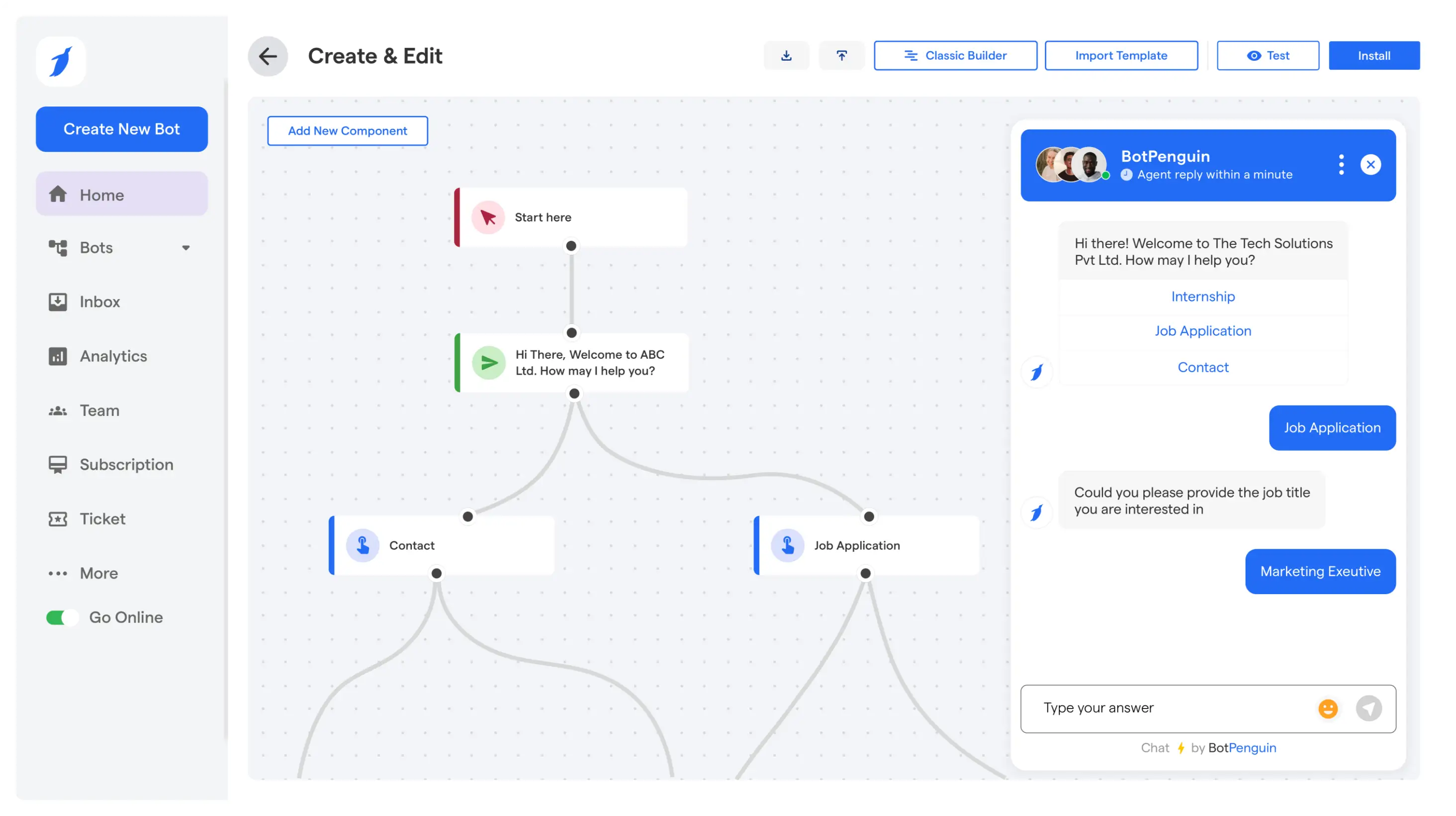
Instead of making Salesforce the WhatsApp inbox, you can use BotPenguin, a no-code AI agent, chatbot & voice agent builder, to handle the WhatsApp conversation and send qualified customer data into Salesforce.
This method is designed for businesses that want AI-led qualification before a lead reaches the CRM.
BotPenguin can capture information during a conversation, map chatbot questions to Salesforce parameters, send qualified leads into Salesforce, update contact information, and trigger configured Salesforce workflows. Its AI agents can also push and pull connected CRM data during automated conversations.
Explore the Salesforce chatbot integration.
A WhatsApp visitor first interacts with the chatbot or AI agent.
The conversation can collect information such as contact details, requirements, product interest, or other qualification fields. BotPenguin then maps that captured information to corresponding Salesforce parameters.
This means Salesforce remains the CRM while BotPenguin handles the conversational layer.
Multiple BotPenguin bots can also connect to the same Salesforce org using the same credentials.
You can also use BotPenguin AI agents for more flexible automated conversations.
The connection follows three broad steps.
Open the Salesforce integration inside BotPenguin.
The setup requires:
Salesforce domain
Client ID
Client Secret
Redirect URL
BotPenguin's documentation explains how to create the Salesforce external client application and retrieve these credentials.
Enable OAuth in Salesforce and authorize the connection.
Then map BotPenguin questions and attributes to the corresponding Salesforce parameters. This determines where captured chatbot data goes inside the CRM.
Run a test conversation and submit a lead.
Check whether the information appears correctly in Salesforce before using the integration with live customers. BotPenguin's live integration page follows the same connect, authenticate, map, and test process.
You can find the complete configuration process in the BotPenguin Salesforce integration guide.
The BotPenguin connection depends on Salesforce API access, not Salesforce's WhatsApp messaging license.
Salesforce currently enables API access by default for Enterprise, Performance, Unlimited, and Developer Editions. Professional Edition can add API access separately.
You can therefore use a free Developer Edition to configure and test the integration before moving to a production environment.
BotPenguin's current pricing page lists Salesforce among the integrations included with the King plan, currently priced at $99 per month. The King plan also includes a seven-day free trial.
The Free Forever and Little plan sections do not list Salesforce among their included integrations. See the King plan for current inclusions.
This distinction matters.
BotPenguin does not turn Salesforce into the WhatsApp agent inbox. Human agents handle BotPenguin-connected WhatsApp conversations through BotPenguin's unified inbox and live-chat environment, not from the Salesforce Service Console.
Salesforce receives the CRM data and workflow actions produced by the integration.
The current BotPenguin Salesforce documentation confirms lead synchronization, contact updates, field mapping, and workflow triggers. It does not document Salesforce Case creation, so this guide does not claim that capability.
Businesses that want to automate the customer conversation itself can also explore the WhatsApp chatbot.
The three methods solve different problems.
Choose native Salesforce if your agents need to manage WhatsApp directly inside the Salesforce service environment.
Choose an AppExchange app if you want Salesforce-centered messaging but need functionality from a third-party application.
Choose BotPenguin if WhatsApp qualification and automation should happen before structured lead data reaches Salesforce.
A technically working integration can still create operational problems. Check these areas before going live.
For Salesforce's native channel, follow Salesforce's WhatsApp onboarding flow carefully.
Salesforce Trailhead states that a WABA created outside its channel setup flow cannot be used with that Salesforce channel.
Confirm that your business controls the phone number you intend to onboard before starting the channel setup.
Meta requires businesses to receive permission before sending subsequent WhatsApp messages or calls to a user.
Businesses must also respect requests to stop or opt out of communications.
Meta currently allows businesses to reply without a template during the 24-hour customer service window, which resets when the user sends another message.
Outside that window, businesses can only send messages using approved message templates.
Decide exactly where each chatbot answer belongs before activating the integration.
Poor field mapping can create incomplete or duplicate CRM records and make Salesforce data harder for sales teams to use.
Always send several test leads before enabling a production workflow.
Salesforce recommends using an isolated environment for development and testing, such as Developer Edition, a sandbox, or a scratch org.
Validate authentication, mappings, and workflows there before making changes to production.
Yes. You can connect WhatsApp to Salesforce using Salesforce's native WhatsApp messaging, an AppExchange application, or an external WhatsApp chatbot or AI agent connected through Salesforce APIs. The best setup depends on where you need to manage conversations.
For native Salesforce messaging, enable Messaging, create a WhatsApp channel, connect your Meta business account and phone number, then configure routing through Omni-Channel. Third-party tools use their own setup, usually involving authentication and Salesforce field mapping.
Not necessarily. Native Salesforce WhatsApp requires an eligible Salesforce edition and messaging add-on. AppExchange pricing varies. BotPenguin currently lists Salesforce integration with its King plan and offers a seven-day free trial. You can use Salesforce Developer Edition for integration testing.
Yes. A third-party WhatsApp chatbot can connect to Salesforce through API access instead of Salesforce Digital Engagement. For example, BotPenguin can qualify WhatsApp leads and send their data into Salesforce. Your Salesforce edition must support API access.
Use BotPenguin to qualify leads through WhatsApp conversations, map captured information to Salesforce fields, and send qualified lead data into your CRM in real time.
Start a free trial and connect your existing Salesforce workflow without adding Salesforce Digital Engagement solely for BotPenguin's CRM integration.
Explore the Salesforce chatbot integration. Start a free trial today!
Connect WhatsApp to Salesforce
Qualify WhatsApp leads with BotPenguin and send customer data to Salesforce without relying on Salesforce Digital Engagement for conversations.
Start Free TrialCheckout our related blogs you will love.
Updated at Oct 24, 2026
12 min to read
Updated at Oct 23, 2026
10 min to read
Updated at Oct 16, 2026
8 min to read
Updated at Oct 15, 2026
7 min to read

Updated at Oct 12, 2026
15 min to read
Updated at Oct 12, 2026
15 min to read
Table of Contents

