

A Microsoft Teams AI agent performs defined tasks directly inside Teams conversations. It can check records, update tickets, route approvals, or trigger workflows. Unlike a standard chatbot, it does more than answer questions. It can take approved actions using connected business systems and workflows.
AI agents are becoming more visible across Microsoft’s ecosystem. Yet the term can still feel unclear.
The biggest question is how an agent differs from a Teams chatbot. For broader context, our guide to Microsoft Teams chatbots explains how chatbot-based interactions work inside Teams.
Businesses looking to build one can also explore BotPenguin's Microsoft Teams chatbot platform.
A chatbot mainly handles conversations and answers questions. An agent can also complete defined tasks using connected tools and workflows.
This guide explains what an AI agent for Microsoft Teams can do. It also covers setup options and where different approaches fit.
What Is an AI Agent for Microsoft Teams?
An AI agent for Microsoft Teams is a conversational application that can complete defined tasks inside Teams. Users interact with it through natural language during everyday conversations.
Microsoft describes Teams agents as apps that understand intent and connect with business data. They can also act on users' behalf.
That ability to take action separates an agent from a standard chatbot.
A chatbot usually answers questions, retrieves information, or follows preset conversational flows. An agent can go beyond responding and take an approved next step.
For example, an agent can be configured to:
- Look up a record in a connected system
- Check the current status of a support ticket
- Update permitted information in a business record
- Route a request to the correct person or workflow
- Trigger an approved process after receiving instructions
The exact capability depends on its tools, permissions, and connected systems. Teams remains the conversational interface where users make requests.
Microsoft also notes that agents can automate workflows and provide real-time updates. They can manage tasks while users continue working inside Teams.
Microsoft Teams AI Agent vs Chatbot
The distinction becomes clearer when you compare them directly.
A chatbot might tell an employee where to check a ticket. An agent can retrieve that status when the required connection exists. Likewise, a chatbot may explain how an approval works. An agent can route the request into the approved workflow.
This does not mean every agent works independently without limits. Its behavior depends on instructions, access, tools, and organizational controls.
Action-taking matters because it reduces the gap between asking and doing. The conversation becomes a starting point for completing business work.
Microsoft similarly positions Teams agents around task execution and workflow automation. That distinction matters more when you look at the specific tasks an agent can handle in Teams.
What Can a Microsoft Teams AI Agent Actually Automate?
The real value appears when an agent moves beyond answering questions. It can start or complete defined actions from a Teams conversation. These actions depend on connected systems, permissions, and configured workflows.
The examples below show where that difference becomes practical.
For broader context on traditional bot capabilities, our guide to best bots for Microsoft Teams covers common bot types and use cases.
Check Ticket Status
Employees often switch tools just to check support requests. An agent can make Teams the starting point instead.
An employee could ask for a specific ticket status. The agent can retrieve the permitted record from a connected helpdesk.
It could then return details such as:
- Current ticket status
- Assigned team or owner
- Latest permitted update
- Next defined step
The employee stays inside Teams throughout the request. The agent handles the lookup behind the conversation.
Look Up and Update Records
Agents can also work with permitted business records. This goes beyond simply displaying stored information.
For example, an employee could request an account or customer record. The agent could retrieve the relevant information from a connected system.
Where permissions allow, it could also update defined fields. That might include changing a status or adding approved information.
The important distinction is controlled action. The agent should only access data and actions it is authorized to use.
Route Approvals
Approval workflows often begin with a request and several manual handoffs. Teams can become the conversational starting point for that process.
A user could submit a defined approval request through the agent. The agent could then route it into the configured workflow.
Depending on the workflow, it may:
- Capture required request details
- Send the request to the correct approver
- Record the approval status
- Trigger the next approved step
This reduces the need to manually move information between separate tools.
Handle Meeting Follow-Ups
Meeting automation should do more than generate a summary. An agent can connect meeting outcomes with follow-up actions.
After a meeting, it could initiate defined tasks such as:
- Create assigned follow-up tasks
- Retrieve information requested during the meeting
- Update permitted records
- Trigger an approved workflow
The difference lies in execution. A summary tells the team what happened. An action-oriented agent can help move agreed work forward.
These workflows show why taking action matters in Teams. The next step is understanding how to configure a Microsoft Teams automation agent for those tasks.
How to Set Up a Microsoft Teams Automation Agent
Setting up an agent starts with one clear workflow. You then add the knowledge, actions, and connections needed to complete it.
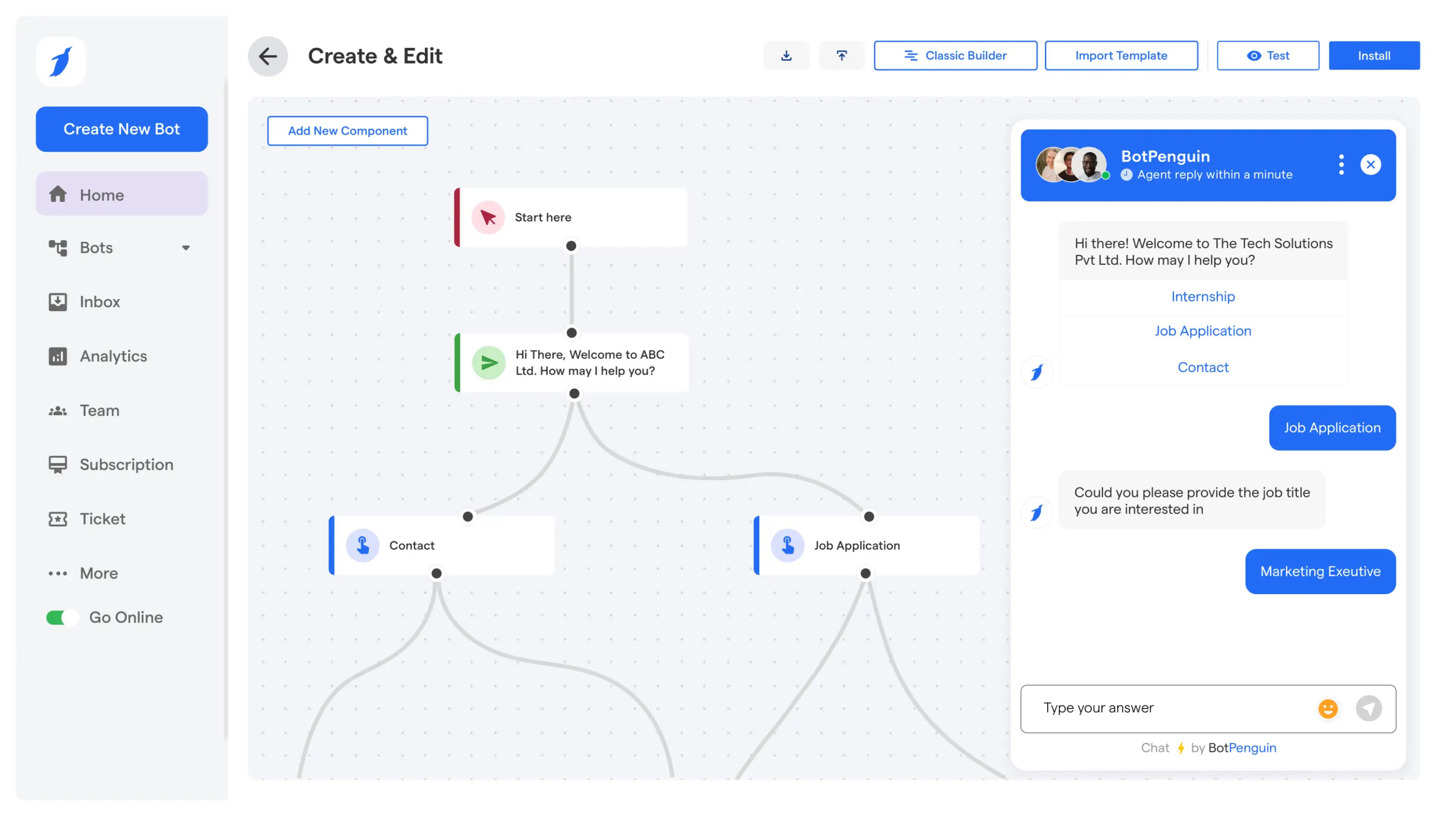
The steps below apply to any tool. If you use BotPenguin, you build this as an MS Teams chatbot with AI agent mode switched on.
The action-based workflow steps describe general AI agent builders. BotPenguin's Teams chatbot with AI agent mode focuses on trained responses, instructions, and capturing conversation details, rather than the standalone AI Agent's external tools.
1. Define the Agent’s Task
Start by deciding what the agent should accomplish. Keep the first workflow narrow and measurable.
Your Microsoft Teams automation agent could focus on:
- Checking ticket status
- Qualifying incoming leads
- Retrieving permitted records
- Supporting appointment-related actions
- Triggering an internal workflow
A clear purpose makes every later configuration decision easier.
In BotPenguin, write this purpose into your Teams chatbot’s AI agent instructions. Keep it to tasks a trained chatbot can handle, such as answering questions or qualifying leads.
2. Create and Configure the Agent
Next, create the agent in your chosen AI agent builder.
Define its role, expected behavior, communication style, and limits. The agent should know what it can do and when to stop.
In BotPenguin, create a new bot, choose MS Teams as the platform, and turn on AI agent mode to set its instructions, tone, and AI model.
Keep the initial configuration tied to the workflow defined earlier.
3. Add the Required Knowledge
The agent needs enough context to understand requests accurately. Add only information relevant to its assigned task.
Depending on the workflow, that could include:
- Internal FAQs
- Product or service information
- Policy documents
- Website content
- Structured business data
In BotPenguin, you add this content in the Teams chatbot's Bot Training section.
Avoid adding unrelated information. A focused knowledge base makes responses easier to test and control.
4. Configure Actions and Connections
Knowledge helps the agent understand a request. Connections let it act on that request.
For example, a ticket-status agent needs access to the relevant support system. A record-update workflow needs access to the correct business data.
Configure only the tools required for the task. Also limit each connection to the permissions the agent actually needs.
Test each action before moving to Teams.
5. Connect Microsoft Teams
Once the agent works correctly, connect Microsoft Teams as its conversational channel.
This allows users to send requests from the Teams environment. The agent can then process those requests using its configured knowledge and actions.
With BotPenguin, you create a bot and an app in the Teams Developer Portal, publish the app to your organization, get it approved by your Teams admin, and paste the Bot ID and secret into BotPenguin.
No Azure setup is needed.
For detailed instructions, follow the BotPenguin MS Teams setup guide.
After setup, users can interact with the BotPenguin MS Teams chatbot through Teams.
6. Test the Complete Workflow
Do not test responses alone. Test every action that follows the conversation.
Check:
- Whether responses are accurate
- Whether permitted actions run correctly
- How unclear requests are handled
- What happens when an action fails
- Whether escalation works when needed
Also confirm that connected systems receive the correct information.
7. Deploy and Monitor the Agent
Deploy only after the full workflow behaves correctly.
Continue reviewing conversations and completed actions after launch. Look for failed requests, missing context, incorrect routing, or unnecessary escalations.
Refine instructions, knowledge, and connections when patterns appear.
To put the setup into practice, use BotPenguin’s Microsoft Teams chatbot for your business to build and connect your Teams experience.
Once the setup process is clear, consider where this approach fits alongside Microsoft’s own Copilot and native Teams agents.
Where Microsoft's Own Copilot and Agents Fit In
Microsoft already offers several AI experiences inside Teams. Each serves a different role within the broader Microsoft 365 ecosystem.
Understanding those roles clarifies where another Microsoft Teams AI agent might fit.
Microsoft Copilot and Native Teams Agents
Microsoft Copilot in Teams acts as a personal AI assistant. It supports tasks such as summarizing chats, answering questions, creating tasks, and providing meeting insights.
Microsoft’s official overview of AI in Microsoft Teams explains how Copilot, Facilitator, Channel Agent, and other AI experiences fit within Teams.
Microsoft also provides task-focused agents for collaboration inside Teams:
- Copilot in Teams: Helps users summarize conversations, create content, and work with meeting information.
- Facilitator: Supports meetings by surfacing agendas, tracking progress, and capturing key highlights. Its responses can appear within the shared meeting conversation.
- Channel Agent: Works within Teams channels. It can summarize progress, flag deadlines, assign tasks, and answer questions from channel context.
- Custom Microsoft 365 agents: Organizations can build agents using Microsoft's development and agent tooling. These agents can connect with Microsoft 365 data and external systems.
Microsoft-native tools are particularly strong when work already centers on Microsoft 365. They can connect Teams with services such as Outlook and other Microsoft 365 experiences.
That broader ecosystem is important when an organization needs AI across several Microsoft applications.
Where BotPenguin Fits
BotPenguin addresses a more focused implementation need. Use it when the goal is a defined conversational workflow inside Teams.
The main differences are practical:
- Focused chatbot setup: Build a Microsoft Teams chatbot for specific employee questions and support needs.
- No-code Teams chatbot with AI agent mode: Set instructions, tone, and AI model, and train it on your content, without code.
- Teams as the interaction channel: Employees can interact with the chatbot through their existing Teams environment.
This approach fits workflows such as answering policy and IT questions, guiding employees through processes, and collecting request details.
The right choice depends on your team's workflow, setup requirements, and automation needs.
Microsoft Teams is available to BotPenguin King plan users as a $100/month add-on.
Choosing the right AI solution depends on your business needs, workflows, and automation goals.
Frequently Asked Questions
What Is a Microsoft Teams AI Agent?
An agent that works through Teams conversations and completes defined tasks. It can check records, update tickets, route requests, or trigger workflows when connected to the right systems. The key difference from a chatbot is that it can take approved actions, not just answer questions.
Is a Microsoft Teams AI Agent Different From Microsoft Copilot?
Yes. Microsoft Copilot supports broader Microsoft 365 work, including summarization, drafting, and assistance. An AI agent can be configured around a specific task or workflow. The two can overlap, but they aren't identical tools and shouldn't be treated as direct substitutes.
Can I Set Up an AI Agent in Teams Without Coding?
Yes. You can configure an AI agent without writing code using a no-code builder. With BotPenguin, you build an MS Teams chatbot and switch on AI agent mode. You still need to define its task, knowledge, and instructions. Microsoft Teams may also require app credentials and admin approval.
What Tasks Can an AI Agent Handle Inside Microsoft Teams?
An AI agent can handle ticket-status checks, record lookups, permitted updates, approval routing, and meeting follow-ups. It can also trigger defined workflows when connected to the required systems. The exact scope depends on its instructions, permissions, tools, and available business data.
Does BotPenguin's AI Agent Work With Microsoft Teams?
Not as a standalone product today. BotPenguin's AI Agent can't be installed in Microsoft Teams yet. You can build a BotPenguin MS Teams chatbot and switch on AI agent mode. That lets the chatbot follow your instructions, use your chosen AI model and tone, and capture details from conversations. Microsoft Teams is available to King plan users as a $100/month add-on.
Final Thoughts
A Microsoft Teams AI agent becomes useful when conversations lead to defined actions. It can work with records, route requests, and trigger approved workflows without forcing users to leave Teams.
That does not mean every implementation needs custom development. No-code tools offer a more practical path for focused use cases.
BotPenguin lets you build a Teams chatbot with AI agent mode that answers from your content and captures request details, without code and without Azure.
Start with one clear workflow. Test how reliably the agent handles it before expanding its responsibilities.
Talk to sales about your use case, or simply start with one Teams workflow, test it thoroughly, and build from what works.