


How to Add a WhatsApp Link to Your Instagram Profile
Updated at Oct 8, 2026
14 min to read
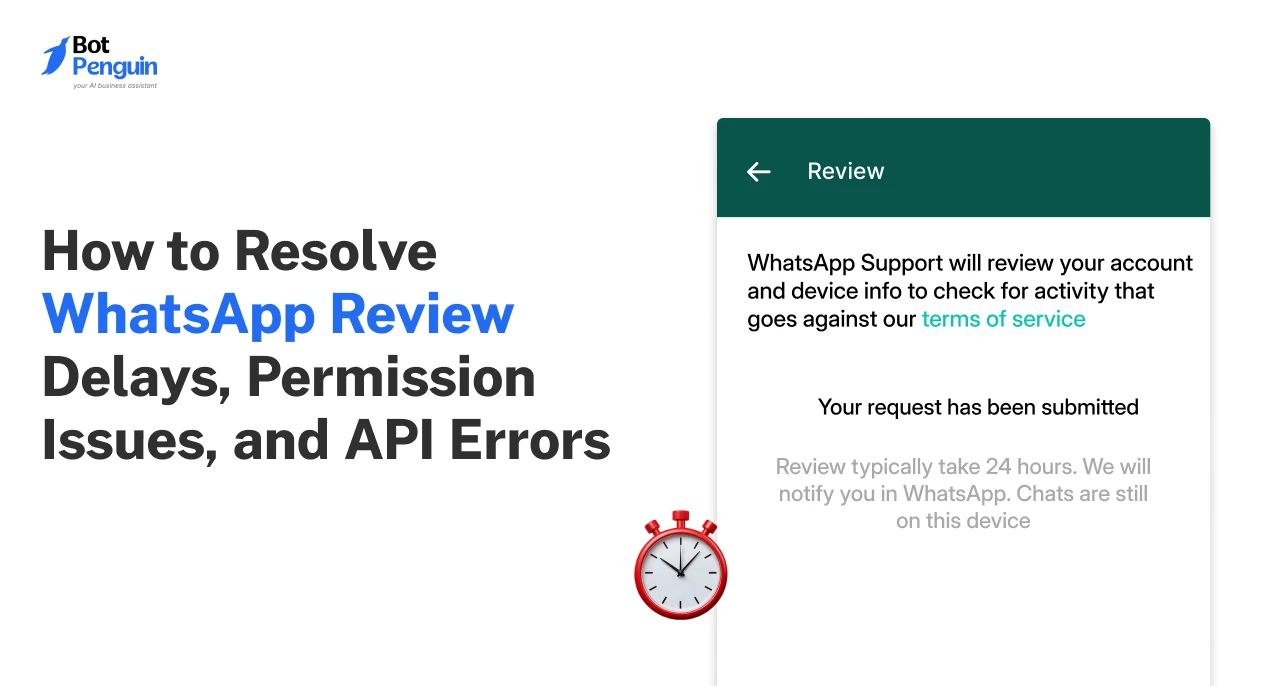
Is your WhatsApp Business API setup stuck even after you followed Meta’s review steps?
This usually happens when account review, permissions, WhatsApp Business Account (WABA) access, and API error codes start overlapping.
A delayed review may point to missing validation. A failed API request may reveal a token, template, permission, or setup issue. For teams preparing to launch WhatsApp automation, these blockers can delay approval, testing, and deployment.
This guide covers the main causes of WhatsApp Business account review delays, how to interpret common WhatsApp Business API error codes, and how to decide on the next fix.
WhatsApp review delays usually happen when the app setup, permissions, or WhatsApp Business assets cannot be fully validated during the Meta review.
This can happen when Meta cannot validate the app’s API readiness, permissions, WhatsApp Business Account (WABA) access, or required test calls.
Below are the main review blockers teams should check first.
API errors can delay review if Meta cannot confirm that the app’s WhatsApp functionality works correctly.
Check for:
These errors indicate that something in the setup still needs to be corrected before the review can proceed.
Important API test calls may stay undetected when Meta cannot connect the call to the submitted review flow.
Check whether the call was made with the correct:
This is why a review checklist can remain incomplete even after the team has run the calls.
Permission issues in WhatsApp Business platform API happen when the requested permission does not match the app’s actual API activity.
Check for:
These permission issues in the WhatsApp Business Platform API can make the app look unready for approval.
WhatsApp Business API setup issues can delay approval when required WhatsApp assets, messaging components, or app connections are incomplete or misconfigured.
Check whether these match the WhatsApp Business API documentation:
When these blockers are removed, the review path becomes clearer. To understand these review blockers more clearly, it helps to separate business verification issues from technical WhatsApp API and app review errors.
Business verification issues and technical API errors can both delay Meta review, but they require different fixes.
Use this table to separate account-level blockers from error codes from WhatsApp Cloud API before deciding the next action.
This distinction helps teams avoid treating every delay like a technical error when some blockers need account-level action first.
Once the blocker is identified as technical, the next step is to read the API response correctly. That’s exactly what the next section talks about.
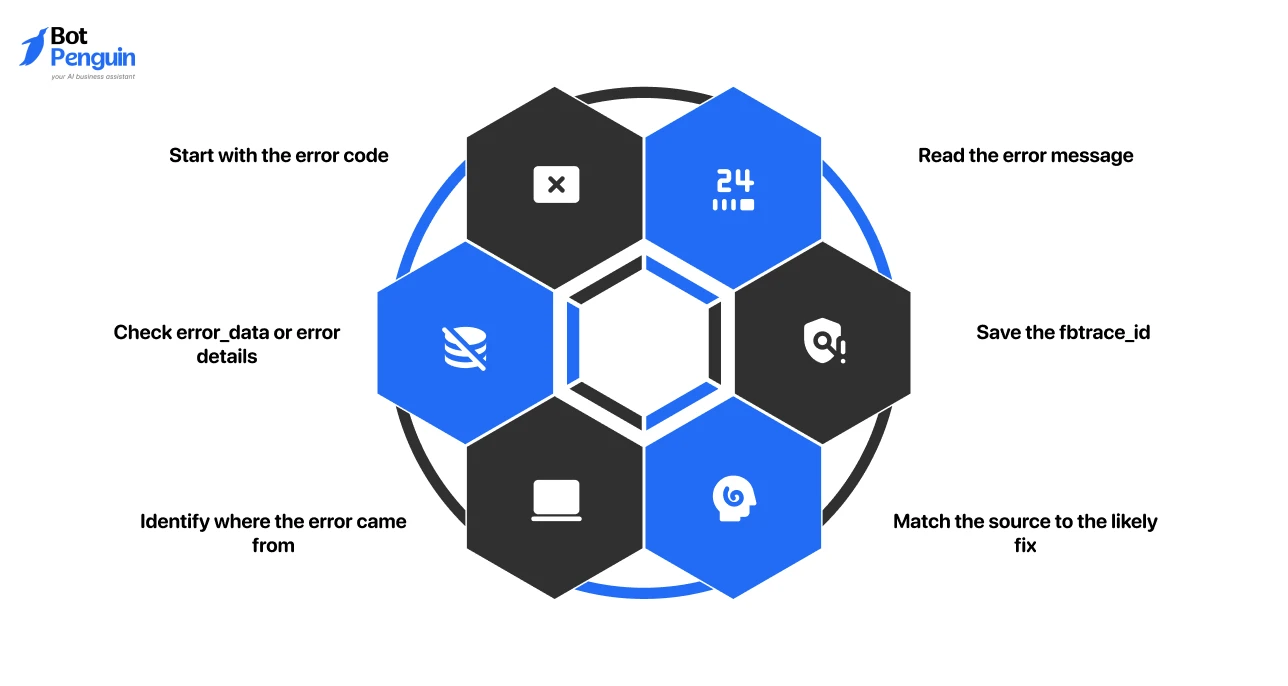
WhatsApp API errors should be read as diagnostic signals before any fix is applied. A failed request can indicate a token issue, a permission gap, invalid request data, a delivery failure, or a policy restriction.
Reading the full response helps teams avoid guessing and fix the right layer first. Use this sequence:
At this point, the error response is no longer just a warning. It becomes a map of where the failure sits. The next section turns that map into action by breaking down the most common WhatsApp Business API error codes and fixes.
A common WhatsApp Business API error becomes easier to fix when teams first identify the type of failure.
Most errors fall into a few clear groups. Some point to access issues. Some point to permission gaps. Others come from templates, sending limits, message quality, request details, or delivery failures.
Use this WhatsApp Business platform error codes list as a quick starting point before moving into the fixes.
These WhatsApp Business errors and fixes help teams move from code lookup to action. The sections below explain what each code usually signals and what to fix first.
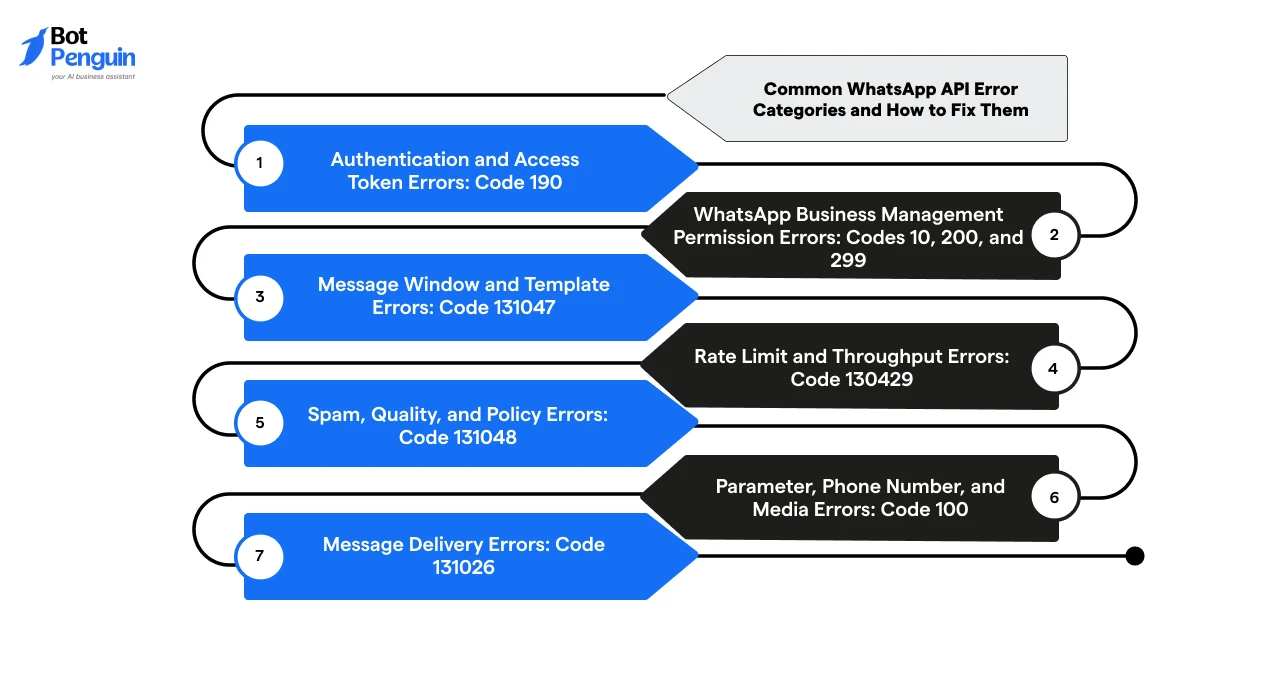
Authentication and access token errors usually appear as Code 190 when Meta cannot verify the access token used in the API request.
An access token works like a login key for the API. If it is expired, invalid, connected to the wrong Meta app, or missing the right permission, the request fails.
After that, retry the request with the regenerated token.
Permission and business management errors usually appear as Codes 10, 200, or 299 when the app attempts an action it is not authorized to perform.
Code 10 indicates a missing permission for the requested action, Code 200 signals permission or access denial, and Code 299 points to the app lacking advanced access or an approved permission scope.
Therefore, these errors often happen when the app lacks WhatsApp Business Management access, WhatsApp Business Messaging access, Advanced Access approval, or access to the right business asset.
These mismatches can cause API failures or prevent Meta from validating the review flow correctly.
Message window and template errors usually appear as Code 131047 when the business tries to send a normal message after the 24-hour customer service window has closed.
A normal message is one typed or sent freely, without using a pre-approved WhatsApp template. Once the 24-hour window closes, that type of message is no longer allowed.
Do not retry the same free-form message if the conversation window has already closed.
Rate limit and throughput errors usually appear as Code 130429 when the app or phone number sends more messages than the Cloud API can process at that moment.
Throughput is the number of messages the API can handle per unit time. When the sending volume crosses that limit, requests may fail even if the message content is valid.
The goal is to reduce request pressure before retrying.
Spam, quality, and policy errors usually appear as Code 131048 when WhatsApp detects poor engagement, spam risk, or account quality concerns.
This is not only an API issue. It usually indicates how messages are sent, who receives them, and whether users find them relevant.
If quality signals are weak, reduce volume and improve message relevance before scaling again.
Parameter, phone number, and media errors usually appear as Code 100 when the API request contains missing, invalid, unsupported, or incorrectly formatted data.
This is usually a request setup issue. The message may fail due to an incorrect phone number ID, an incorrect recipient format, a missing template variable, an unsupported media type, or an incorrect data format.
After correcting the request data, retry with a clean request instead of reusing the failed one.
Message delivery errors usually appear as Code 131026 when WhatsApp accepts the request but cannot deliver the message.
This means the first API request may look successful, but the message still fails later. That failure may appear through a delivery update, also called a webhook status update.
This error is usually diagnosed from message status logs, not just from the first API response.
Less common WhatsApp API errors can still affect templates, phone registration, ecosystem limits, or message sending.
Verify these codes against the Meta documentation before applying broad fixes.
Once these error categories are clear, the next issue to address is more specific: what to do when API calls complete but Meta’s review checklist still does not update.
Let's find out in the next section.
Meta App Review test call checkboxes can stay grey even when the API calls have technically been run.
In most cases, the issue is not only whether the call worked. It is whether Meta can treat that call as valid evidence for the permission under review.
This is common during WhatsApp Business Account Review, especially for permissions that involve managing WhatsApp assets. The sections below explain what the grey checkbox usually signals and what to verify before resubmitting.
A grey checkbox usually indicates that the test activity has not yet been accepted as evidence for review. This can happen when the API call does not match the permission being reviewed.
For example, WhatsApp Business Management should show management-related activity, such as reading WABA details, phone numbers, templates, or subscribed apps.
It can also happen when the dashboard needs time to sync after valid test calls.
Before waiting or resubmitting, confirm that the test evidence connects clearly to the review request. Check whether:
If these match and the checkbox still stays grey, wait briefly for sync. Then resubmit with clearer evidence of permission, rather than changing unrelated settings.
However, if the checkbox remains grey after these checks, teams should not keep changing settings at random. The next section provides a WhatsApp API errors & troubleshooting guide to verify.
A final troubleshooting checklist helps teams confirm whether the issue is technical, operational, or ready for escalation.
Use this checklist to separate API-side issues from business setup issues.
Developers should confirm whether the API request, permission setup, and error evidence are complete. Check:
These checks support faster debugging and stronger evidence for escalation.
Business teams should confirm whether the WhatsApp account is ready for approval, sending, and customer-facing use. Check:
These checks show whether the issue is caused by account readiness, sending quality, or operational setup.
After these checks, the issue should no longer feel like a vague API failure. The team should know whether the blocker sits in the request, the permission setup, the account, or the review flow.
At this stage, it’s worthwhile to understand how to choose the right troubleshooting path: fix it internally, escalate it, or use a managed platform.
If the issue is caused by request setup, permissions, or configuration, the implementation team can usually fix it. If the issue sits with Meta review, account restrictions, or policy enforcement, escalation is the better path.
Use the sections below to choose the right next action.
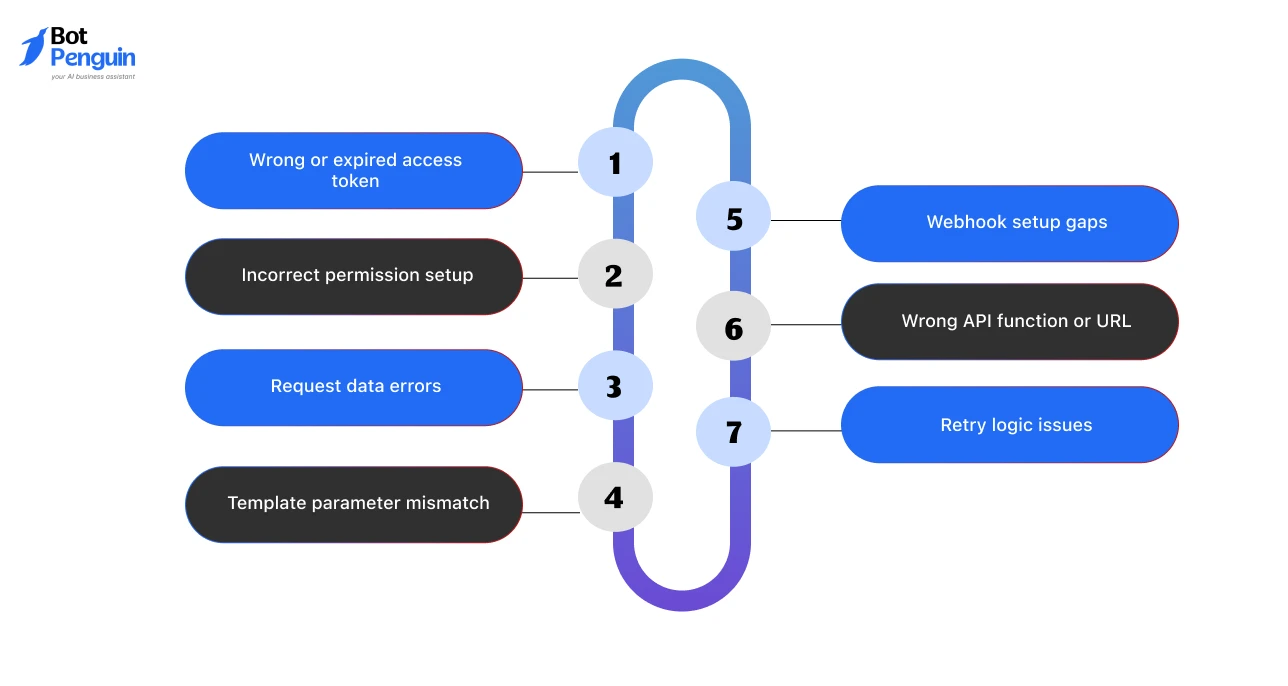
Configuration-based errors should usually be fixed by the internal implementation team first. These issues are often caused by setup mistakes that the team can directly change and retest.
Fix internally when the issue involves:
This gives the implementation team enough context to test the fix more quickly and avoid repeating the failed setup.
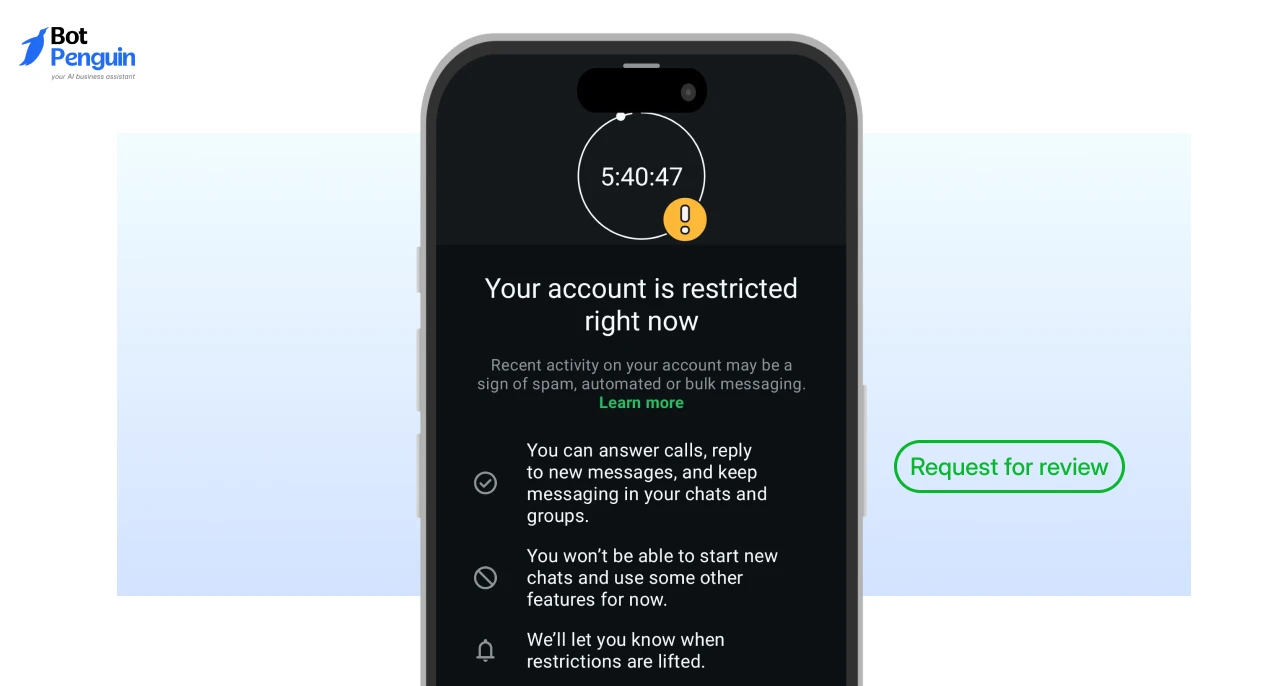
Escalation is the right path when the issue cannot be resolved by changing the API request alone. This includes delayed Meta review, business verification issues, account restrictions, policy blocks, low account quality, or unresolved permission approval problems.
However, before escalating, collect:
This helps Meta support, BSP support, or developer support review the blocker faster.
A managed platform is useful when repeated API setup, review, permissioning, and troubleshooting tasks start to slow down launch or support operations.
This path makes sense, especially when the team wants:
For example, a platform like BotPenguin helps teams build WhatsApp automation on the Official WhatsApp Business API, with no hidden cost, no markup on Meta charges, and a Free Forever plan.
This makes BotPenguin a practical fit when the goal is not only to fix a single API error but also to reduce recurring setup, review, and maintenance effort for WhatsApp automation.
WhatsApp API errors and Meta reviews become easier to resolve when every blocker is traced to its real cause.
For instance, review delays, grey checkboxes, failed API calls, and message errors often look connected, but they do not always need the same fix. Some need a cleaner permission setup. Some need a corrected token, template, or request format. Others need stronger evidence before escalation.
The goal is to stop guessing and move with proof.
Once teams understand what the error points to, they can decide whether to fix it internally, escalate it, or simplify the workflow.
For teams that want fewer setup delays and less manual API maintenance, a support platform like BotPenguin, which provides easy access to the official WhatsApp Business API, is worth exploring.
The checkbox may stay grey if Meta cannot link the test call to the same app, token, WABA, permission, or review request.
Error 131047 means the 24-hour customer service window has closed. Use an approved template message to restart the conversation.
Check the requested permission, advanced access, WABA access, business asset assignment, token scope, and whether the API action matches the permission.
Use Meta’s official WhatsApp Business Platform documentation first. Then compare the code with your API response, error details, and fbtrace_id.
Wait briefly if all test calls, screencast, permissions, and reviewer notes are correct. Resubmit if the evidence is unclear or mismatched.
API calls can fail when the token, WABA, phone number, permission, template, or request data does not match the approved setup.
Escalate when the issue involves review delays, policy restrictions, account blocks, business verification, or unresolved permission approval after technical checks.
Yes. BotPenguin can help teams simplify WhatsApp Business API access and automation when repeated setup, review, permission requests, or API maintenance issues slow down implementation.
Fix WhatsApp API Errors
Reduce setup errors and developer dependency with guided WhatsApp Business API access via BotPenguin.
Get StartedCheckout our related blogs you will love.
Updated at Oct 8, 2026
14 min to read
Updated at Oct 7, 2026
12 min to read
Updated at Oct 6, 2026
13 min to read
Updated at Oct 6, 2026
10 min to read
Updated at Oct 5, 2026
11 min to read
Updated at Oct 1, 2026
9 min to read
Table of Contents